Back to all
How to add an item to your ordering guide

Objective
This guide explains how to add one product item to an ordering guide using the item key, pack/size, and pricing details from the distributor portal. It ensures the item is entered accurately and supported with a clear image for easy identification.
Key Steps
1. Open the Ordering Guide and Start a New Item 0:00

Navigate to the ordering guide.
Click Add an Item to begin creating a new entry.
Confirm you are adding a single item, not a full category or list.
2. Locate the Item in the Distributor Portal 0:11

Open the distributor portal (example: Performance).
Search for the product you want to add.
Find and record the item key so the item can be identified correctly.
Use the item key to ensure the salesperson or team member knows exactly what product is being ordered.
3. Capture Pack Size and Price Details 0:41
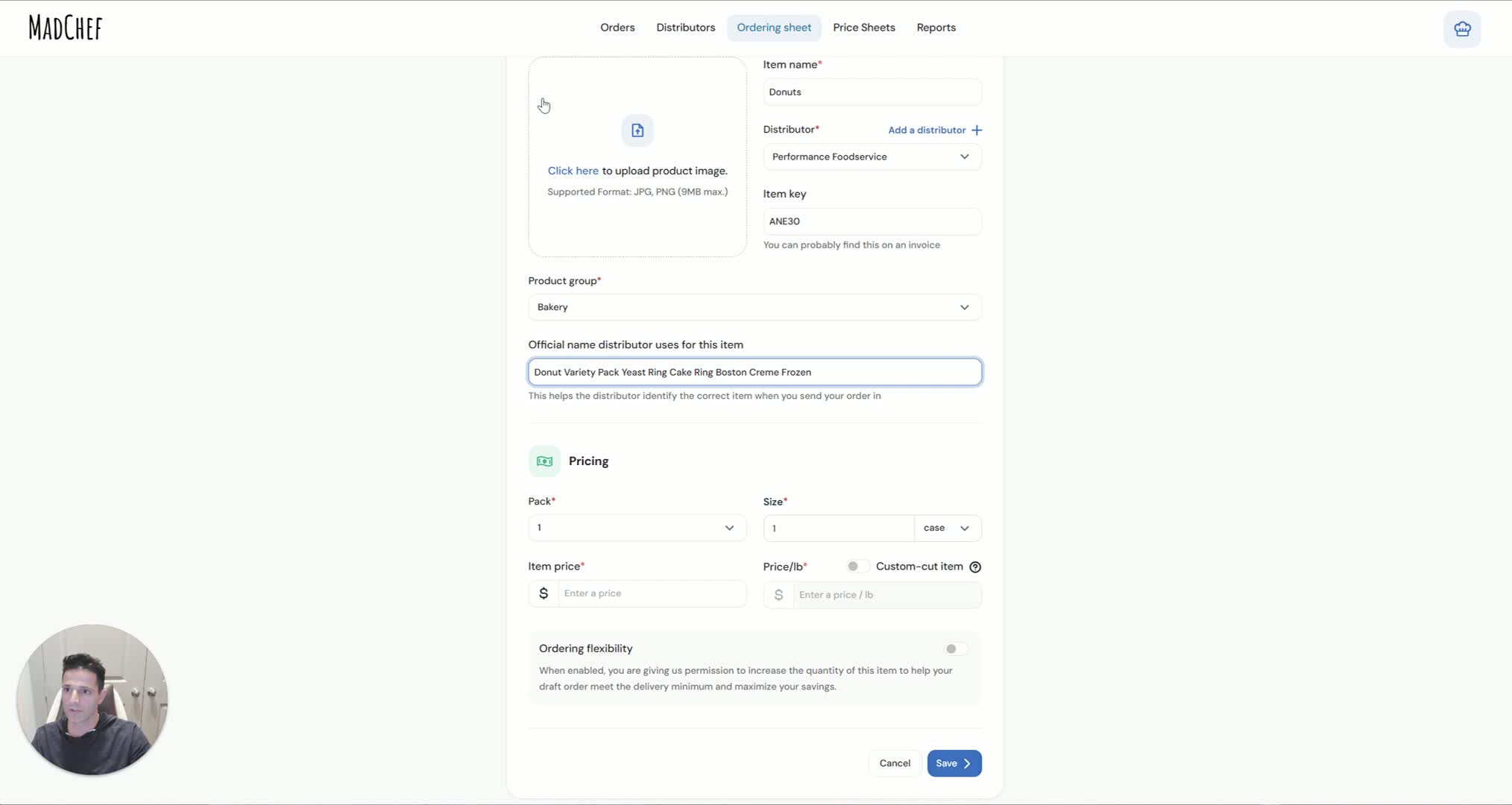
Record the pack size exactly as shown in the portal.
Record the price exactly as listed.
Verify the unit details so the item is entered consistently.
Use the pack size to help convert the item into a unit-based comparison for pricing.
4. Use Pack Size to Compare Unit Pricing 0:54
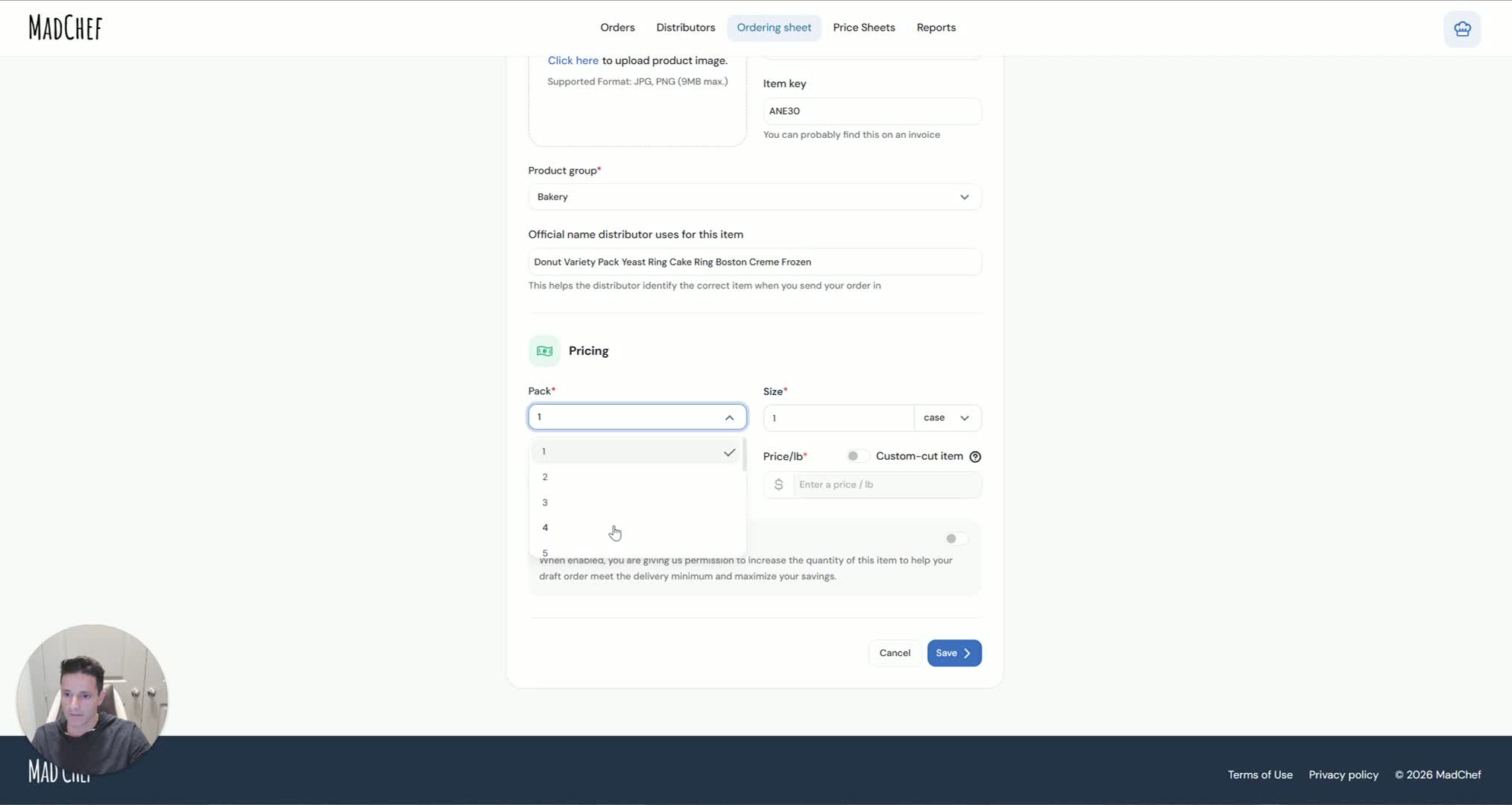
Convert the item to a unit basis using the pack size.
Compare the unit price against other available options.
Use this step to determine whether a better price is available.
Avoid relying only on the total pack price when making comparisons.
5. Save or Capture an Image of the Item 1:09
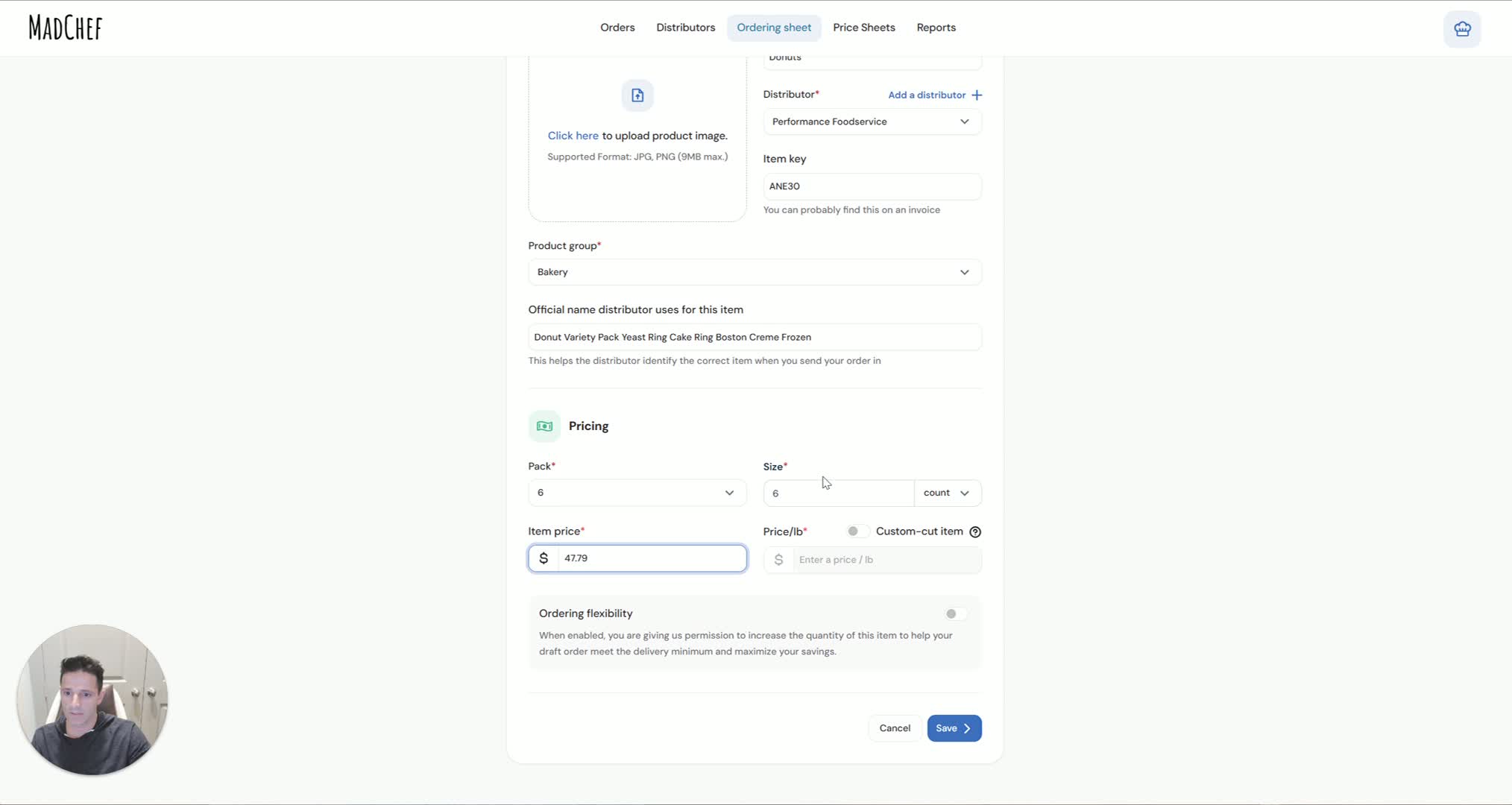
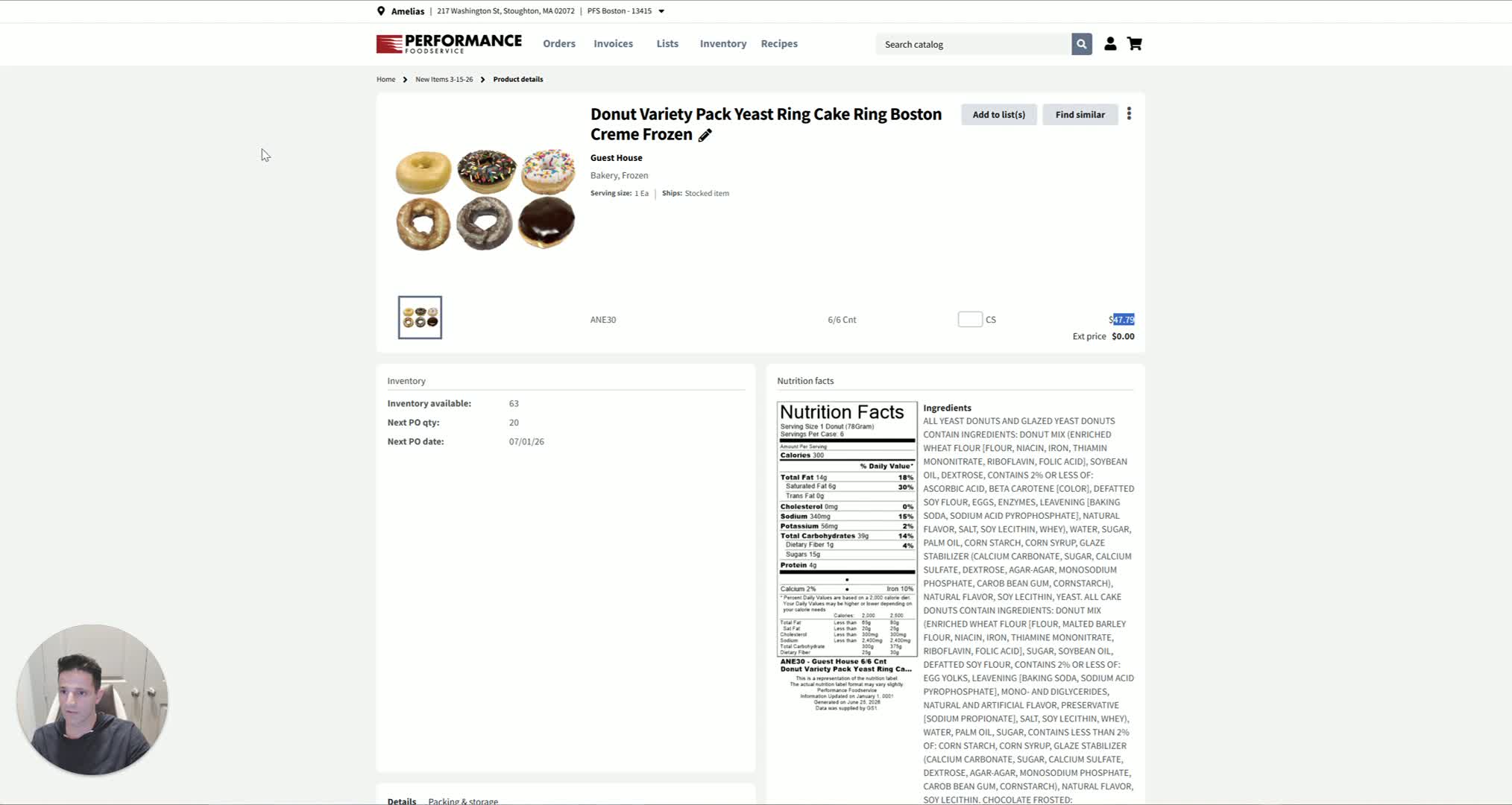
Save the product image if the portal allows it.
If saving is not convenient, take a screenshot.
Make sure the image is clear and easy to view.
Use the image to make the ordering guide visually easy to understand.
6. Add the Image and Finalize the Item Entry 1:21
Upload or place the image into the item entry.
Confirm the item details, image, and formatting look correct.
Save the new product to the ordering guide.
Verify the item now appears in the rotating guide or ordering list.
Cautionary Notes
Do not enter incorrect pack size or price information. These details affect unit pricing and purchasing decisions.
Make sure the item key matches the exact product. A wrong key can lead to ordering the wrong item.
Use a clear image or screenshot. Blurry images can make the guide harder to use.
Double-check the final entry before saving to avoid errors in the ordering guide.
Tips for Efficiency
Keep a consistent format for item key, pack size, and price so entries are easy to scan.
Use screenshots when saving images directly is slow or unavailable.
Compare unit pricing before finalizing the item to help identify the best value.
Reuse the same process for each new item to keep the ordering guide consistent and easy to maintain.