Back to all
How to add users to your account

Objective
This guide explains how to add an additional user to the account and send them an invitation to create their login credentials. It ensures managers can quickly grant access to approved team members such as an executive chef or general manager.
Key Steps
1. Open Settings from the Chef Hat Menu 0:10
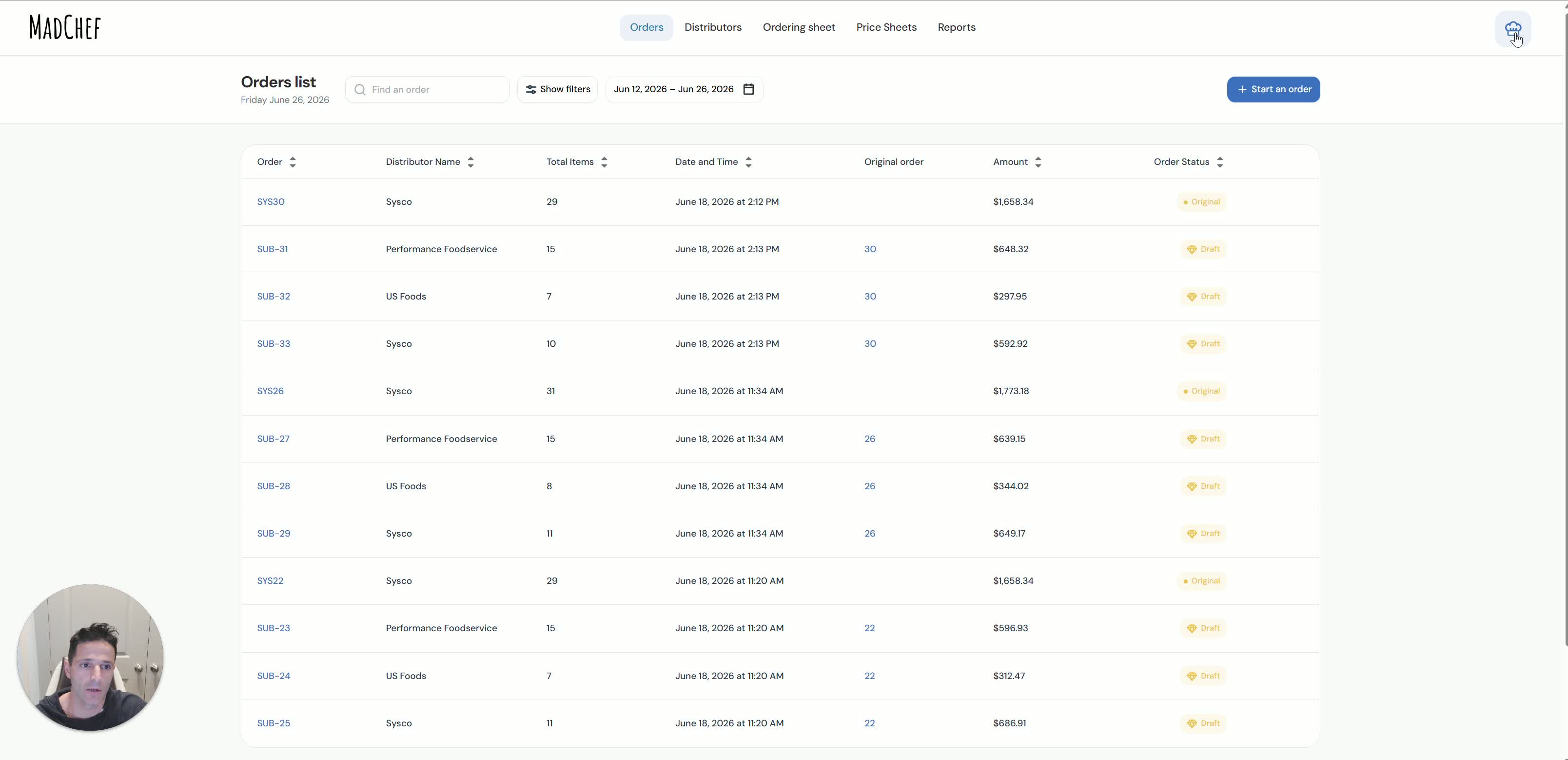
Locate the chef hat icon in the top-right corner of the screen.
Click the icon to open Settings.
Use this area to manage account-level options, including user access.
2. Go to the Users Tab and Start Adding a User 0:17
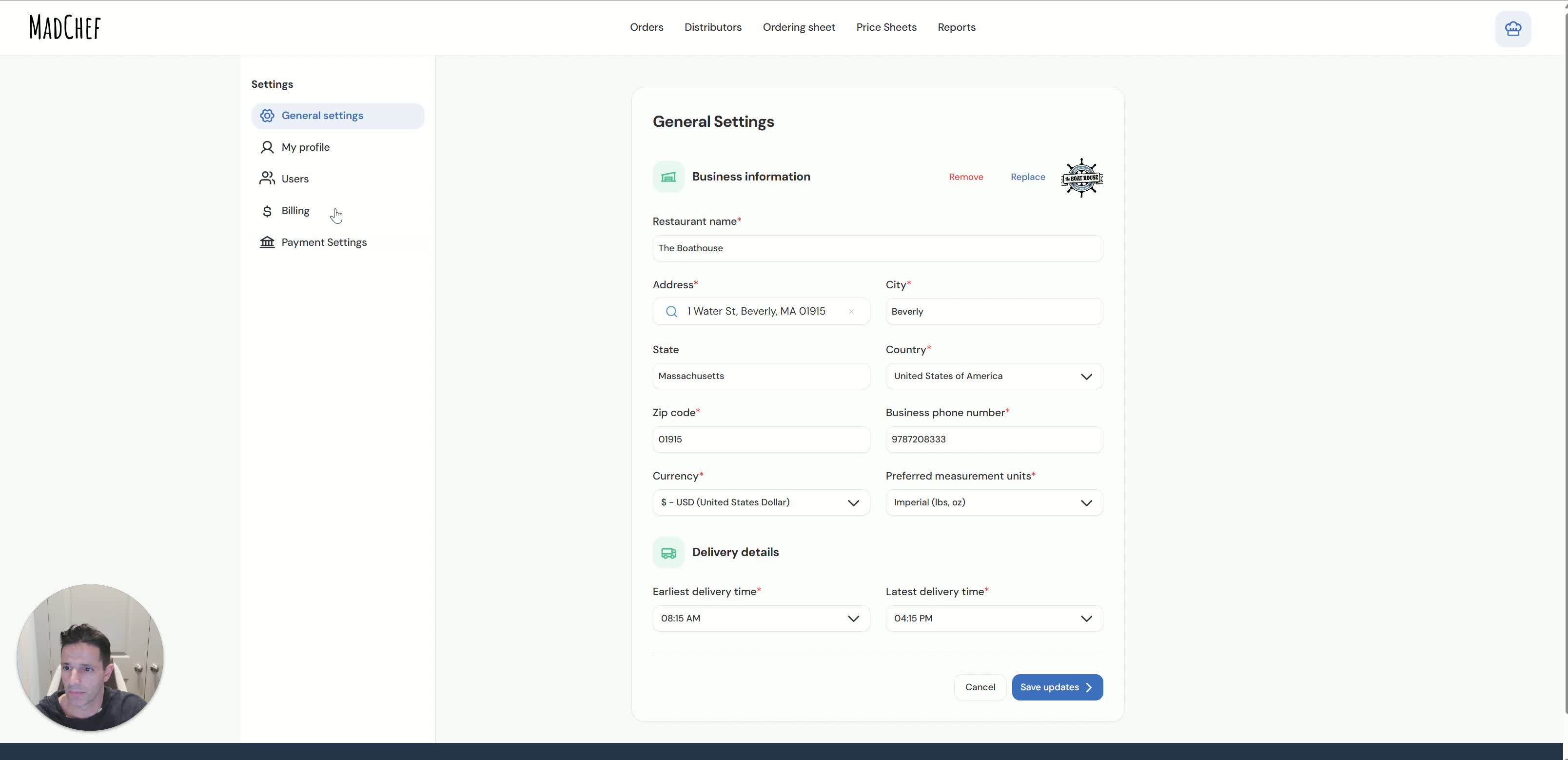
In Settings, select the Users tab.
Click Add User.
Enter the new team member’s information, such as:
Name
Email address
Phone number if required by your system
Example: enter a test user such as John Smith with a valid email address.
3. Save the New User Record 0:38
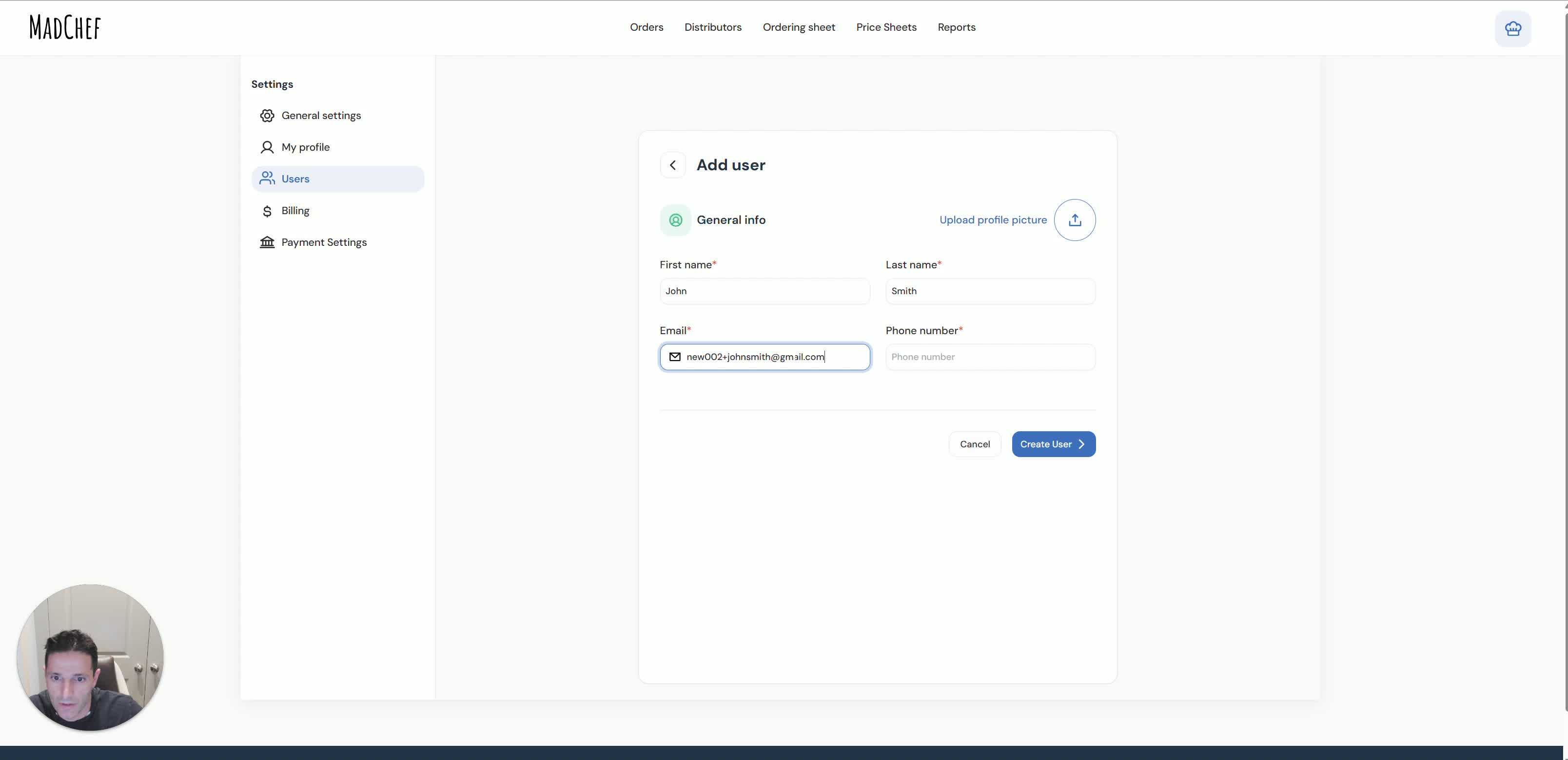
Review the entered details for accuracy.
Submit or save the user record.
Confirm that the system displays a message indicating the new user has been added successfully.
4. Confirm the User Status Is Pending 0:52

Check the user list or user profile status.
Verify the new user appears as Pending.
This means the user has been created but has not yet completed account setup.
5. Send the Welcome Email and Set Password Invitation 0:59
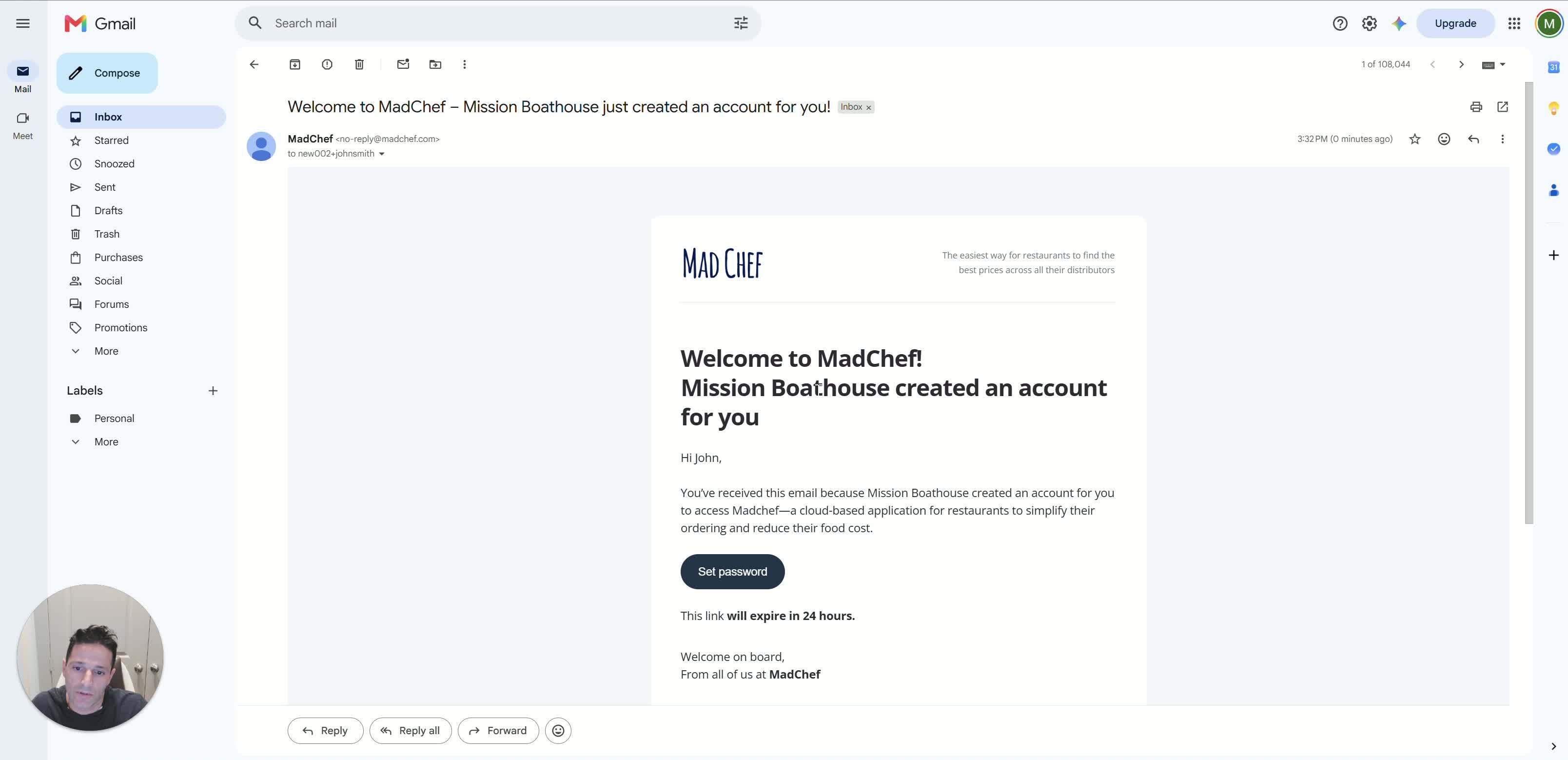
Open the pending user’s invitation or message area.
Enter a welcome message if needed.
Click Create an Account or Set Password to send the invitation.
The user will receive a welcome email with instructions to complete their account setup and create a password.
Cautionary Notes
Use a valid email address for each user so the invitation can be delivered successfully.
Only add approved users who should have access to the account.
Double-check spelling of names and email addresses before saving.
If the user remains pending, verify that the invitation email was sent and not blocked by spam filters.
Tips for Efficiency
Prepare user details in advance before opening the Users tab.
Use a consistent naming convention for team members to make user management easier.
If adding multiple users, repeat the same process for each person to keep setup consistent.
Confirm the user received the welcome email before considering the setup complete.