Back to all
How to create a distributor profile

Objective
This guide explains how to create a new distributor profile, enter the required contact and operational details, and verify the setup before using it for ordering. Following these steps ensures orders, notifications, and delivery information are routed correctly.
Key Steps
1. Open the Distributors section and start a new profile 0:07
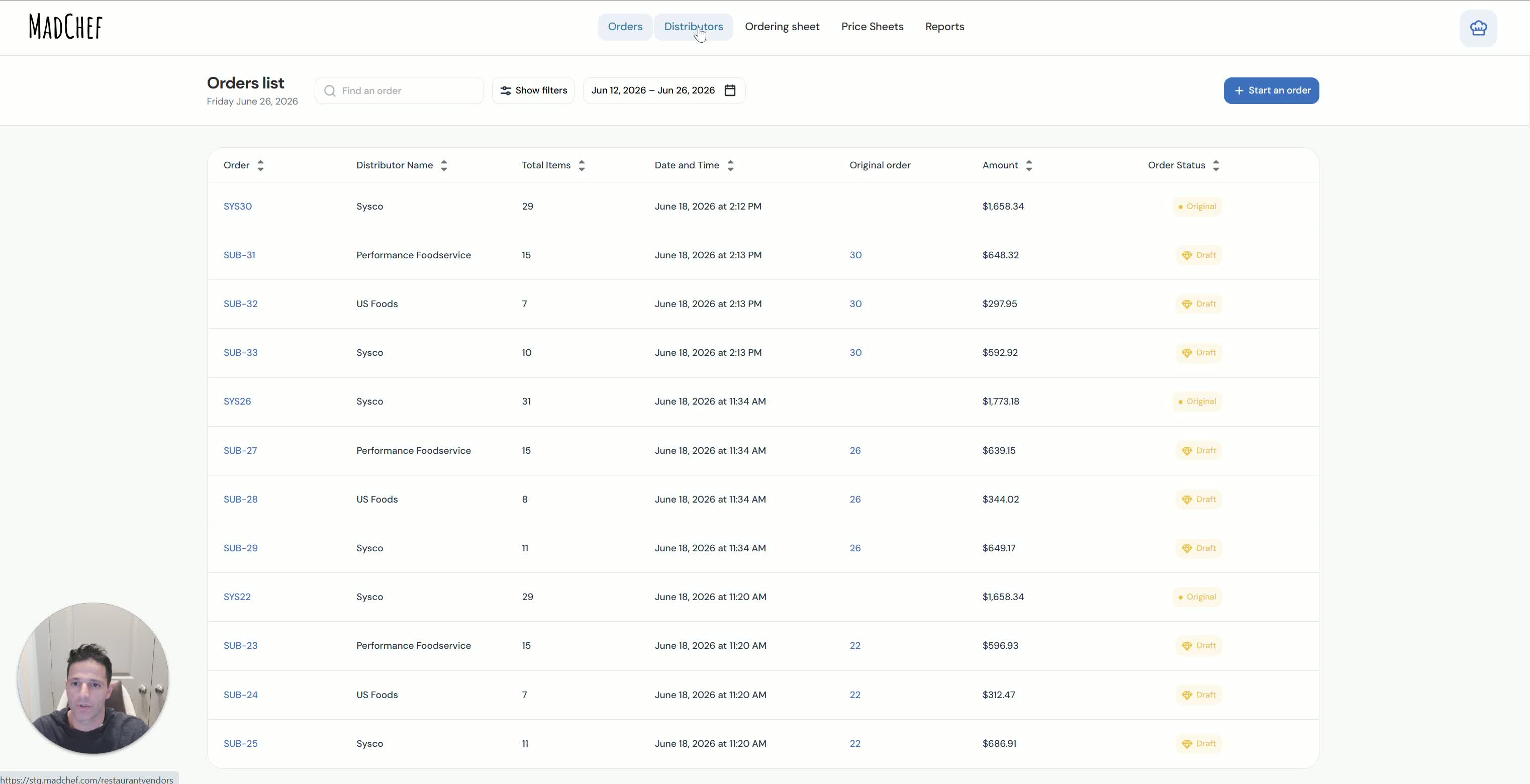
Navigate to Distributors in the system.
Review existing distributor profiles if needed.
Begin creating a new distributor profile for the vendor you do business with.
2. Enter distributor identification details 0:17
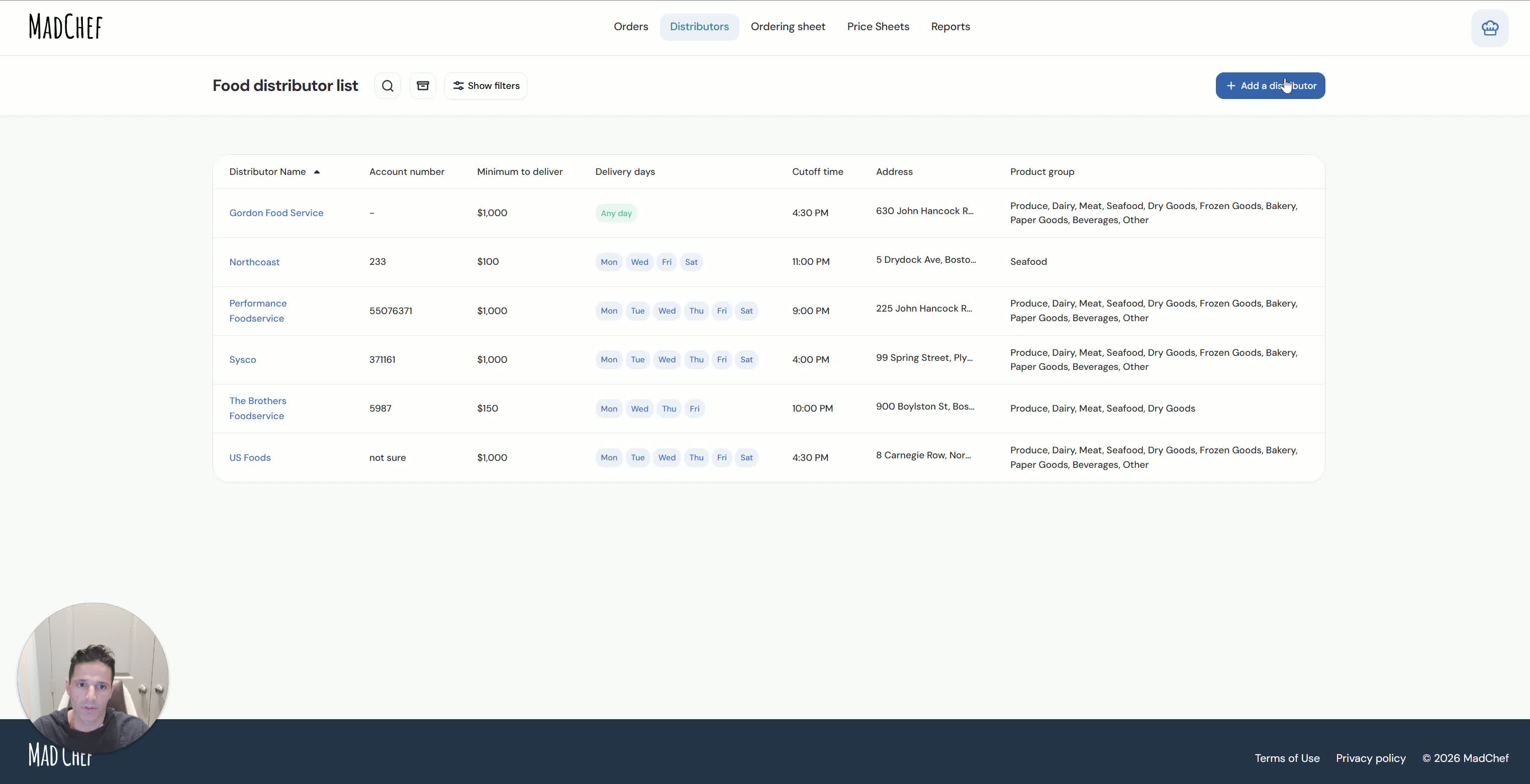
Add the distributor name.
Enter the distributor account number if available.
Upload or select the distributor logo.
Use invoice or vendor documentation to confirm the correct account information.
3. Add the primary salesperson contact information 0:40
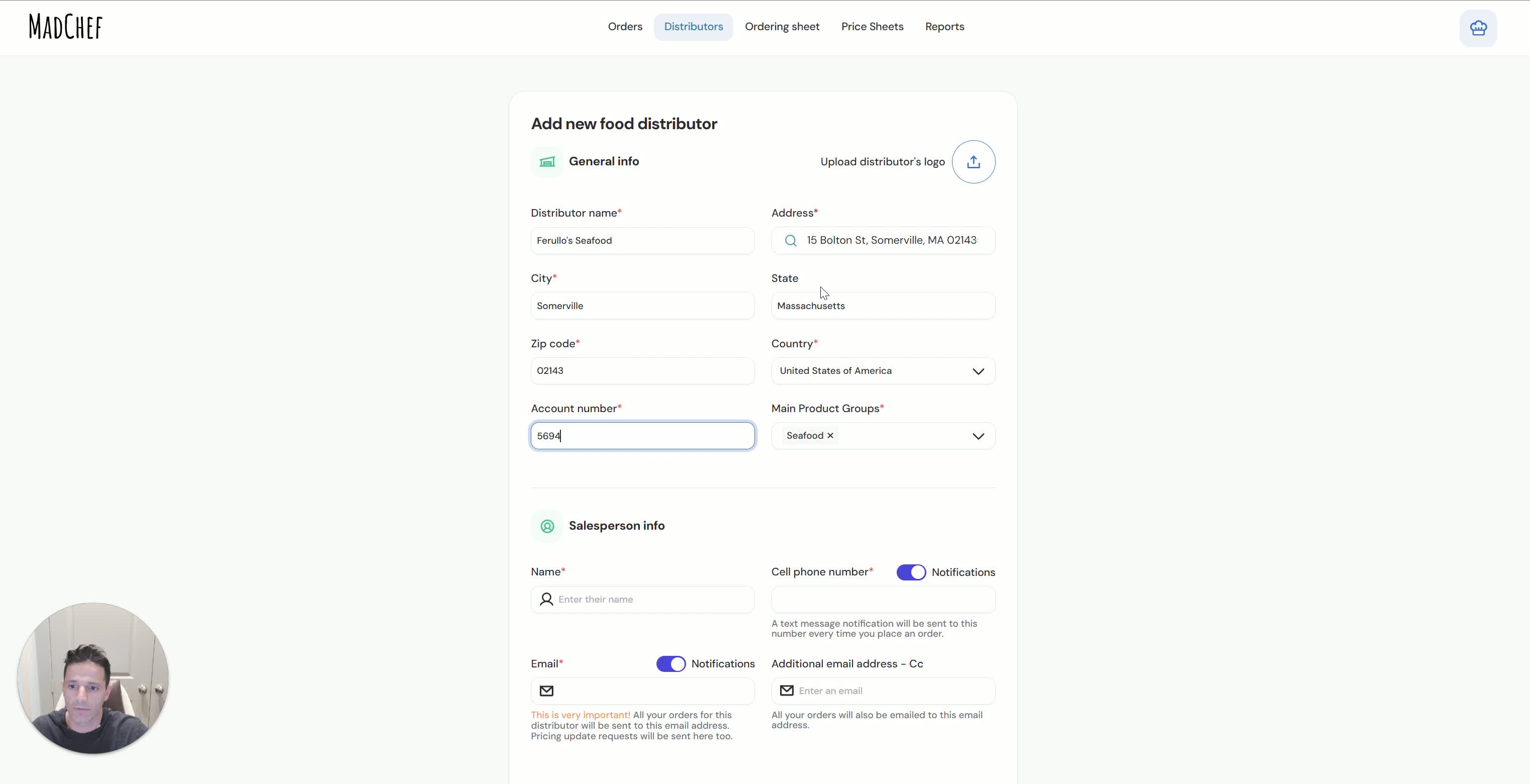
Enter the salesperson’s first and last name.
Enter the salesperson’s cell phone number.
Confirm the phone number is correct because it receives text notifications when orders are sent.
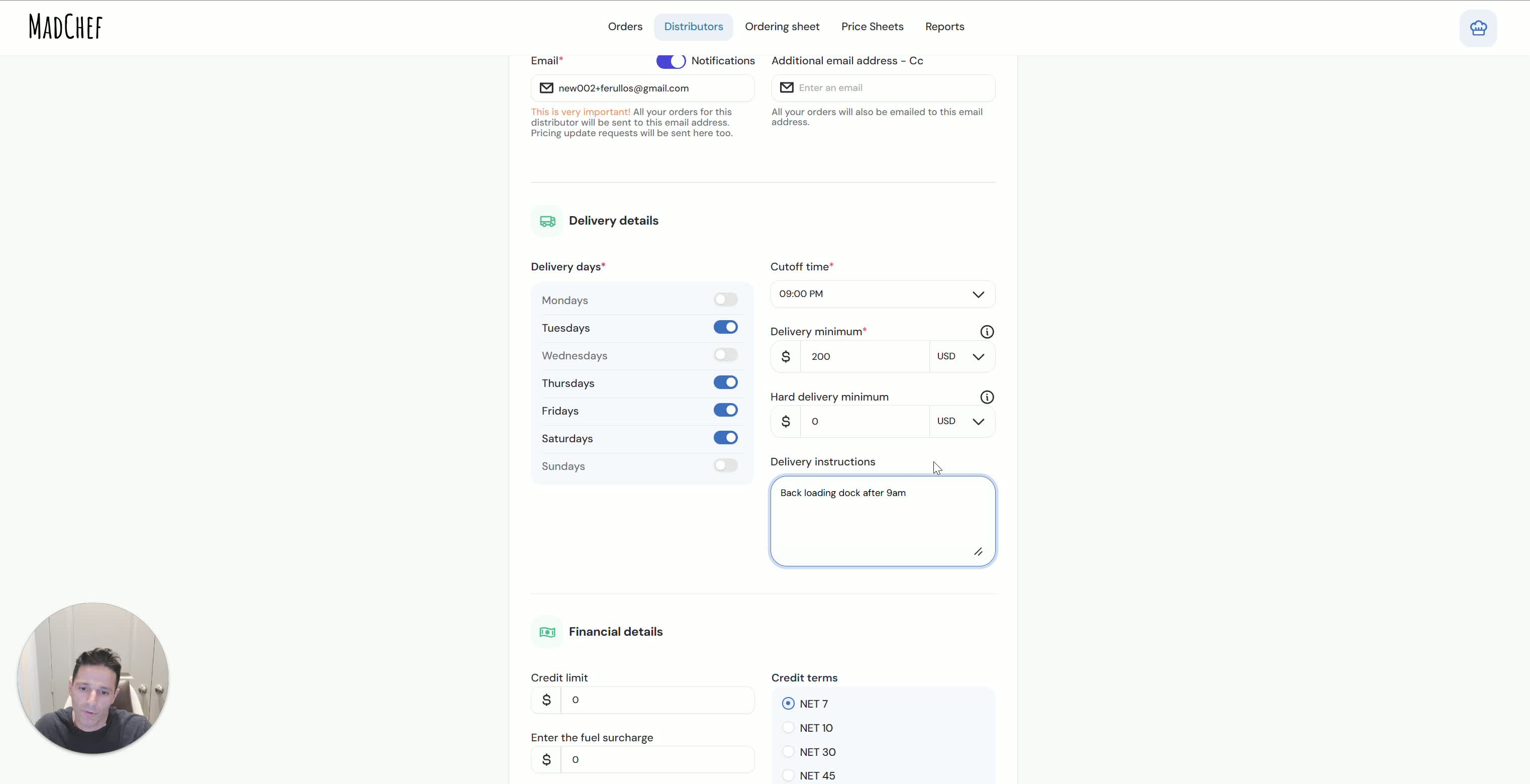
4. Configure email notifications for ordering and price updates 1:07
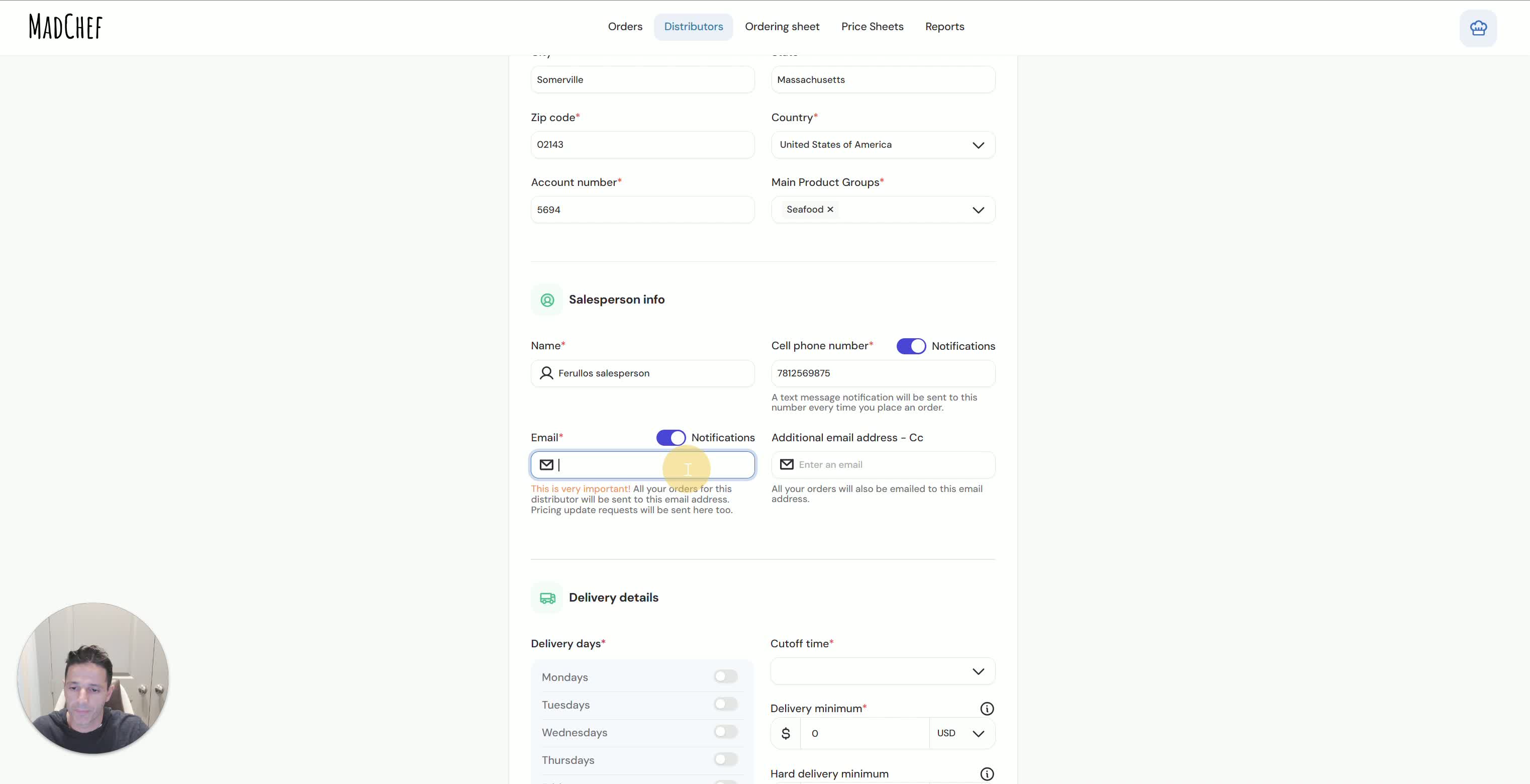
Enter the salesperson’s email address.
Verify the email is correct because it receives:
Order placement notifications
Weekly price update notifications from Mad Chef
Make sure the distributor can receive these emails without blocking them.
5. Add a backup email address for order processing 1:42
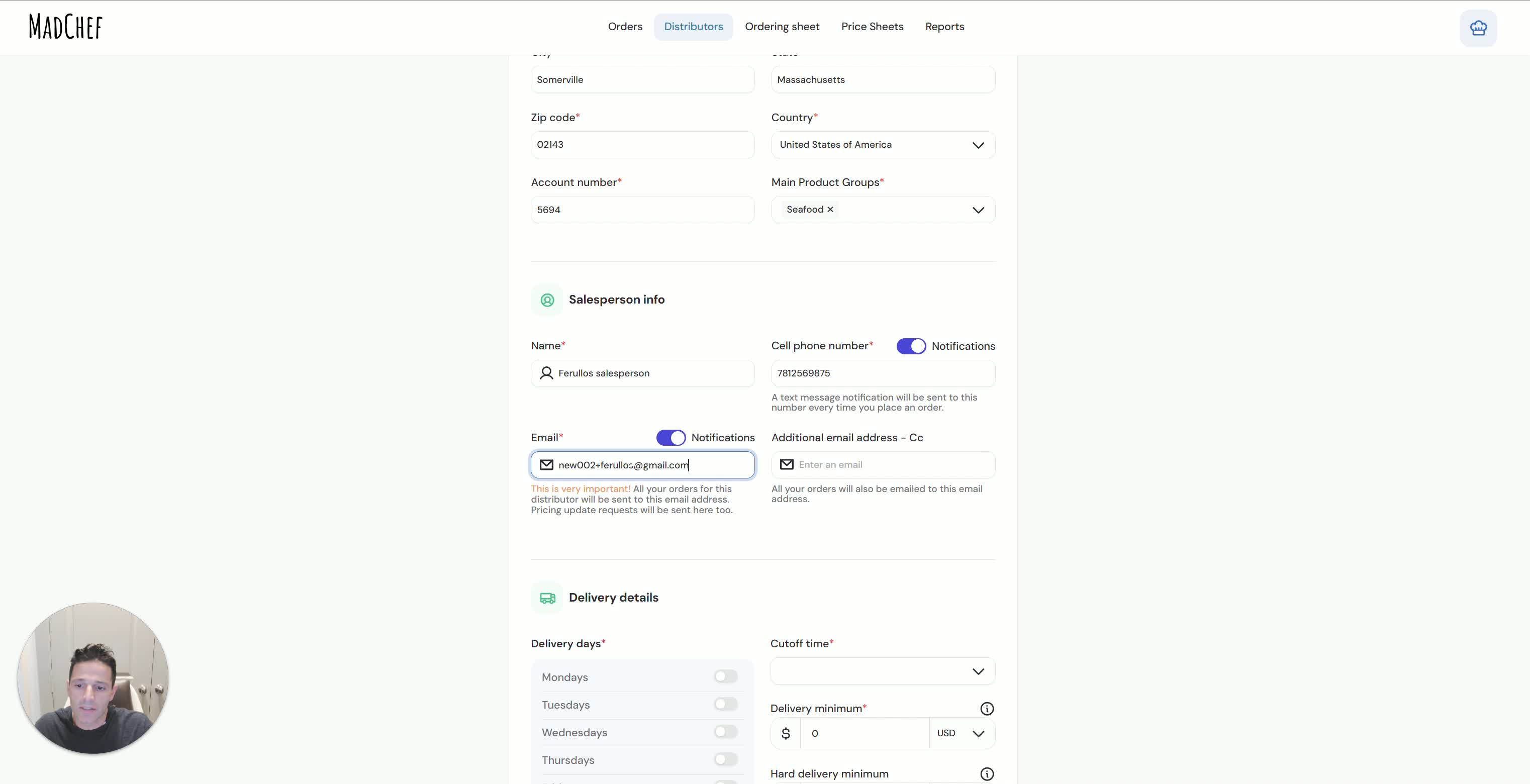
Enter a second email address if available.
Use the ordering department email or another inbox that can receive and process orders.
Prefer having two email addresses to reduce the risk of missed orders.
6. Confirm email deliverability and test the setup 1:30
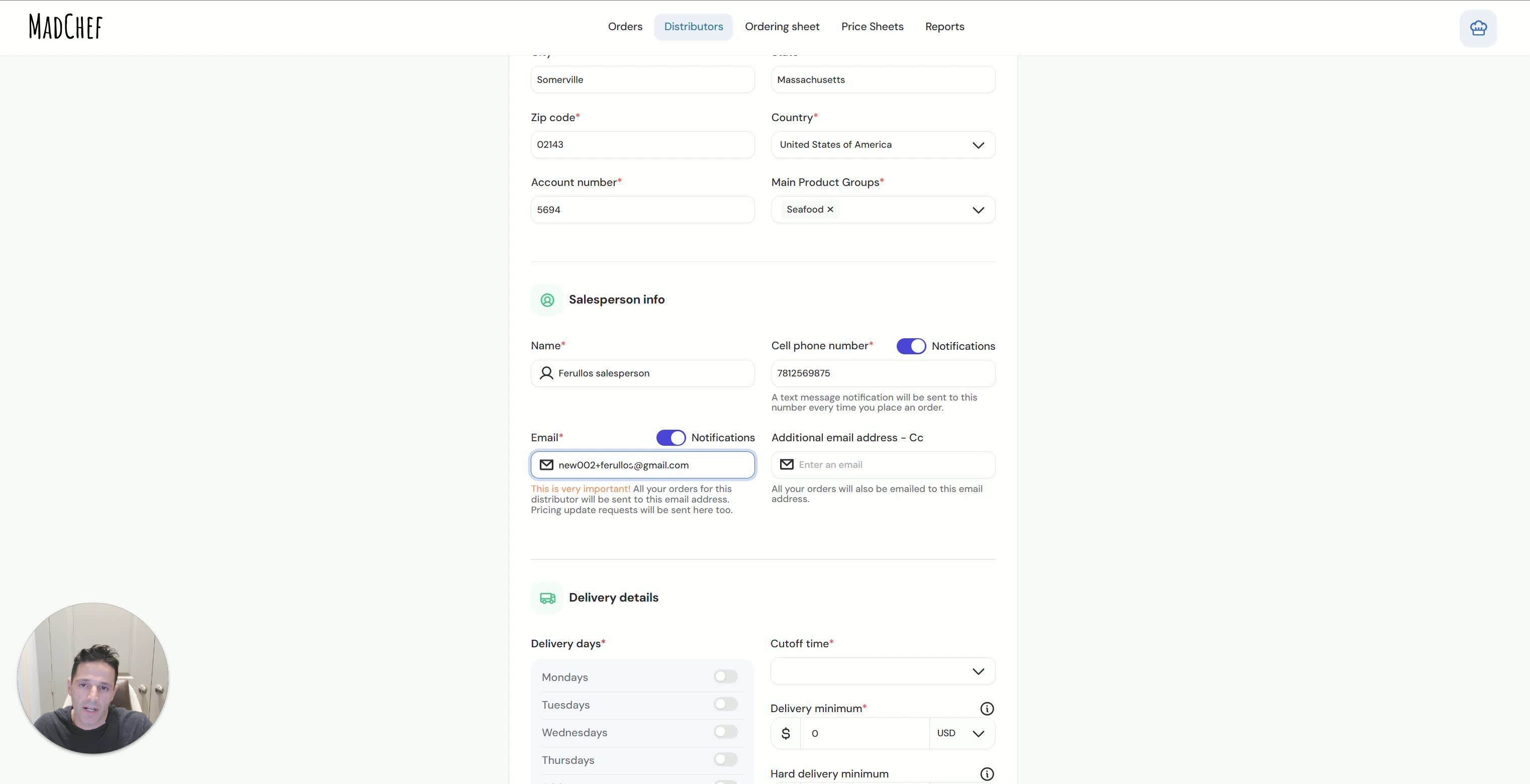
If the distributor’s email system blocks Mad Chef messages, ask them to whitelist the sender.
If needed, use a Gmail address as a reliable alternative.
Run a test order before fully relying on the new distributor profile.
7. Set delivery schedule and order requirements 2:00
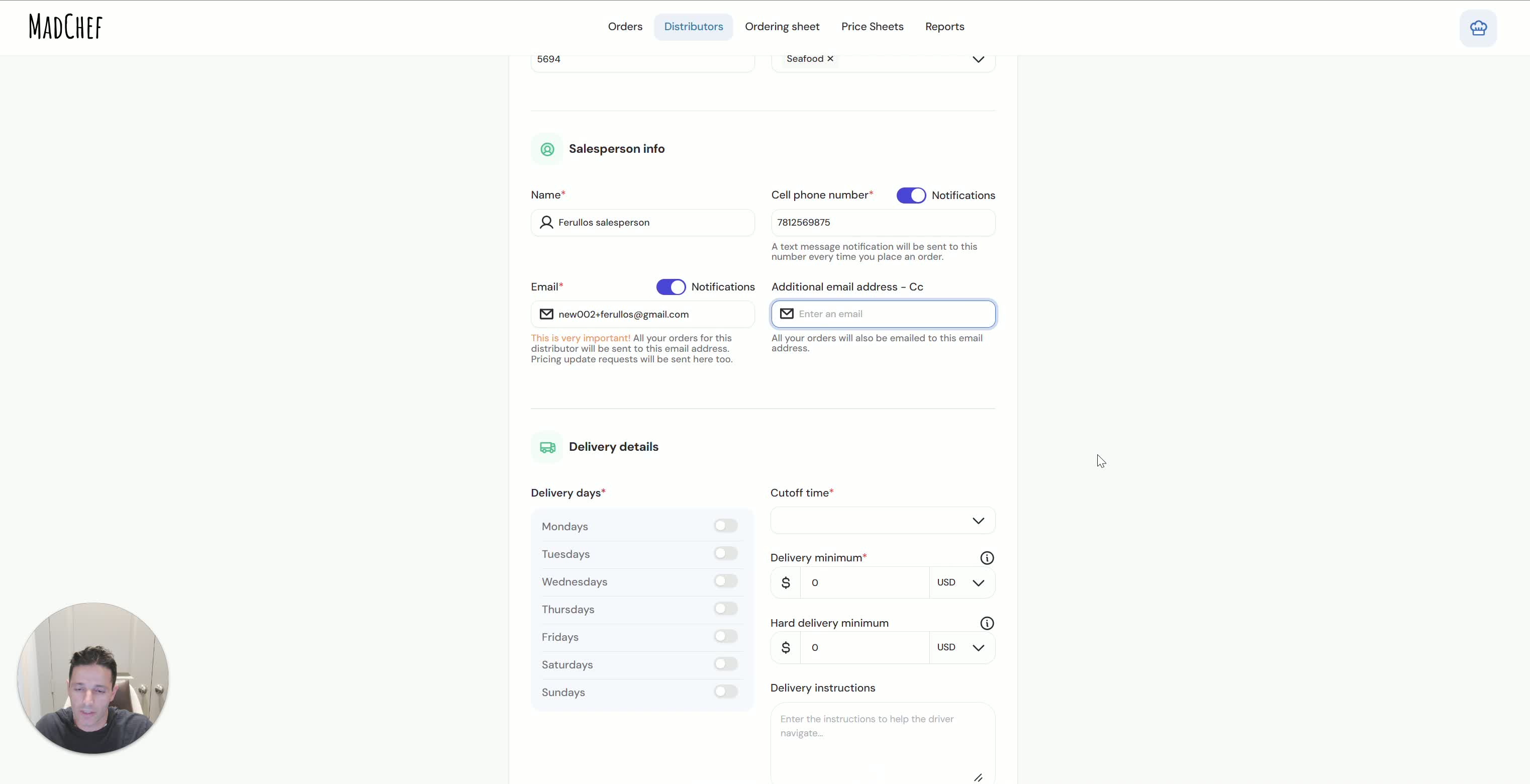
Enter the distributor’s delivery days.
Add the order cutoff time, such as 9:00 PM.
Enter the minimum order amount if applicable.
Leave hard delivery minimums unchanged if they are not needed at this stage.
8. Add delivery instructions for the driver 2:23
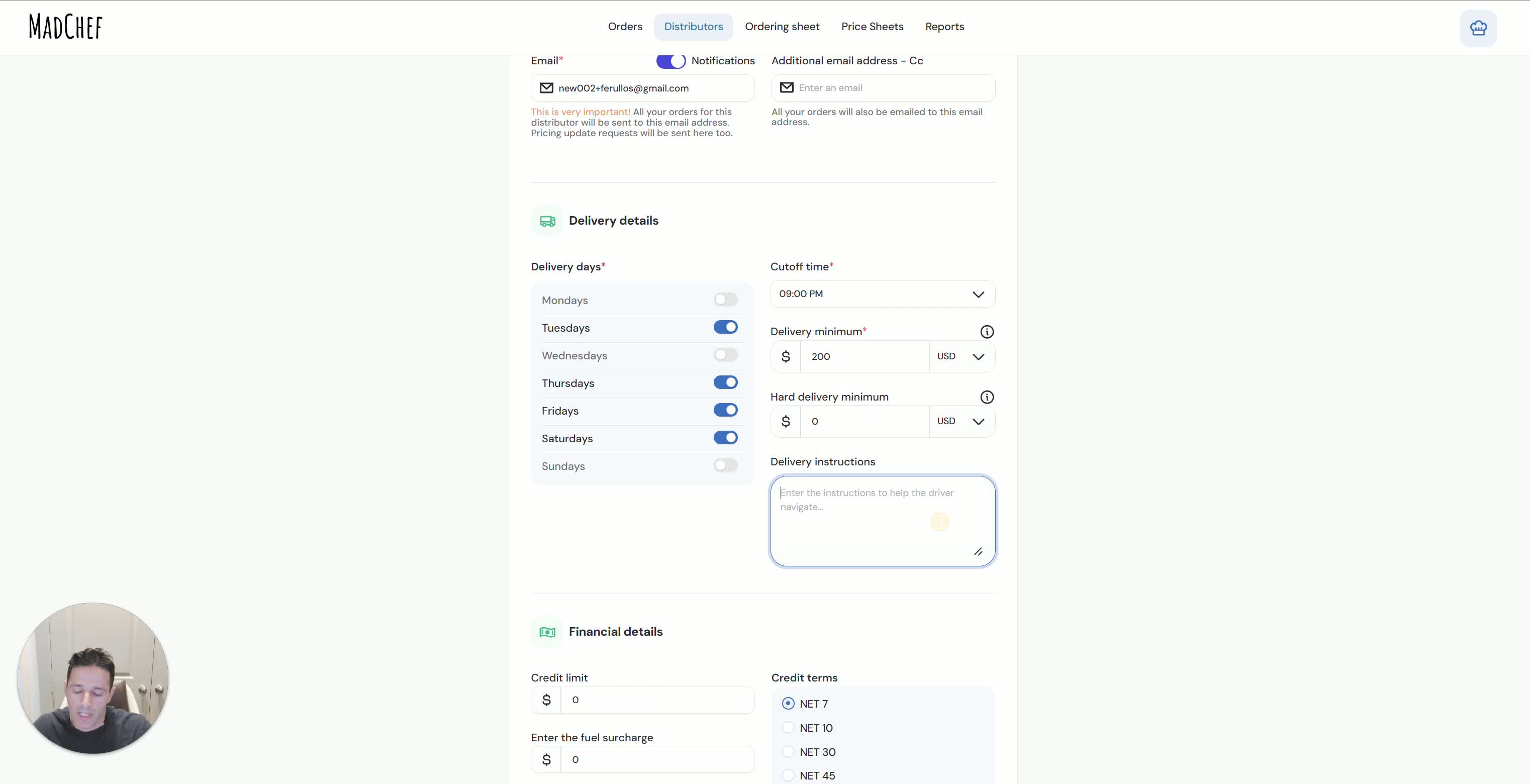
Enter any special delivery notes that help the driver.
Include instructions such as:
Where to park
Where to deliver
Any site-specific access notes
Remember that these instructions will print on the PDF order sent to the distributor.
9. Complete financial settings 2:36
Enter the credit limit if known.
Add any fuel surcharge if applicable.
Set sales tax, which is usually 0.
Enter the credit terms, such as:
Prepay
Net terms (for example, not Net 30 if that does not apply)
10. Save the distributor profile and repeat for other vendors 2:50
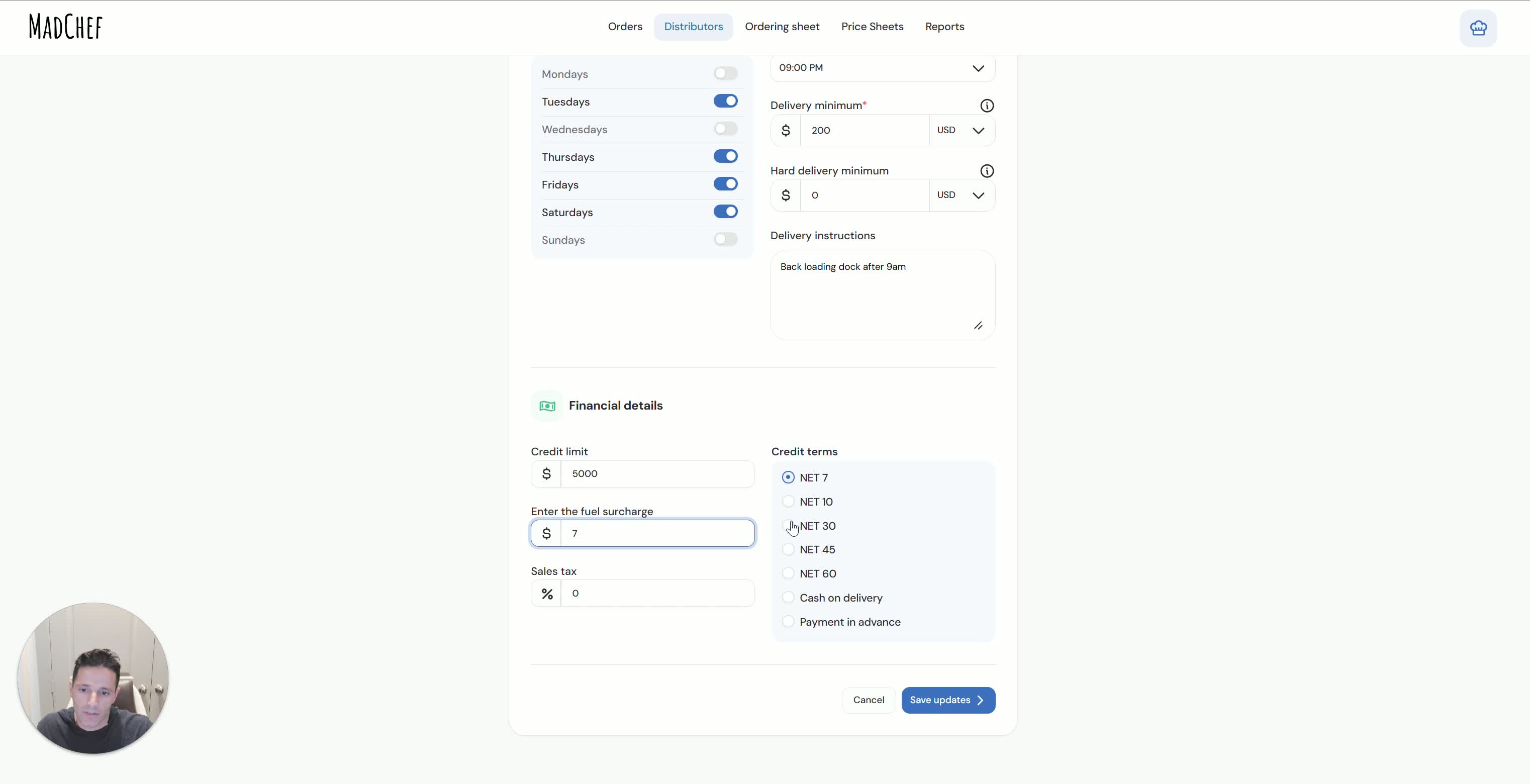
Save the completed distributor profile.
Confirm the profile appears correctly in the system.
Repeat the process for each additional distributor you work with.
Import the ordering guide after the profile is created, if needed.
Cautionary Notes
Verify all contact details carefully. Incorrect phone numbers or email addresses can prevent order notifications from reaching the distributor.
Always run a test order before using the profile in production.
If the distributor does not receive MadChef emails, ask them to whitelist the sender or provide a Gmail address.
Make sure delivery days and cutoff times are accurate to avoid missed or late orders.
Only enter financial terms you have confirmed with the distributor or from official documentation.
Tips for Efficiency
Use the distributor’s invoice to quickly find the account number and other reference details.
Keep a standard template for common delivery instructions and financial fields to speed up setup.
Add a backup email every time to reduce the chance of missed orders.
Confirm the profile immediately after saving so errors can be corrected before ordering begins.
Import the ordering guide after the profile is complete to streamline future ordering.