Back to all
How to import your ordering guide on MadChef

Objective
This guide explains how to import a distributor ordering guide into MadChef, whether the distributor is pre-built in the portal or manually created. It also covers how to prepare the file, map the required fields, and get help when the distributor file needs transformation.
Key Steps
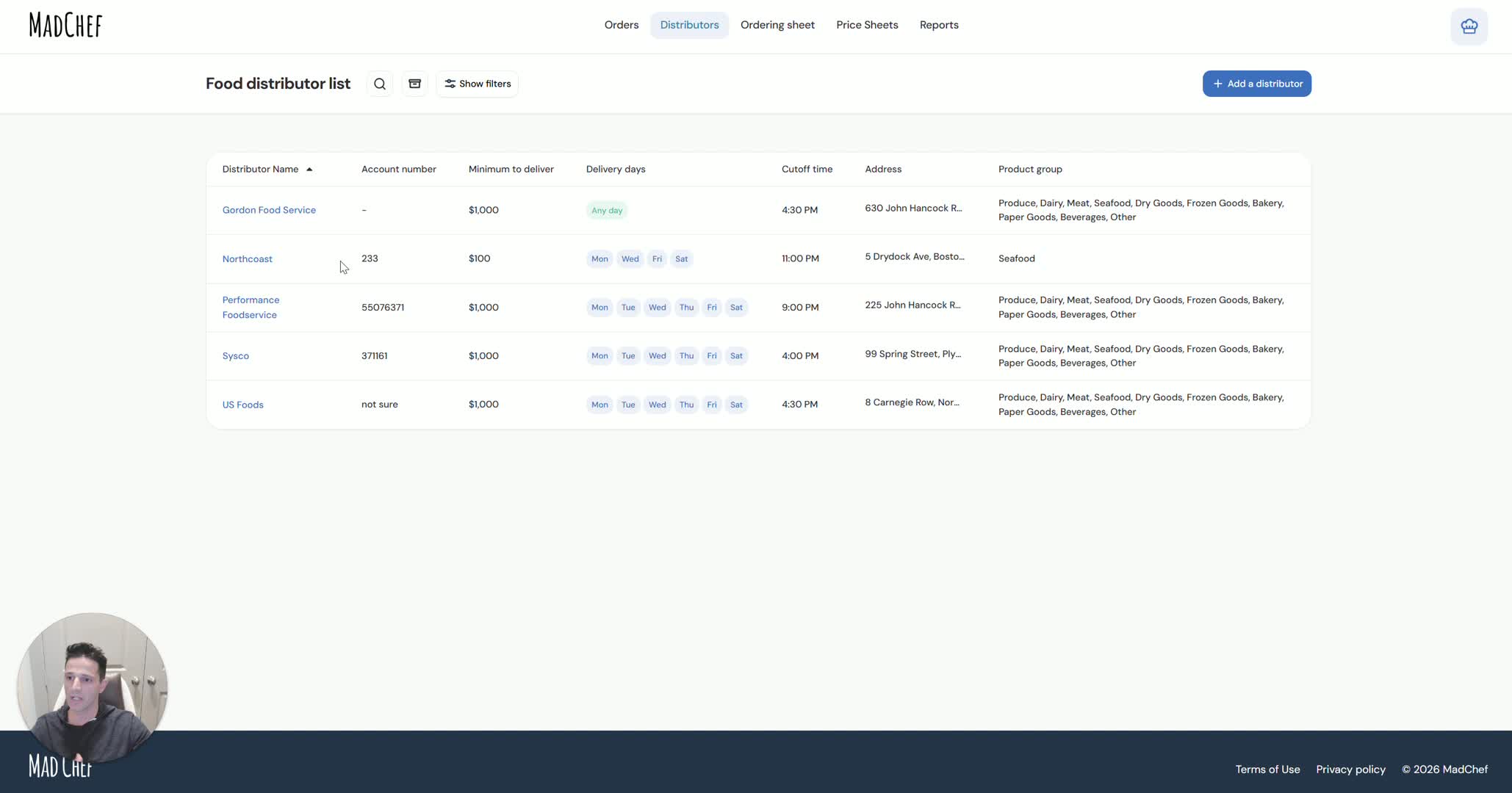
1. Identify the distributor import method 0:08
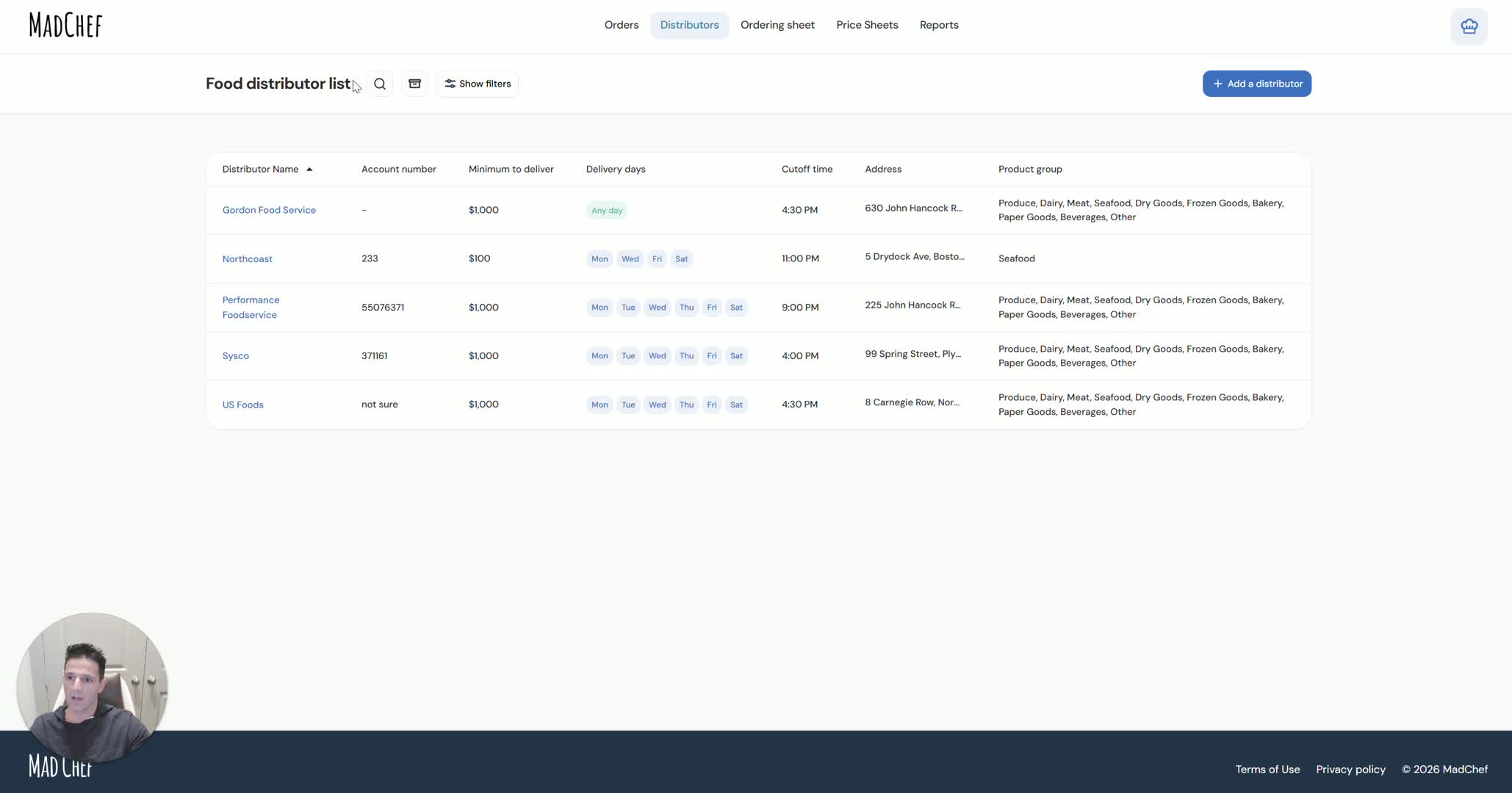
Confirm whether the distributor is already pre-built in MadChef.
Pre-built distributors can be imported directly from the portal as-is.
Current pre-built options mentioned include:
US Foods
Sysco
Performance
If the distributor is not pre-built, use the manual import process with a sample file.
2. Export the ordering guide from the distributor portal 0:24
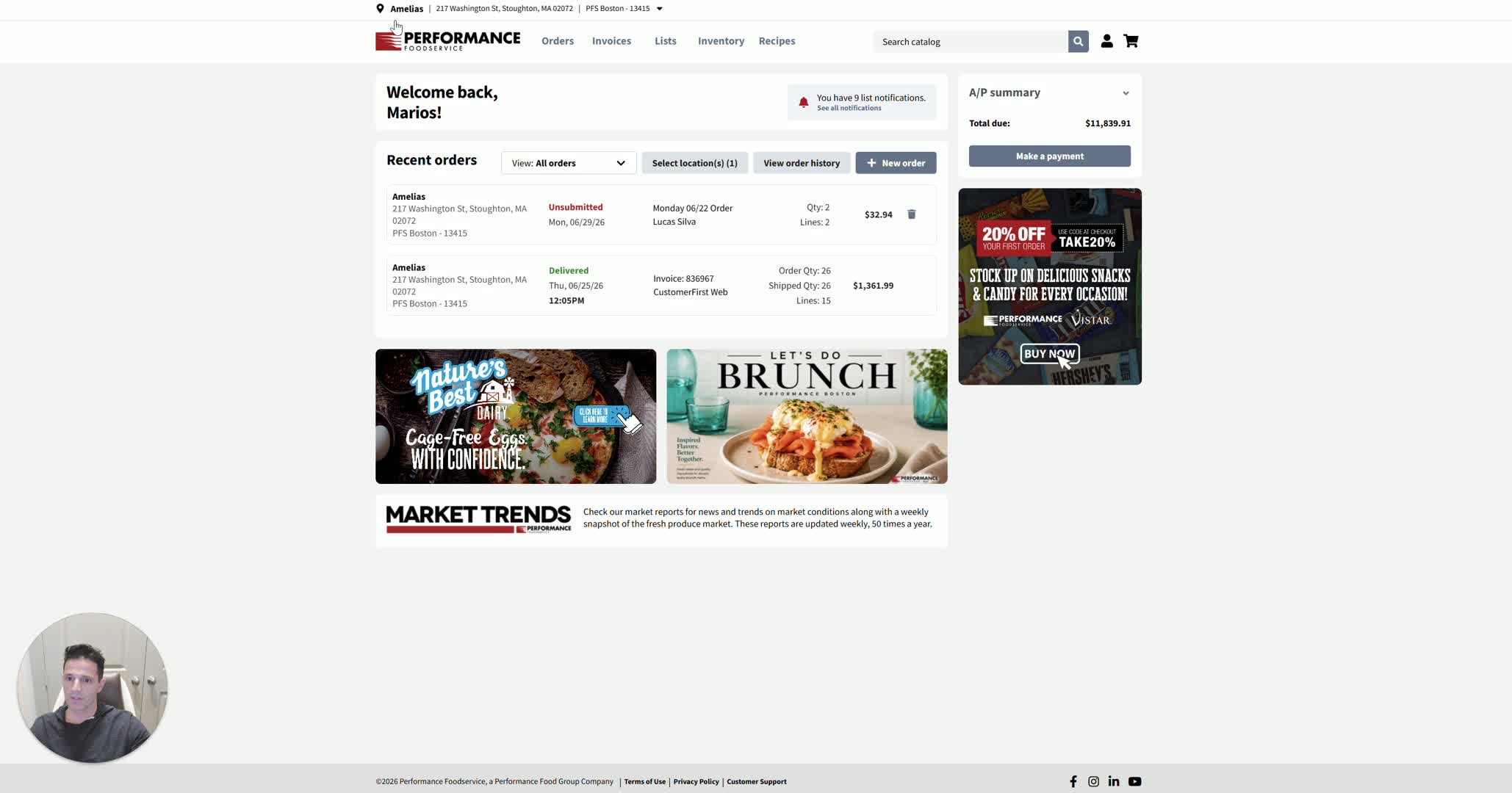
Log in to the distributor portal.
Navigate to the ordering guide or product list section.
Choose the export option and download the file as a CSV.
Include prices and any other required fields during export.
Save the exported file for import into MadChef.
3. Import a pre-built distributor file into MadChef 0:37
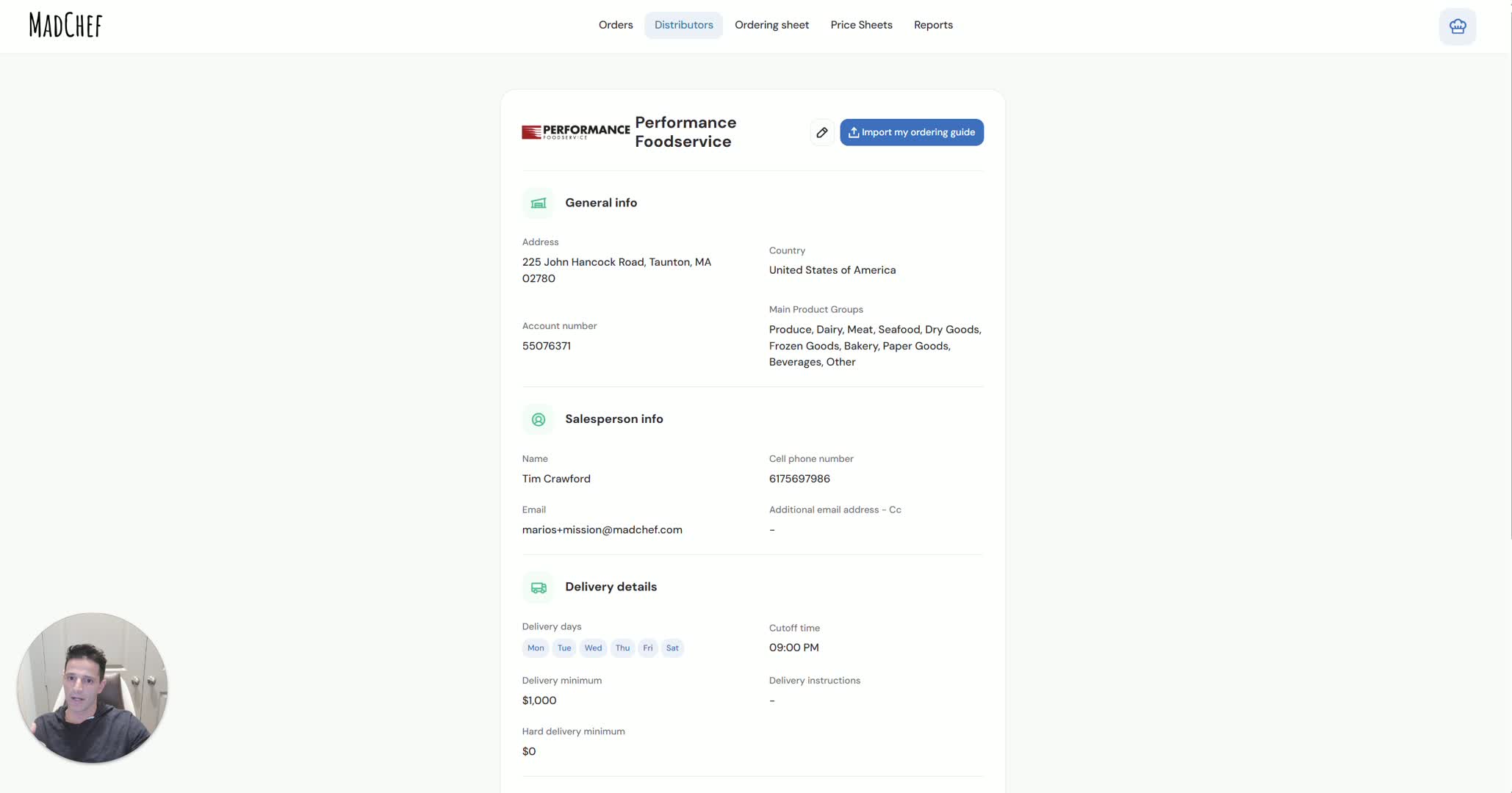
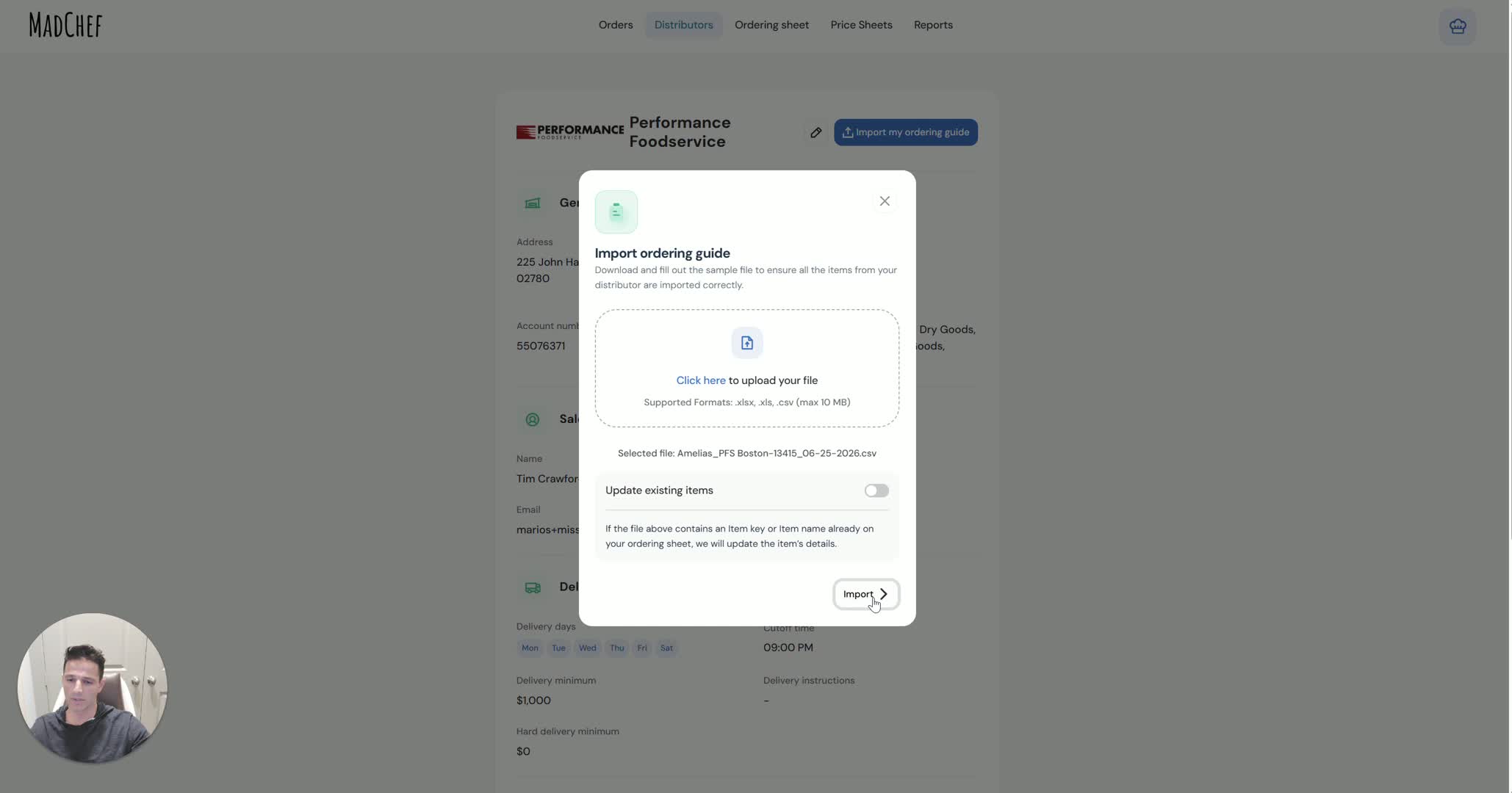
Open MadChef and go to the import area.
Upload the exported CSV file directly.
Use the file as-is when the distributor is pre-built.
Confirm the import completes successfully before moving on.
4. Verify the imported items in the ordering sheet 0:48
Open the ordering sheet for the distributor you imported.
Check that the item count increased as expected.
Review the imported items to confirm they appear correctly.
If the import was successful, proceed to the next step or repeat for additional distributor files.
5. Download the sample file for a manually created distributor 1:13
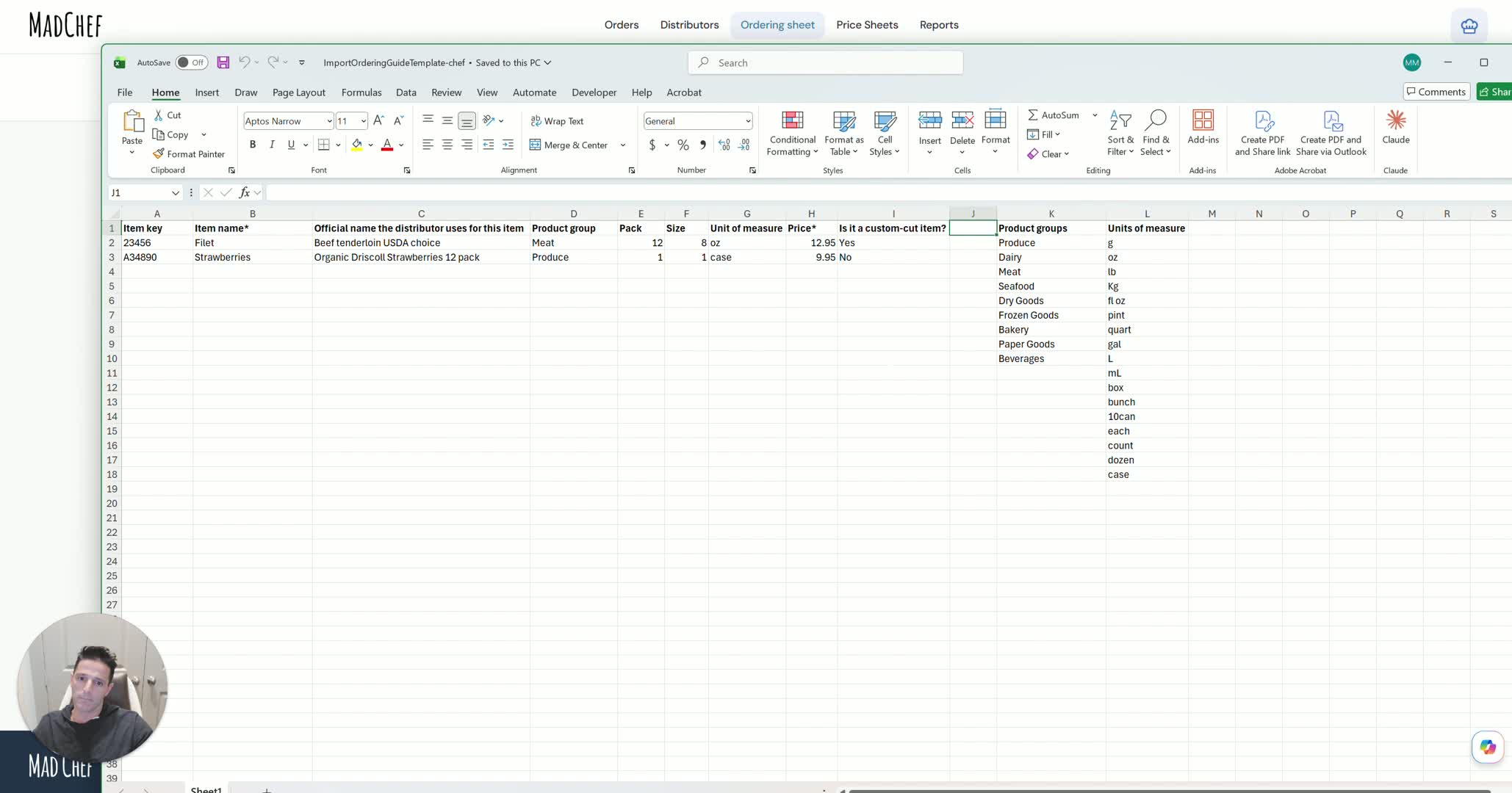
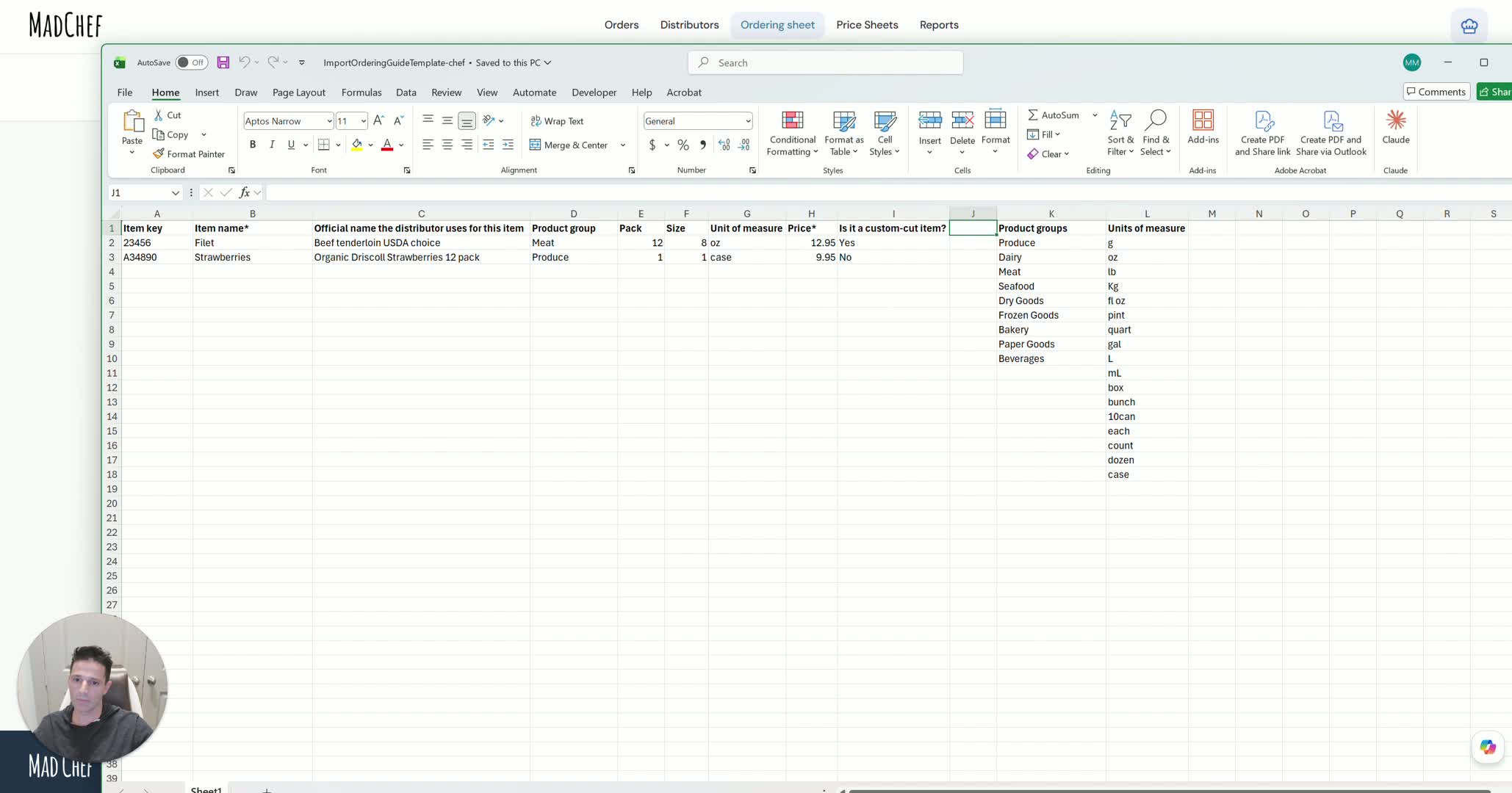
If the distributor was created manually, download the MadChef sample file first.
Use the sample file as the template for the import structure.
The sample file shows MadChef how to interpret the columns and item data.
Follow the sample file exactly when preparing your import spreadsheet.
6. Map the required fields in the sample file 1:36
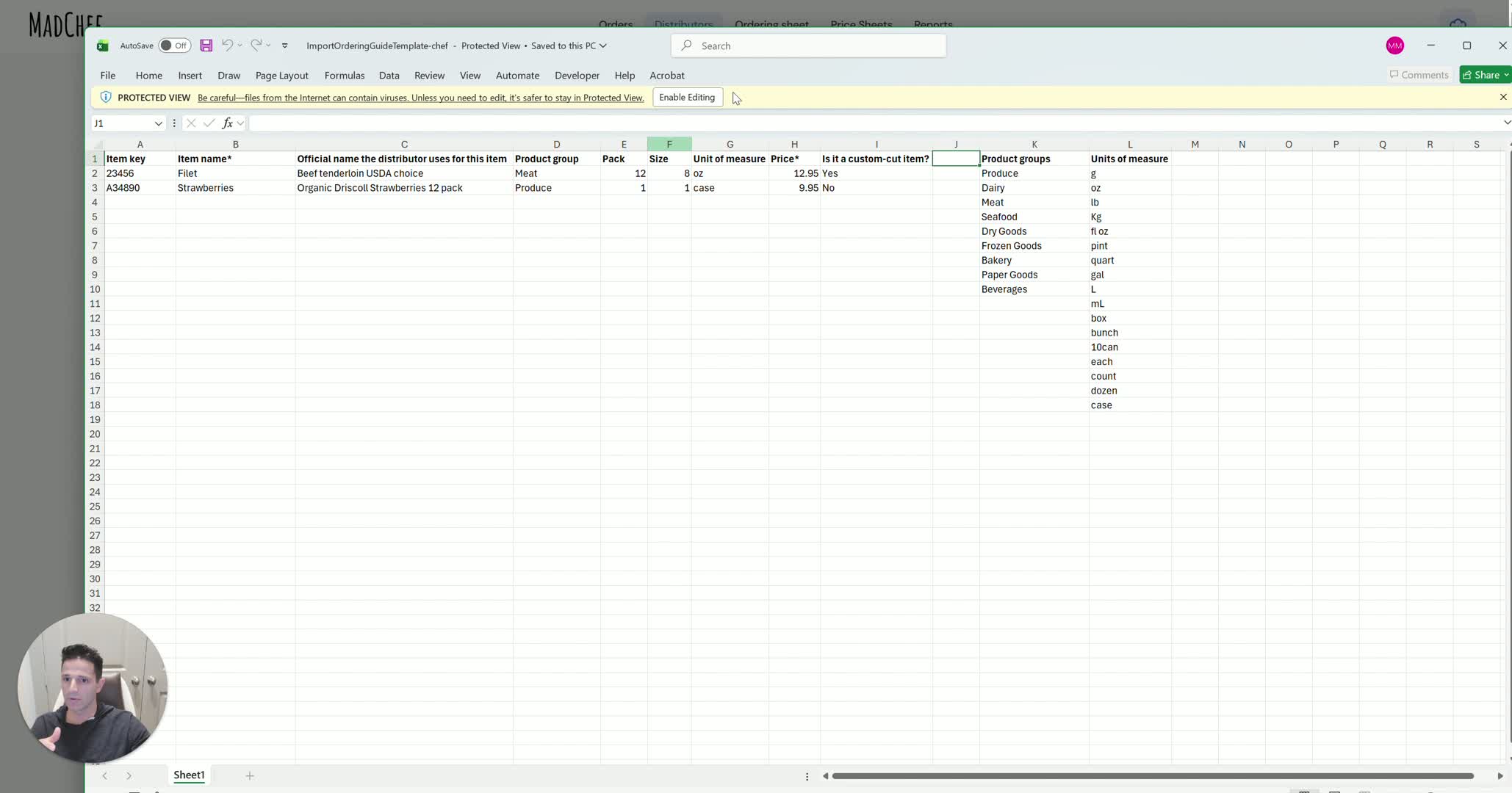
Enter the item key in column A if available.
Enter the item name; this field is required.
Use the official distributor item name whenever possible.
Include the product group from MadChef’s accepted product group list.
Add packing size and measure information.
Include price data provided by the distributor.
Mark custom items appropriately when they are sold by weight rather than by piece.
7. Prepare and test a small import file 2:25
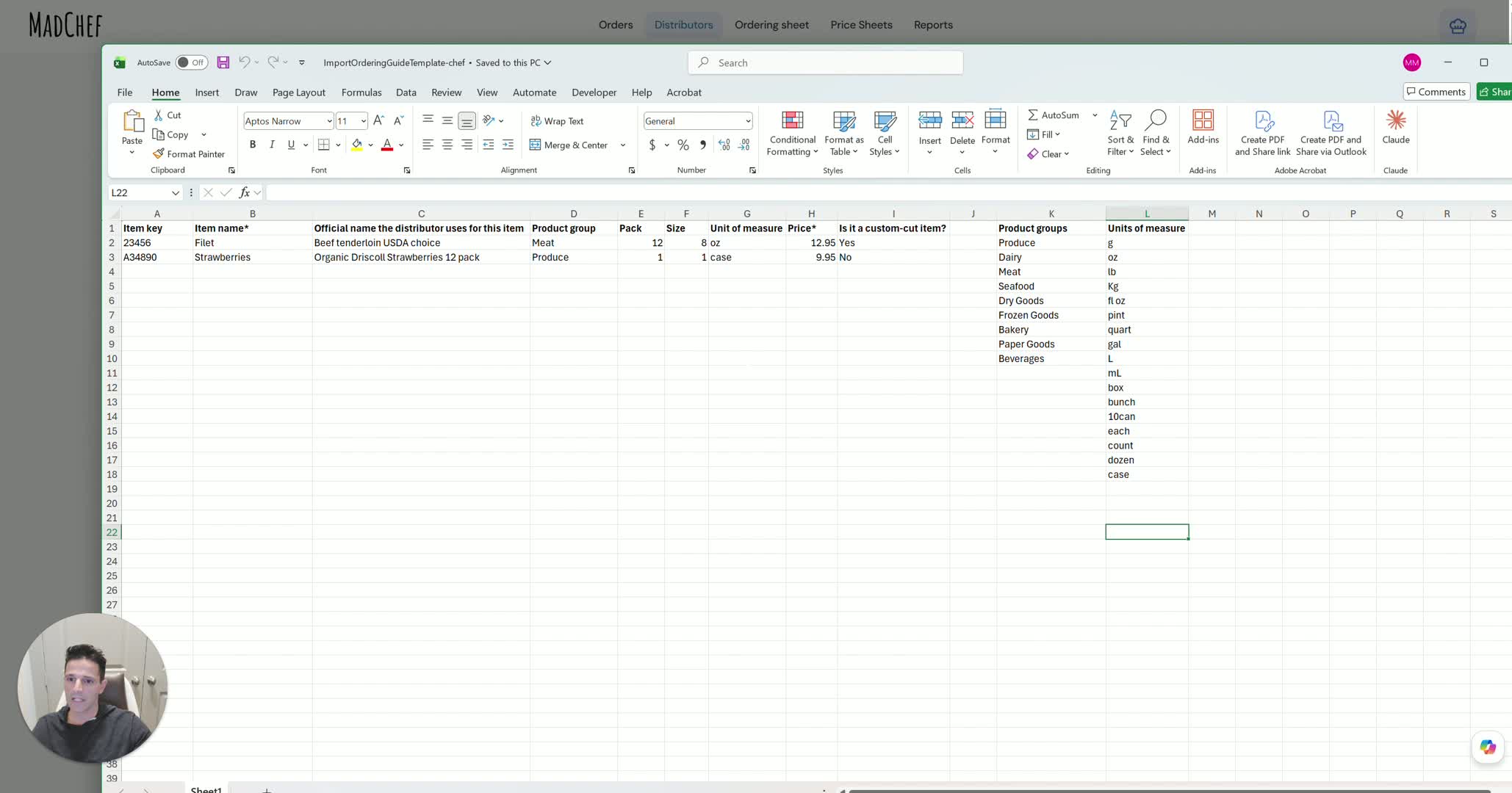
Start with a small test file before importing a full catalog.
Use a few items, such as fruit and strawberries, to validate the format.
Upload the test file into the manually created distributor record.
Confirm the items import correctly and appear in the ordering sheet.
8. Adjust data formatting if needed 2:50
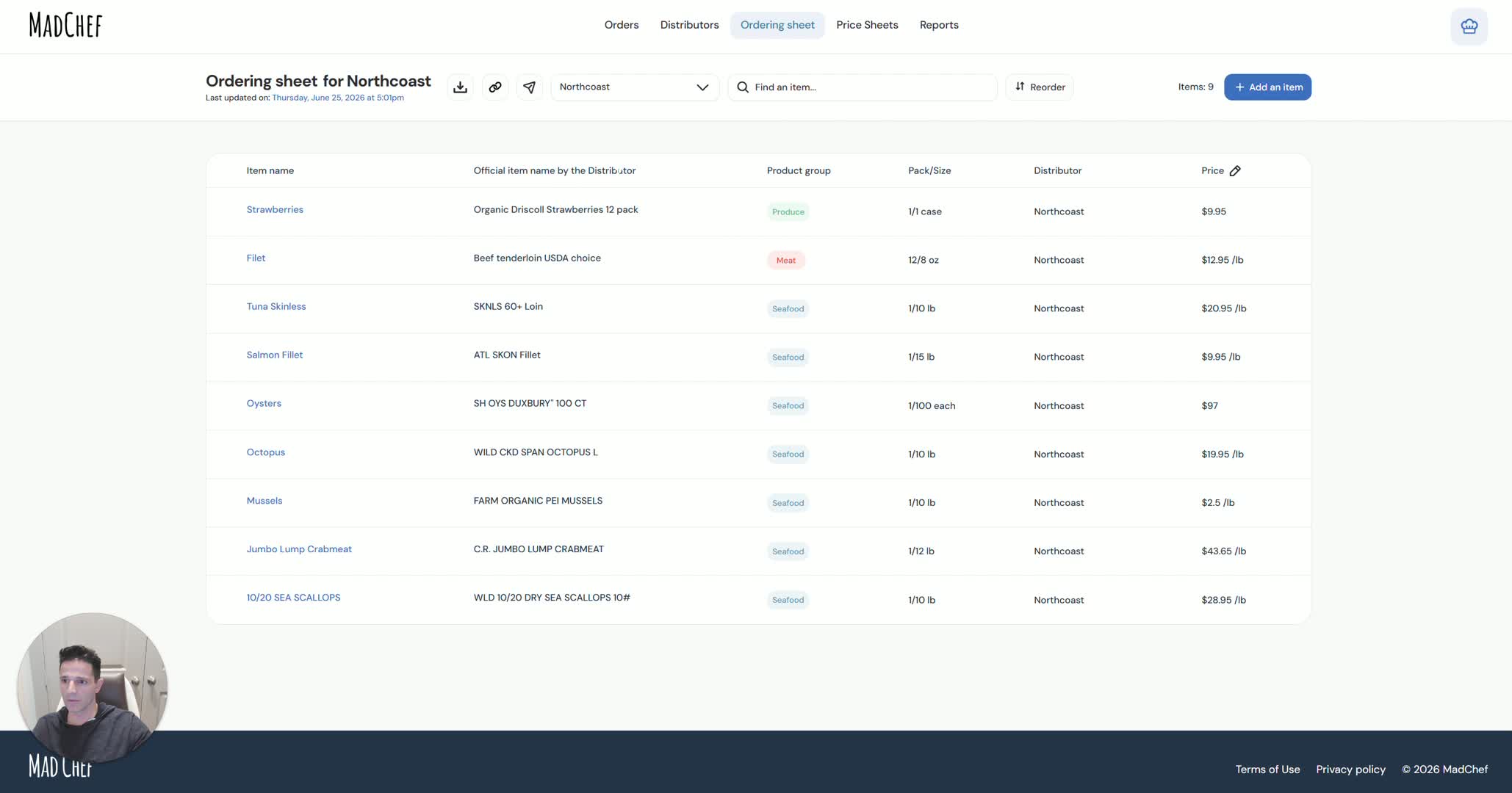
Review the imported data to ensure the columns align correctly.
If the distributor file does not match MadChef’s structure, rearrange or transform the columns.
Make sure the item data lines up with the expected MadChef fields.
Re-test after making changes to confirm the structure is correct.
9. Request help for large or complex imports 3:12
If the file requires significant manipulation, contact support for help.
MadChef AI can transform distributor files into the required format quickly.
Support can handle imports of up to 300 items.
You can request either:
File transformation only
File transformation plus upload assistance
10. Finalize the import and review for errors 3:29
After the file is transformed or uploaded, review the ordering guide for completeness.
Check for missing items, formatting issues, or import hiccups.
Confirm the final ordering sheet reflects the distributor’s catalog accurately.
Resolve any remaining issues before using the guide operationally.
Cautionary Notes
Do not assume every distributor file can be imported directly; manually created distributors require the sample file format.
The item name is required, even if the item key is missing.
Product groups must match MadChef’s accepted product group list.
Custom items should be identified correctly, especially for meat, seafood, or other weight-based products.
Large files may need transformation before import to avoid errors.
Always test with a small set of items before importing a full catalog.
Tips for Efficiency
Export the distributor file with prices included.
Use the official distributor item name to improve consistency.
Reach out for AI-assisted transformation when the file has many columns or does not match MadChef’s structure.