Back to all
How to link equivalent items across distributors

Objective
This guide explains how to link the same or equivalent product items across multiple distributors so the system can compare prices and identify better purchasing options. It also covers how to set the price-difference threshold that determines when the system should switch to a different distributor.
Key Steps
1. Identify the item and its current distributor source 0:00
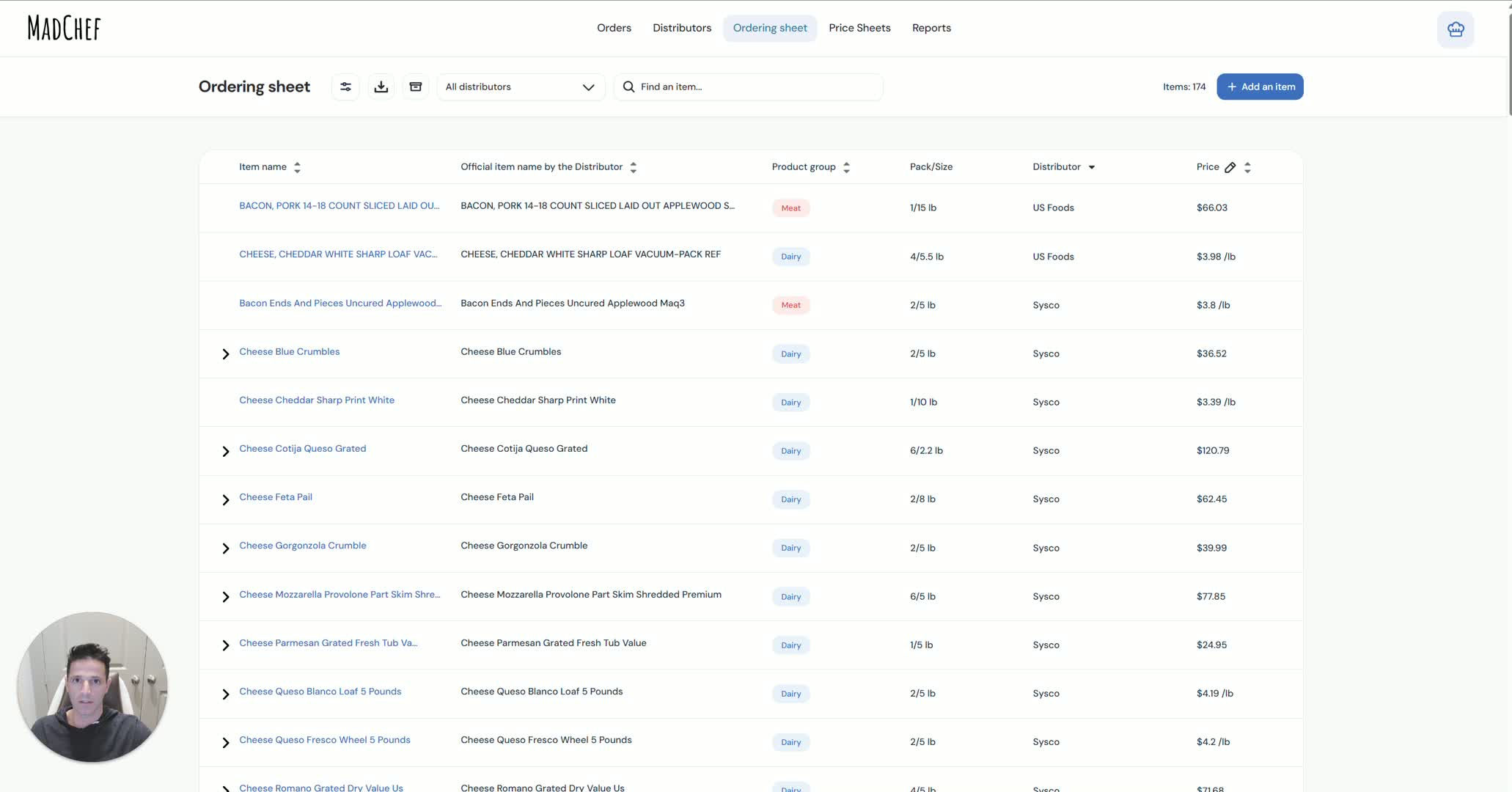
Open the item record you want to evaluate.
Confirm the current distributor associated with the item.
Use this step when you want the system to compare the item against equivalent products from other distributors.
Example: a vegetable item currently purchased from Sysco.
2. Review matching item names, sizes, and pack variations 0:14
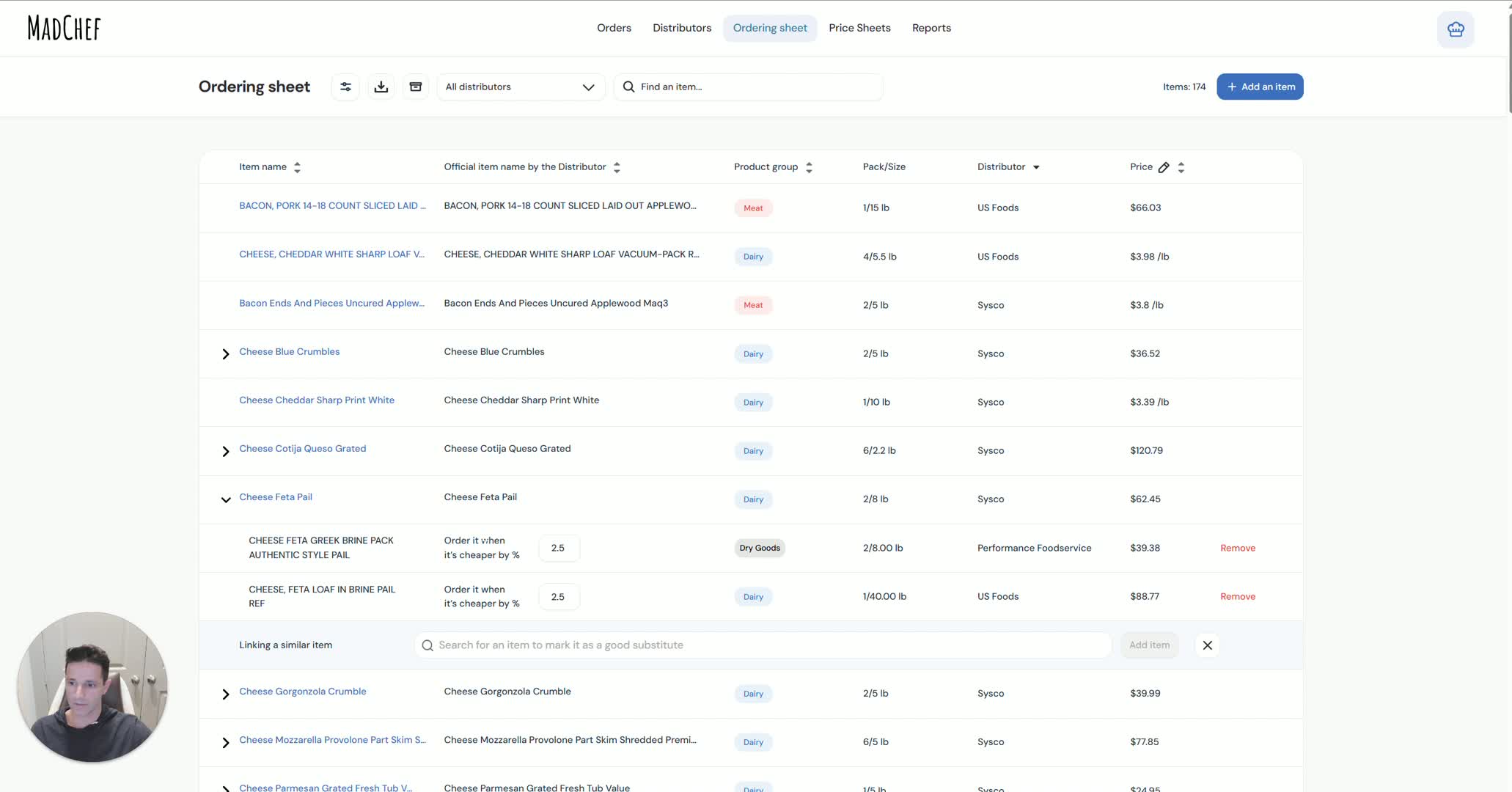
Check how the item appears across distributors.
Compare names, sizes, pack counts, and other product attributes.
Expect different naming conventions even when the products are equivalent.
The system uses these linked attributes to recognize matching items and search for better pricing.
3. Open the ordering sheet and expand the distributor list 0:32

Go to the ordering sheet where distributor options are displayed.
Expand the distributor section to view available items.
Review the linked items shown under each distributor.
Use this view to confirm that the system is pulling comparable products correctly.
4. Expand item details to verify the linked product set 0:40
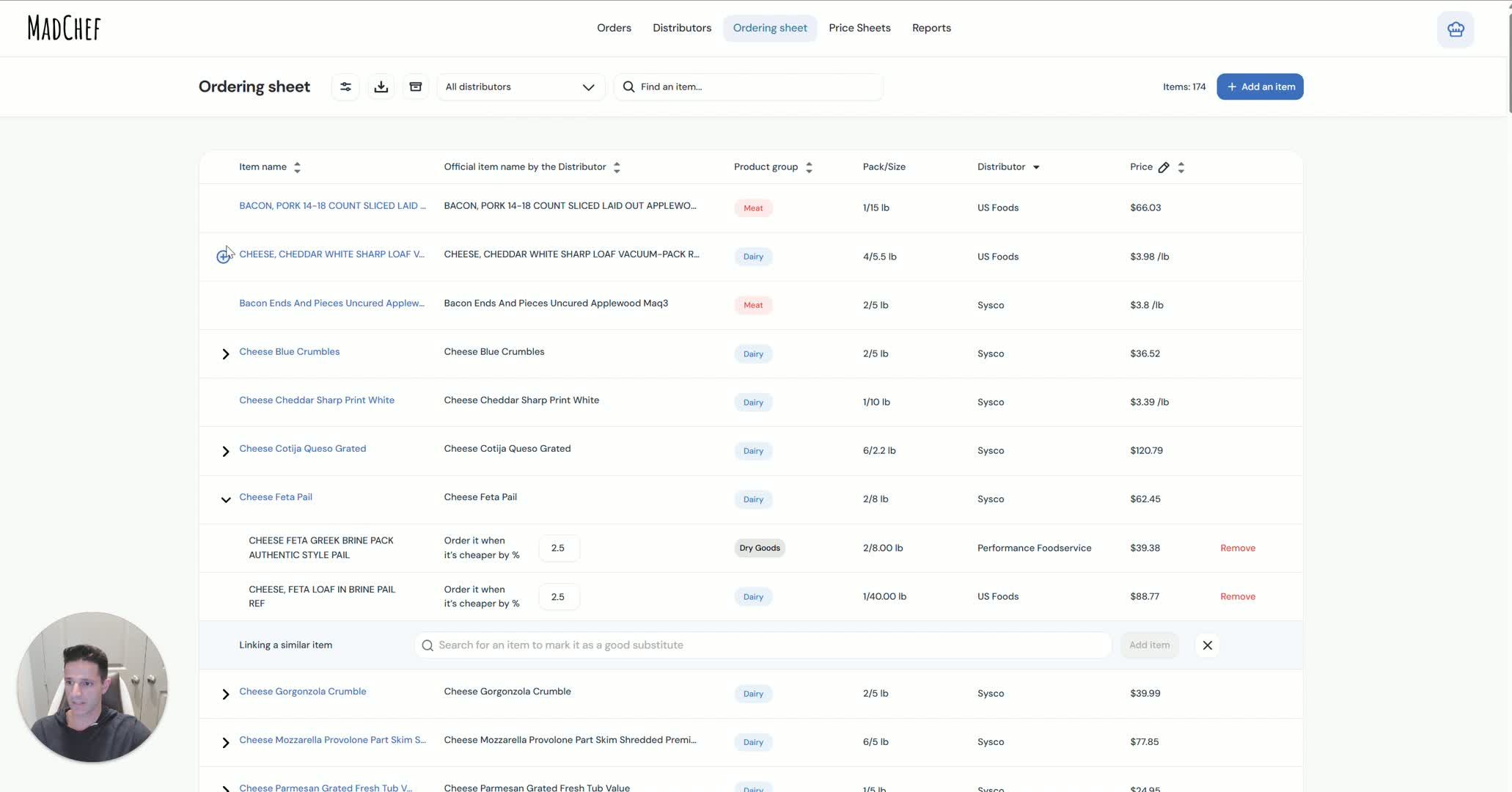
Expand the item row to see the full list of linked products.
Verify that the item is correctly matched across distributors.
Confirm that the linked items represent the same product or acceptable substitute.
Example: bacon or salmon items linked to Sysco.
5. Set the price-difference threshold for switching distributors 1:00
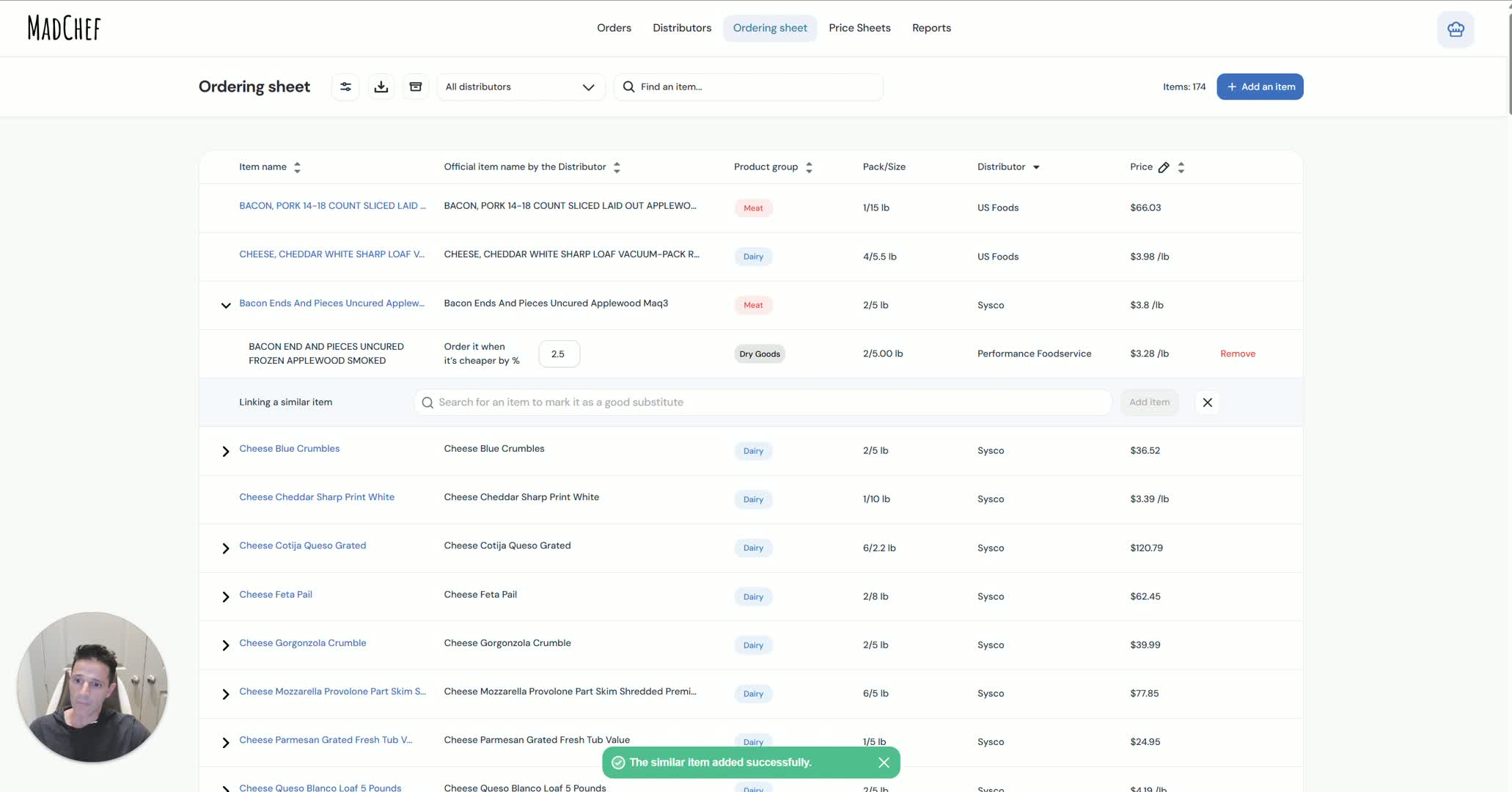
Review the default threshold used by the system to search for a better price.
By default, the system looks for a better price only when the item is at least 2.5% cheaper.
Adjust this threshold higher if you want stricter savings requirements.
Adjust it lower if you want the system to switch more aggressively.
6. Configure a higher savings requirement when quality matters 1:09
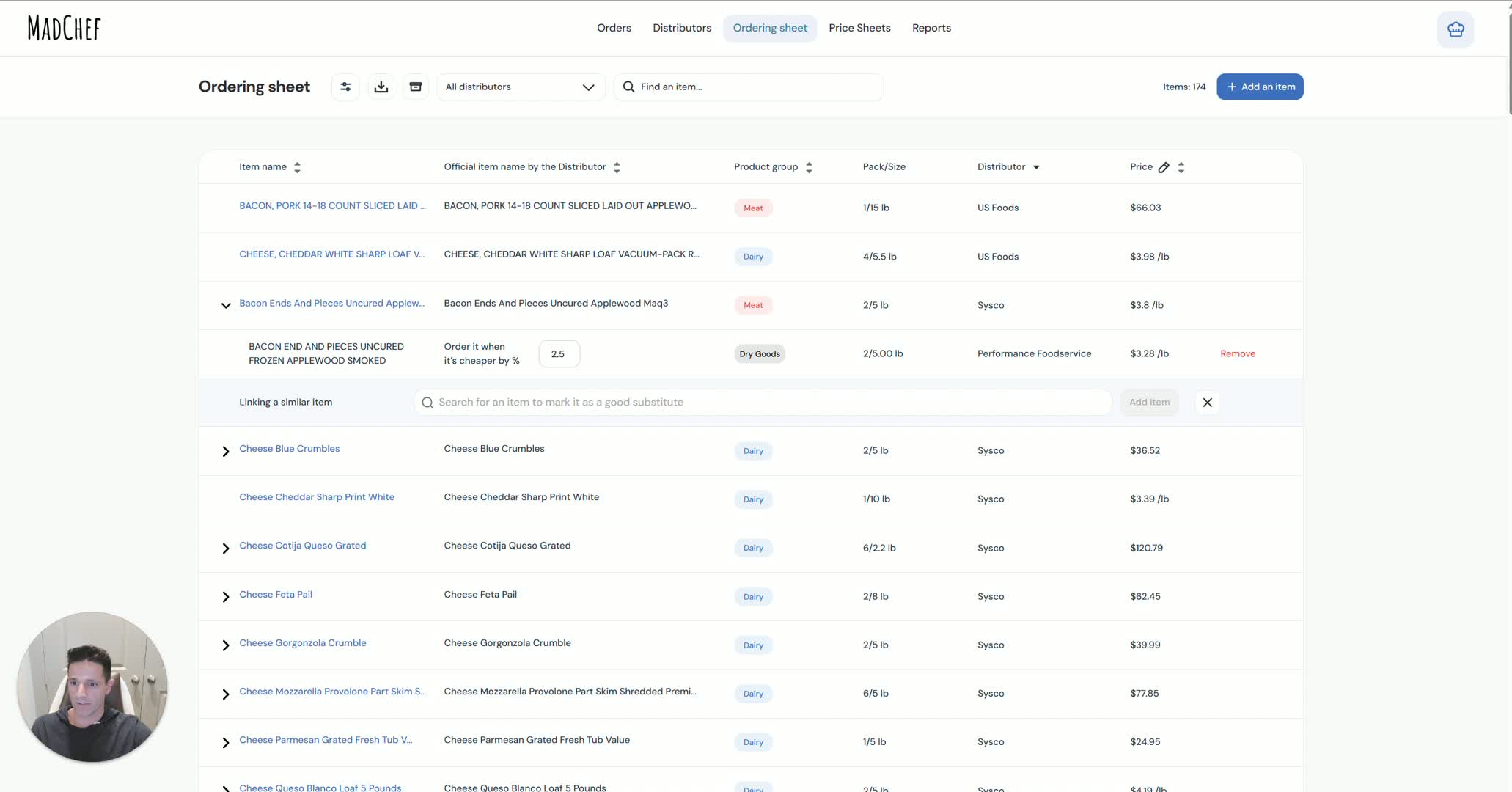
If product quality is a priority, increase the minimum savings threshold.
Example: set the system to require at least 10% cheaper before switching.
Use this setting when you want to favor performance or quality over small price differences.
Confirm the threshold aligns with your purchasing policy.
7. Compare items with different packs, sizes, and naming formats 1:22
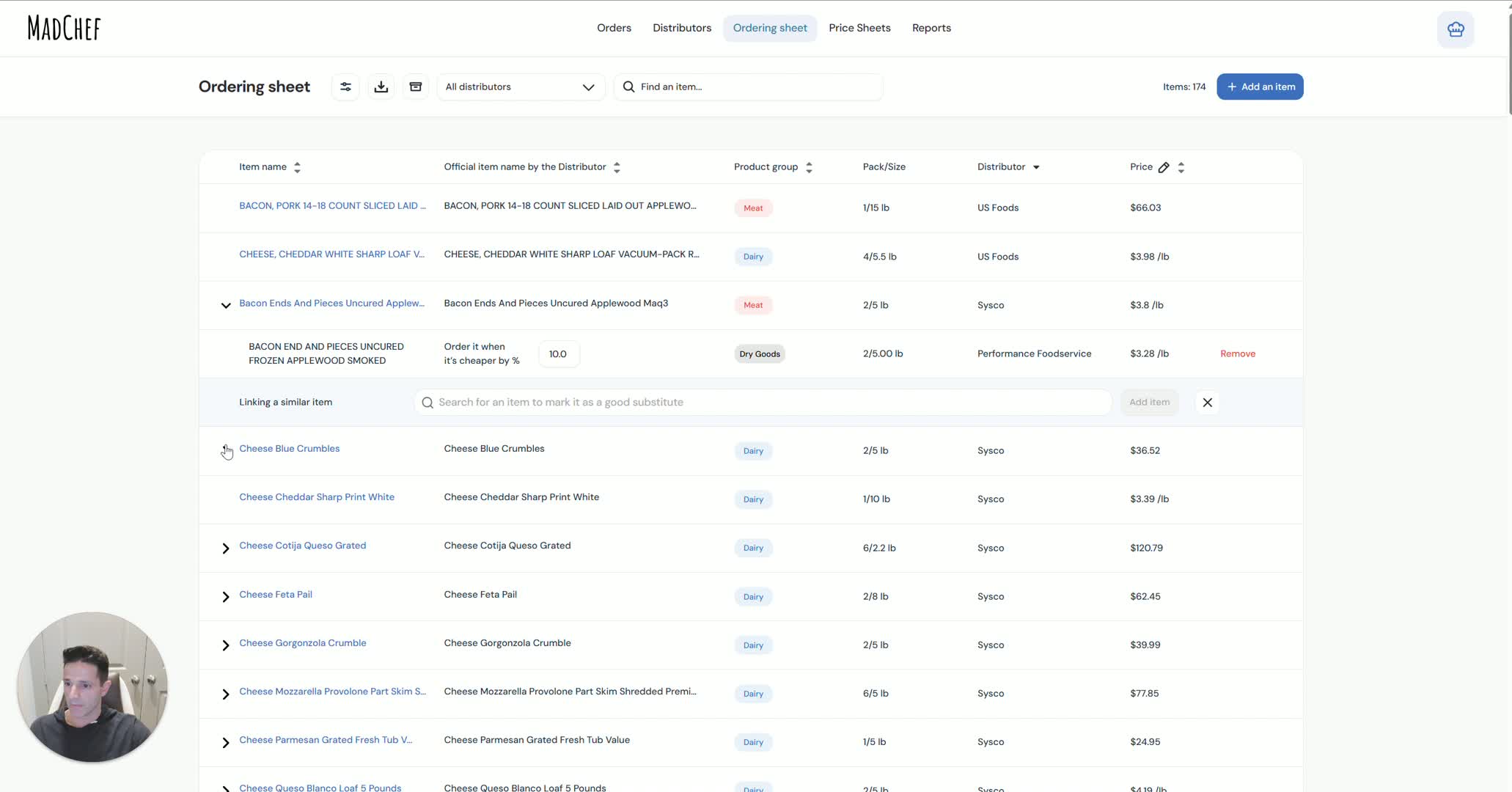
Review items that may be listed differently across distributors.
Check for differences in case size, pack count, or naming style.
Normalize the comparison by focusing on equivalent product attributes.
Ensure the linked items are truly comparable before relying on the price match.
8. Match distributor-specific items to the correct source 1:35
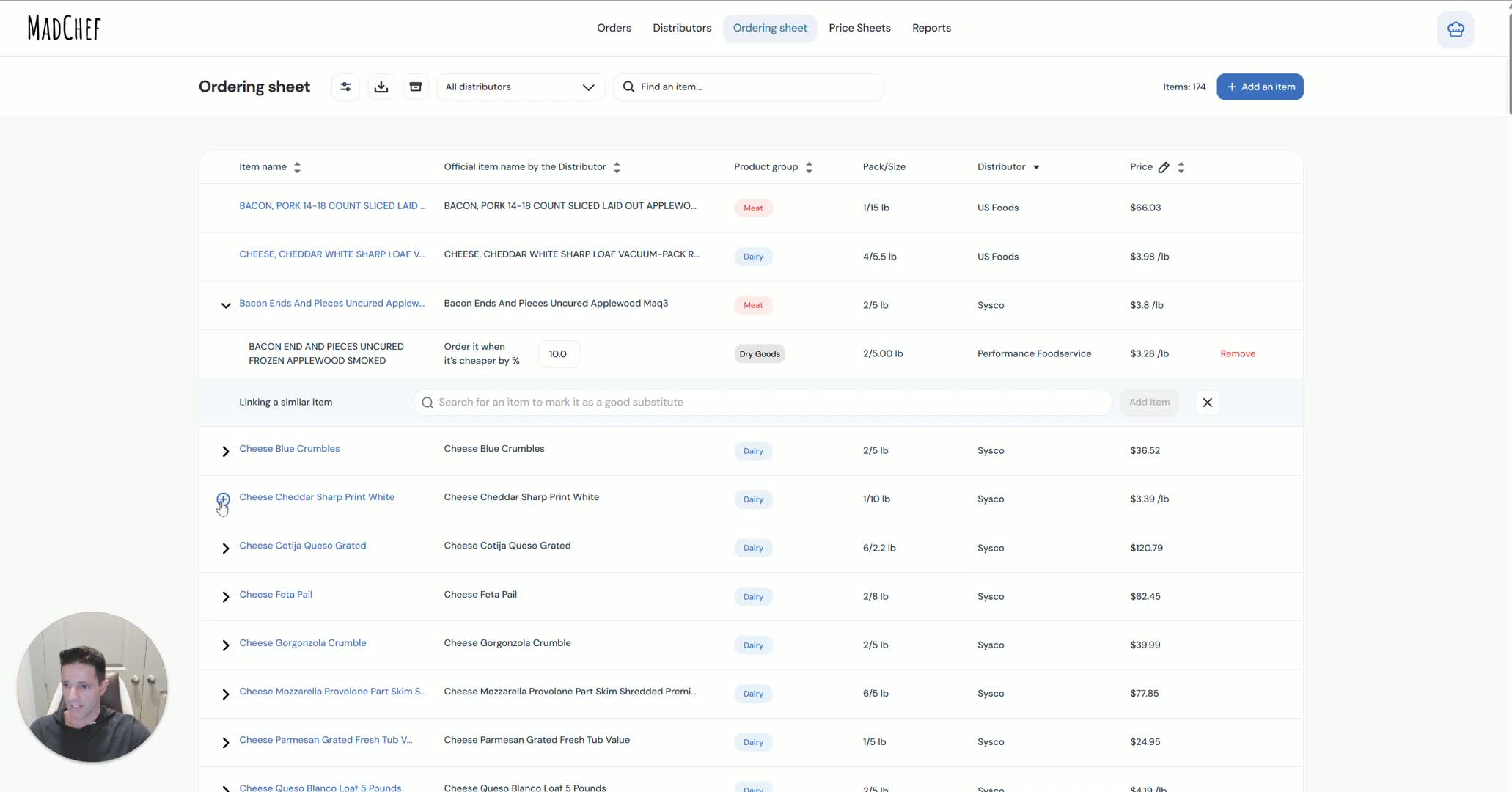
Link items so the system knows which distributor-specific product corresponds to the original item.
Confirm that the matching logic points Sysco items to Sysco equivalents, or the correct distributor source.
Use consistent naming and matching rules to reduce errors.
Verify the linked item is the intended substitute before saving.
9. Confirm the system will search for lower prices after linking 2:00
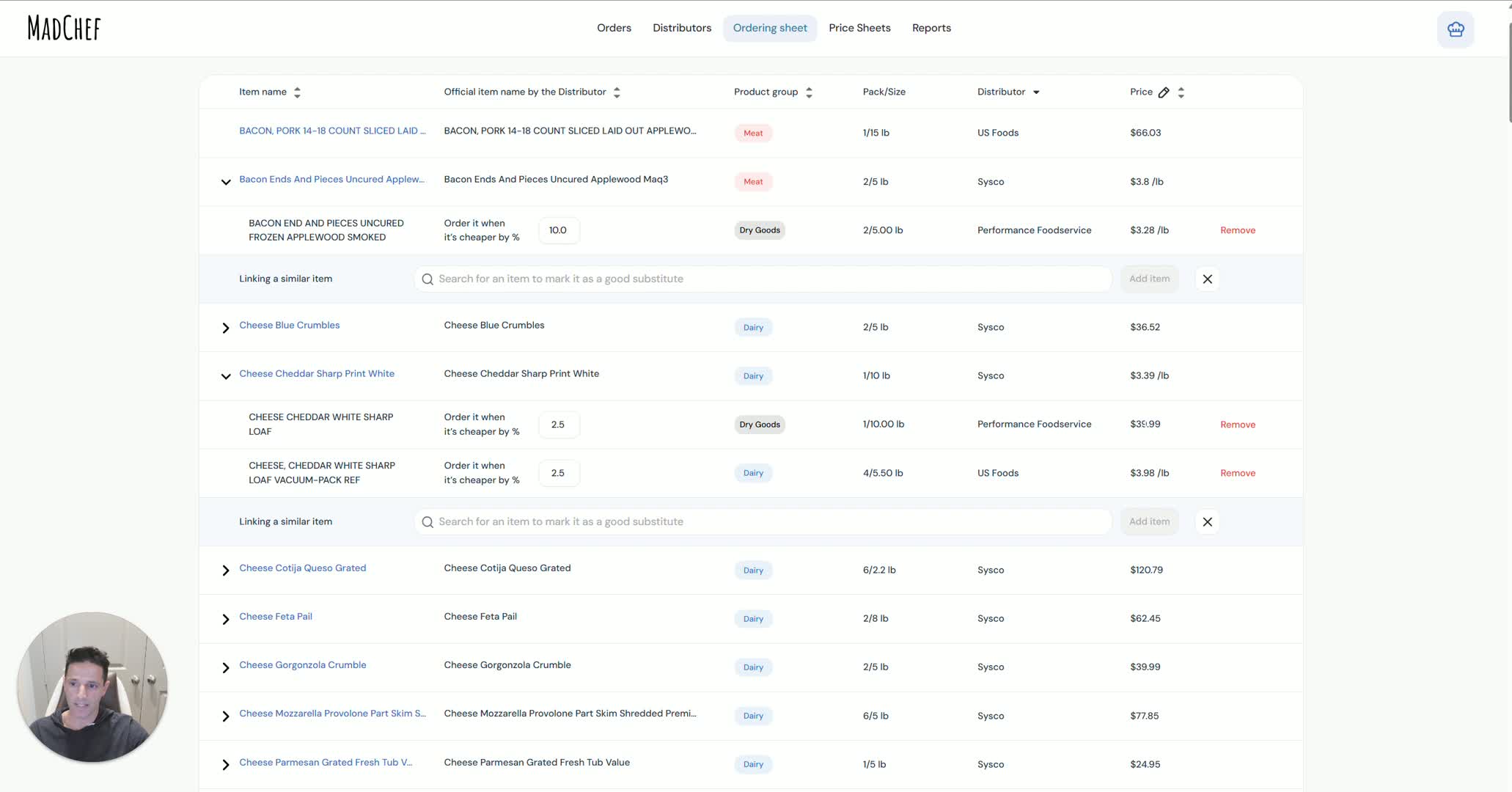
After linking is complete, verify that the pricing engine is active.
Confirm the system will now search for better prices across linked distributors.
Review the matched item and ensure the price comparison is functioning as expected.
If needed, test with a known item to validate the result.
10. Decide whether to keep an item locked to one distributor 2:11
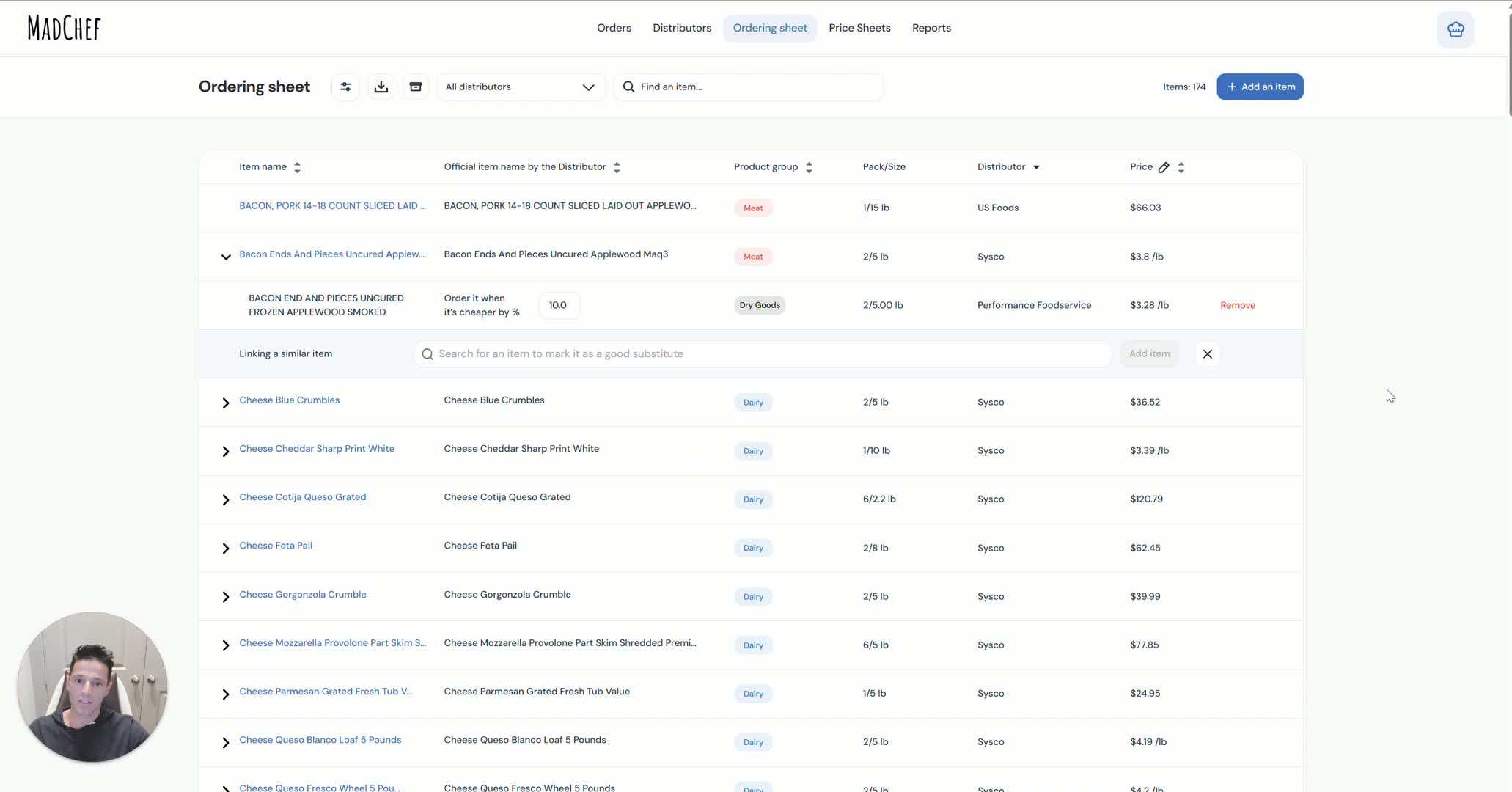
Determine whether the item should remain tied to a single distributor.
If the item is locked, the system should not switch to another distributor even if another price is lower.
Use this option for items that must stay with a specific supplier.
Apply this only when distributor consistency is more important than price savings.
11. Finalize purchasing rules and maintain full product control 2:17
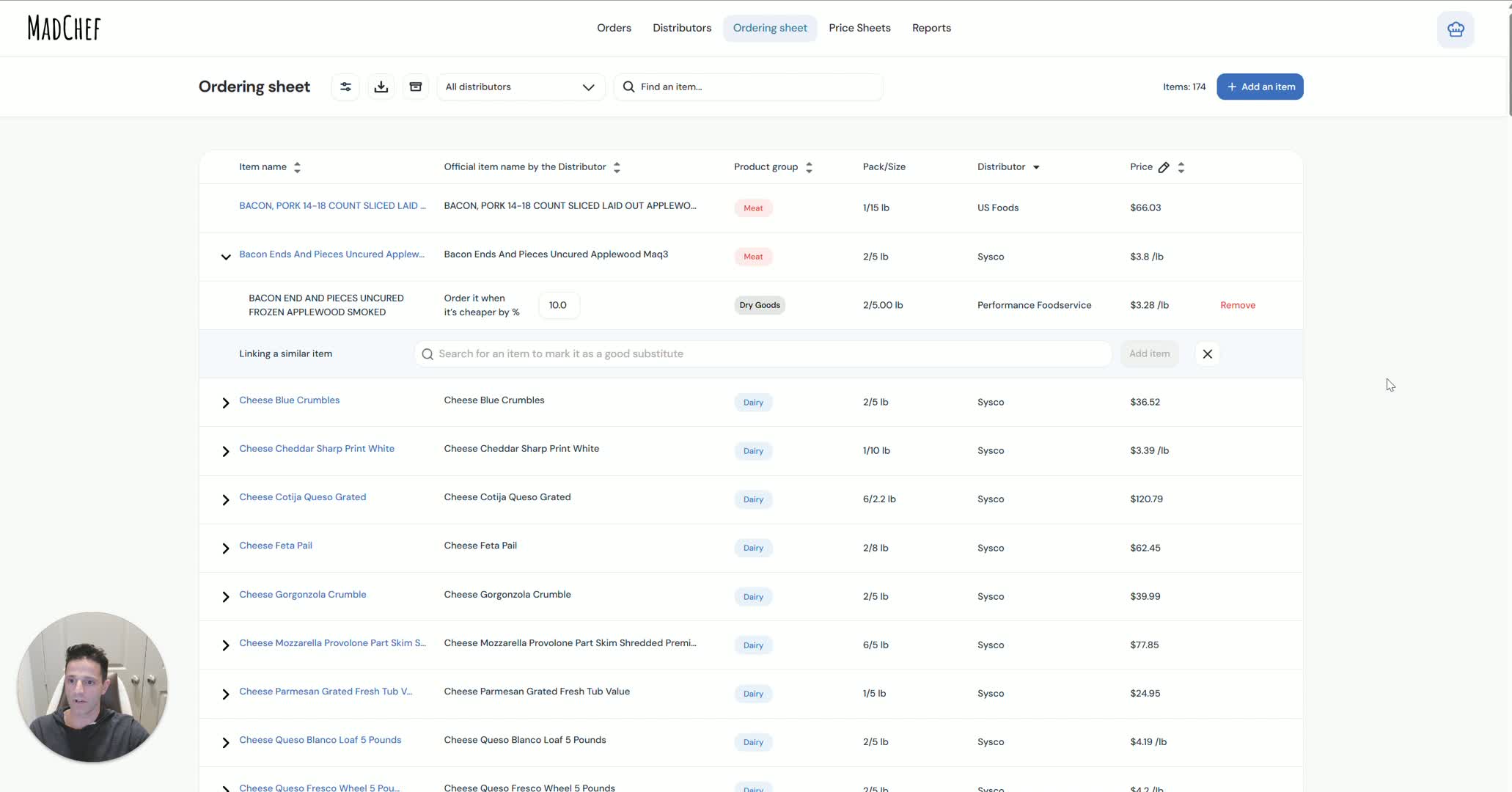
Review the final linked-item setup and purchasing behavior.
Confirm whether the system should always choose the cheapest option or stay with a preferred supplier.
Make sure the rule matches your operational and budget requirements.
Save the configuration so the team has full control over product sourcing.
Cautionary Notes
Do not assume items are equivalent just because the names look similar; verify size, pack, and product type.
Be careful when increasing the savings threshold, as it may prevent the system from switching to a better-priced option.
If an item is locked to one distributor, the system should not override that rule based on price alone.
Confirm linked items before relying on automated price comparisons to avoid ordering the wrong product.
Tips for Efficiency
Standardize item naming and attribute entry to make matching easier across distributors.
Use the ordering sheet to quickly review linked items and validate comparisons.
Set a default threshold that matches your purchasing strategy, then adjust only for exceptions.
Periodically audit linked items to ensure distributor mappings remain accurate as catalogs change.