Back to all
How to place your orders on MadChef

Objective
This guide explains how to create, review, and submit an order in MadChef so purchases are automatically split across distributors based on price and minimum-order requirements. It also outlines how to adjust items to meet minimums while preserving savings.
Key Steps
1. Review the ordering sheet and understand item linking 0:10

Open the ordering sheet and locate the items you regularly purchase.
Identify any arrow indicators next to an item.
Use the arrow as a signal that the item is linked to the same or similar product from another distributor.
Confirm that different distributor names may represent the same product, even if the item names differ in their systems.
2. Confirm the anchor distributor and linked distributor setup 0:49
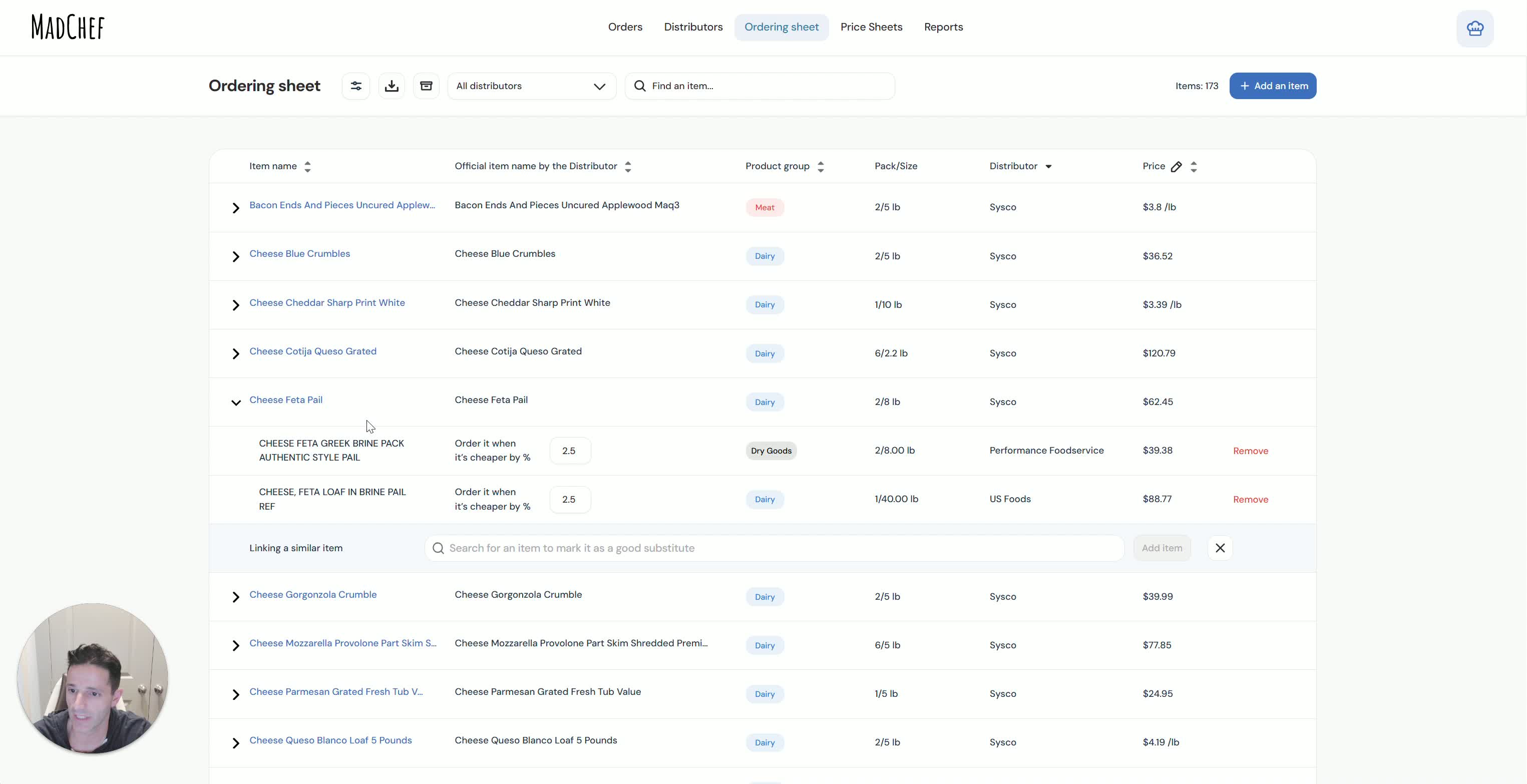
Treat Sysco as the anchor distributor if it is your primary historical distributor.
Link your Sysco item to equivalent items from other distributors already invited into MadChef.
Understand that MadChef combines equivalent items for price comparison, even when pack sizes or naming conventions differ.
Repeat this linking process for all items you want MadChef to compare across distributors.
3. Start a new order in MadChef 1:19

Begin the order using the anchor distributor first, such as Sysco.
Select the desired delivery date, such as tomorrow’s order.
Add the items you want to purchase, even if only a few quantities are entered initially.
Proceed to review the draft order before submitting.
4. Review the draft order and compare distributor savings 1:50
Open the order review screen to see the original order on the left and the optimized split order.
Compare how MadChef redistributes items across distributors based on price.
Verify that some items remain with Sysco when Sysco has the best price.
Confirm that other items are moved to Performance or US Foods when those distributors offer lower prices.
Check the minimum-order status shown by the system.
5. Adjust items to meet distributor minimums if needed 2:38
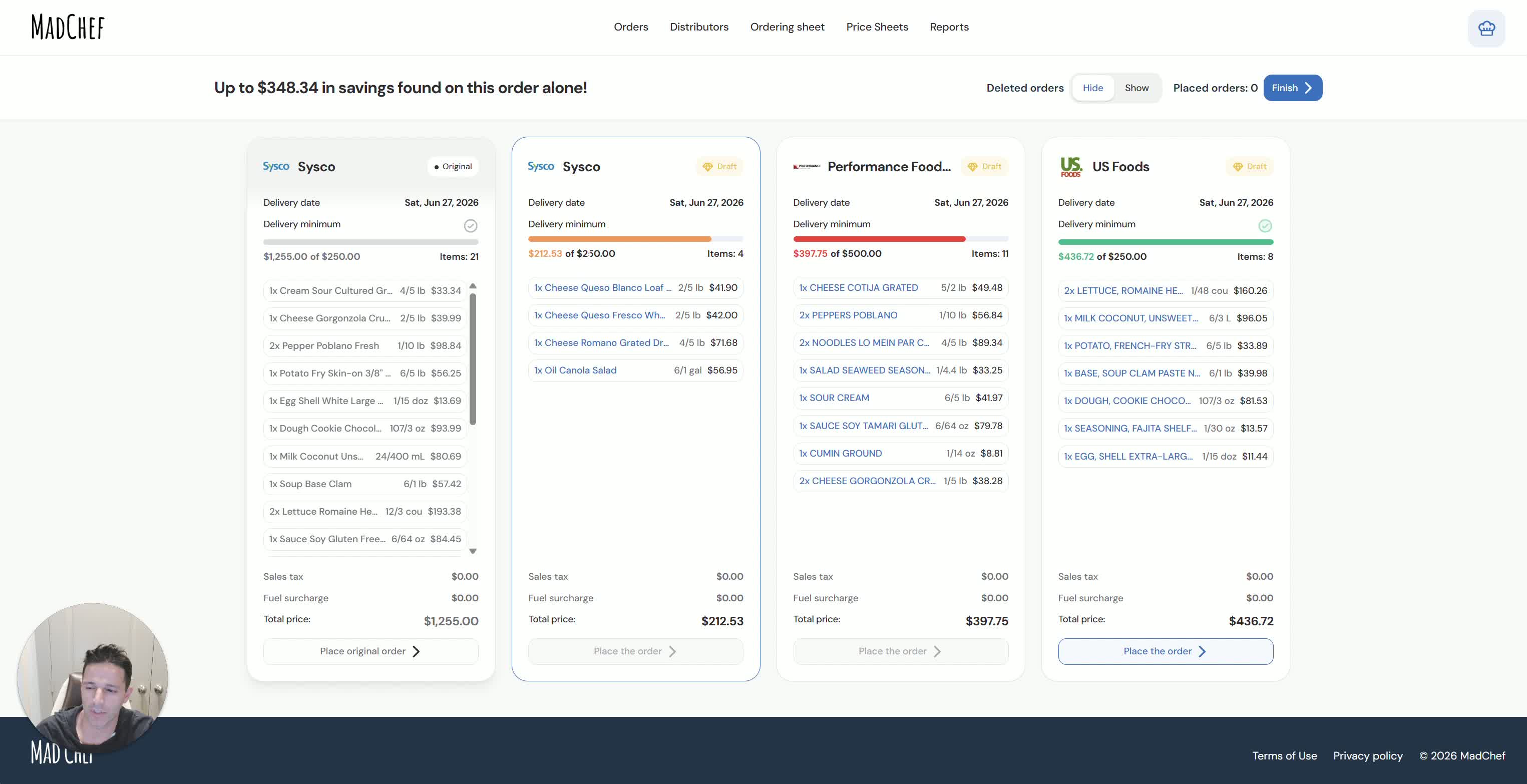
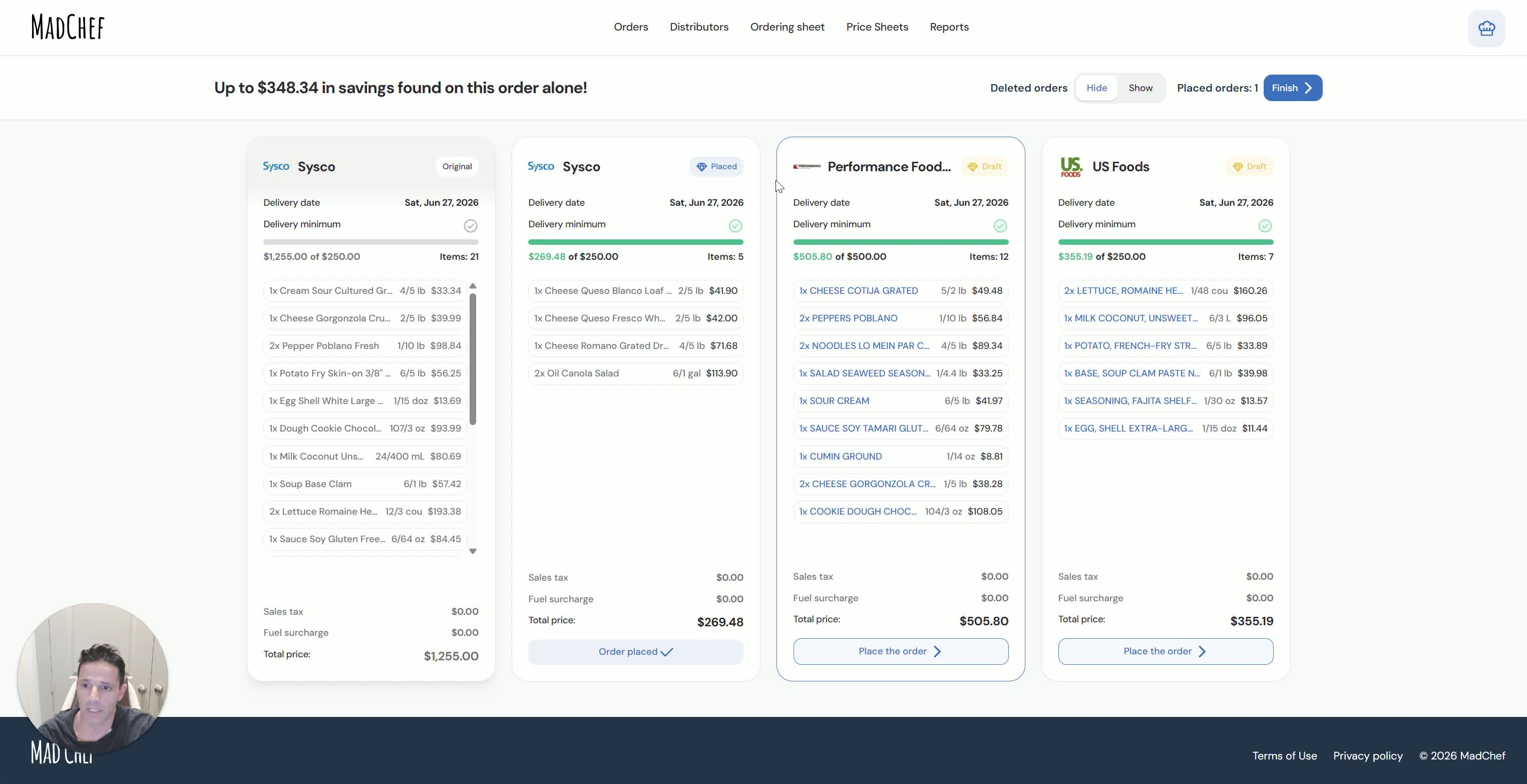
If a distributor minimum is not met, determine whether adding one more case or moving an item can close the gap.
Add an extra case of a shelf-stable or flexible item when appropriate.
If needed, move an item from one distributor to another to satisfy the minimum while keeping most of the savings.
Recheck the order total and minimum status after each adjustment.
6. Submit the order and trigger distributor notifications 3:04
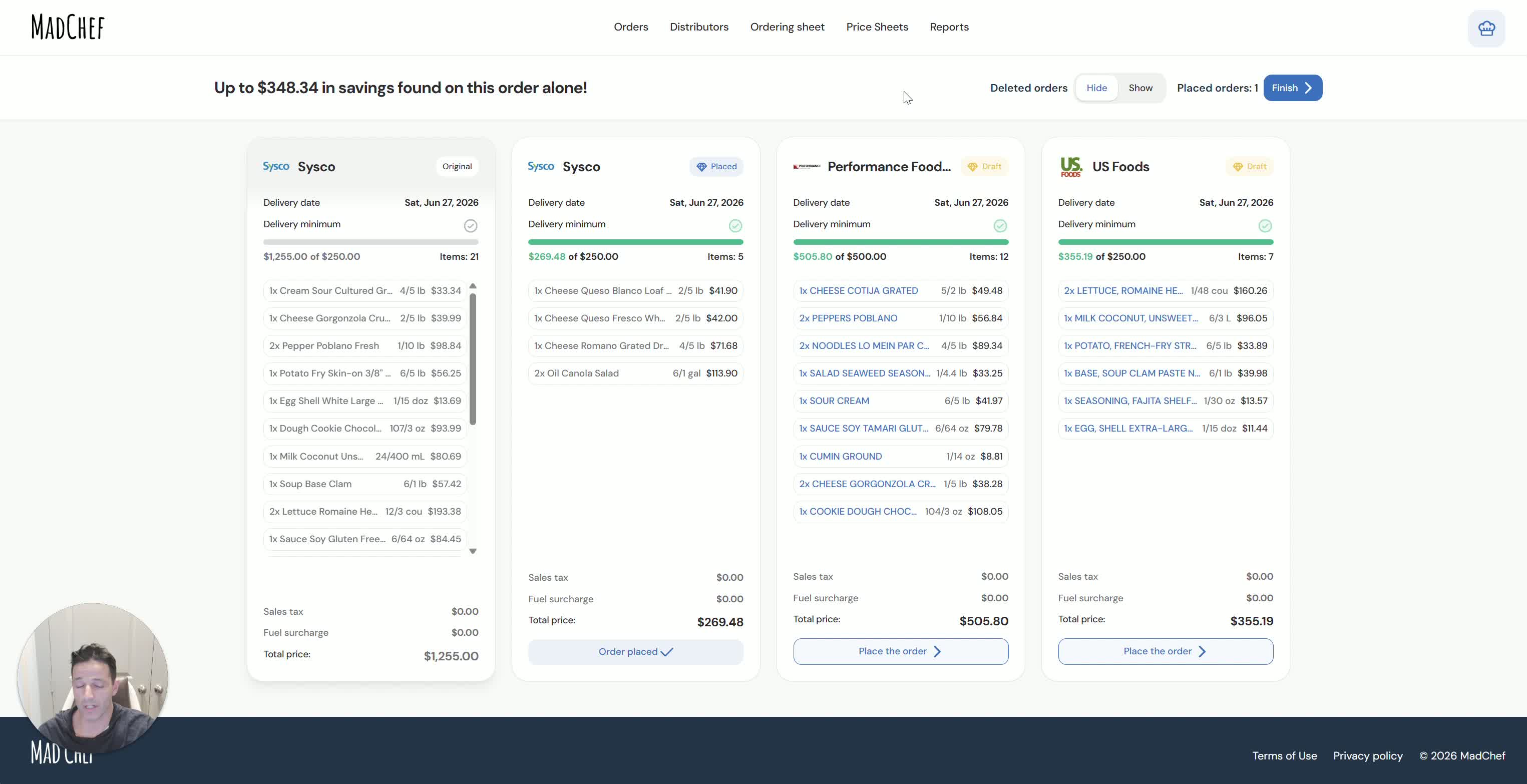
Once the order meets pricing and minimum requirements, place the order.
Confirm that the salesperson receives an email notification with the new order details.
Ensure the distributor receives a PDF containing customer information, item details, and expected pricing.
If portal-based ordering is supported, use the portal workflow instead of manual follow-up.
7. Repeat the optimization process across categories 4:31
Apply the same ordering method to produce, dairy, seafood, and other purchasing categories.
Start with the anchor distributor and compare against one or more additional distributors.
Continue expanding distributor comparisons as long as minimums can be comfortably met.
Use the process consistently to maximize savings across the full purchasing program.
8. Maintain competitive pricing through ongoing distributor comparison 5:04
Invite additional distributors to provide pricing so MadChef has more options to compare.
Expect the anchor distributor to respond with improved pricing over time.
Allow the system to create draft orders automatically based on the lowest available price.
Use the competitive setup to reduce manual negotiation and keep pricing pressure on all distributors.
9. Monitor pricing changes and protect savings over time 6:08

Continue checking prices regularly, especially after introductory offers expire.
Watch for price increases after the first few weeks of using MadChef.
Use the system to catch price changes before they erode savings.
Rebalance orders when a distributor becomes more expensive so business shifts to the lowest-cost option.
Cautionary Notes
Do not assume different distributor item names mean different products; verify linked items carefully.
Make sure distributor minimums are met before submitting the order.
Keep pricing updated regularly so the comparison remains accurate.
Tips for Efficiency
Use the anchor distributor as the starting point for every order to keep the process consistent.
Add shelf-stable or flexible items when you need to reach a minimum quickly.
Compare multiple distributors within the same category to maximize savings.
Encourage distributors to compete by inviting more of them into MadChef.
Review pricing weekly so the system reflects current market conditions.