Back to all
Getting started with MadChef: Complete setup walkthrough

Objective
This walkthrough shows you how to set up your MadChef account from start to finish. You’ll learn how to sign up, add your restaurant, invite users, create distributors, upload ordering guides, and connect matching items. By the end, your account will be ready to start comparing prices and building smarter orders.
Key Steps
1. Create the restaurant account 0:00
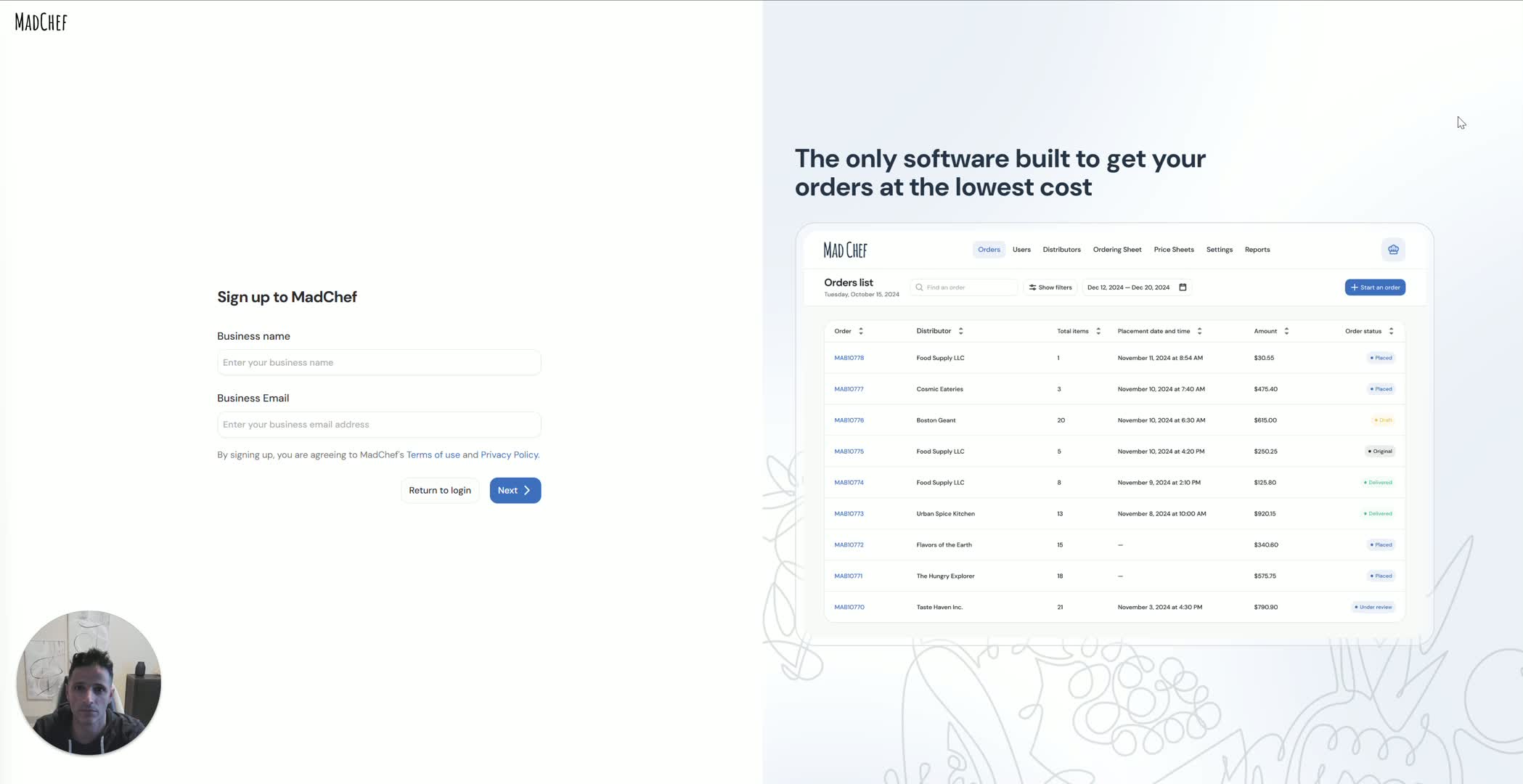
Open MadChef and begin the sign-up process.
Enter the restaurant name and verify the email address.
Complete the admin profile for the owner, chef, or primary account holder.
Create a password and set up sign-in options such as one-time login by phone or email.
Add the business phone number and restaurant address.
Set delivery details, including the time window when deliveries should be accepted.
2. Enter billing and subscription details 1:25
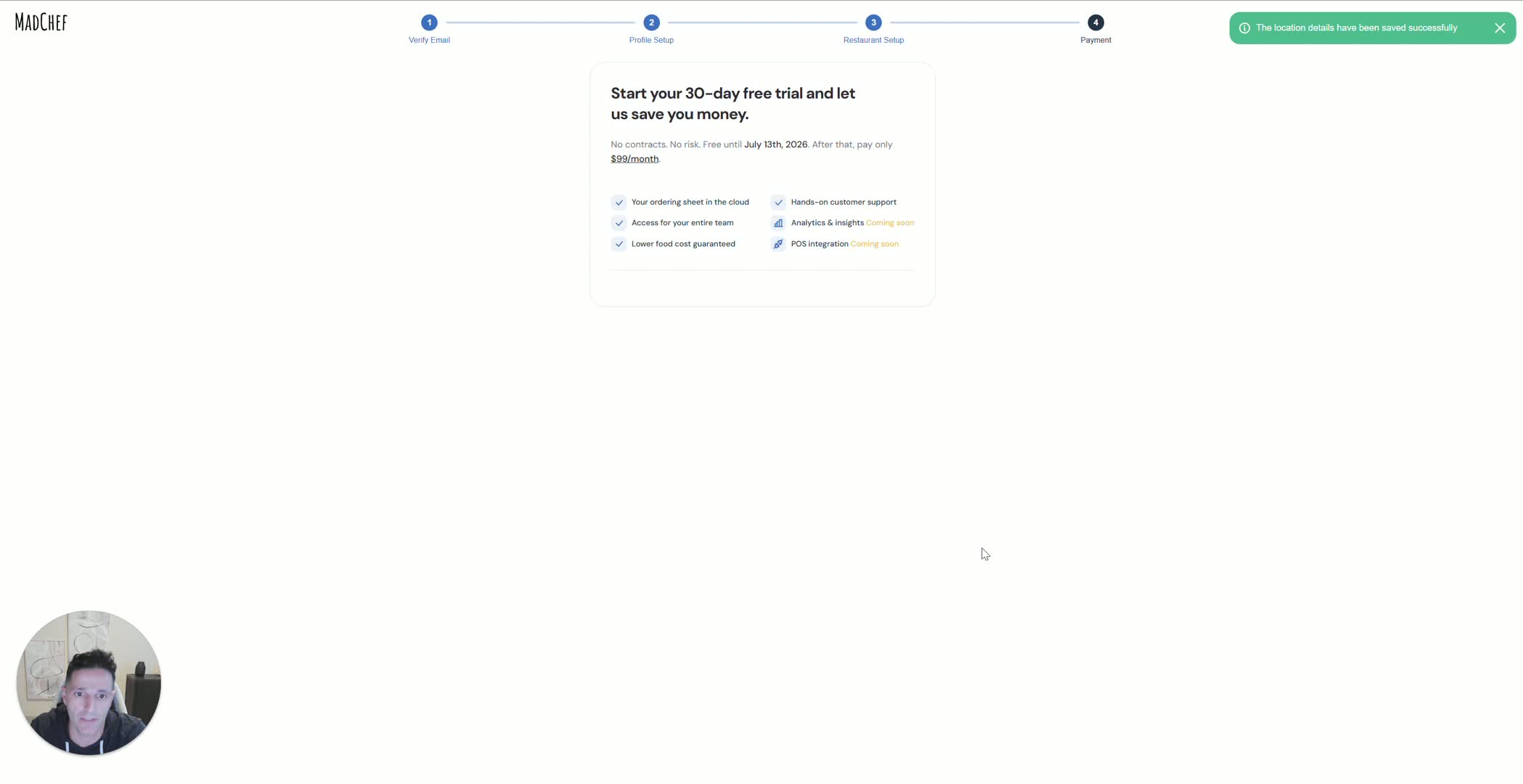
Add credit card information to activate the account.
Review the monthly subscription cost after the trial ends.
3. Activate the first distributor account 1:52
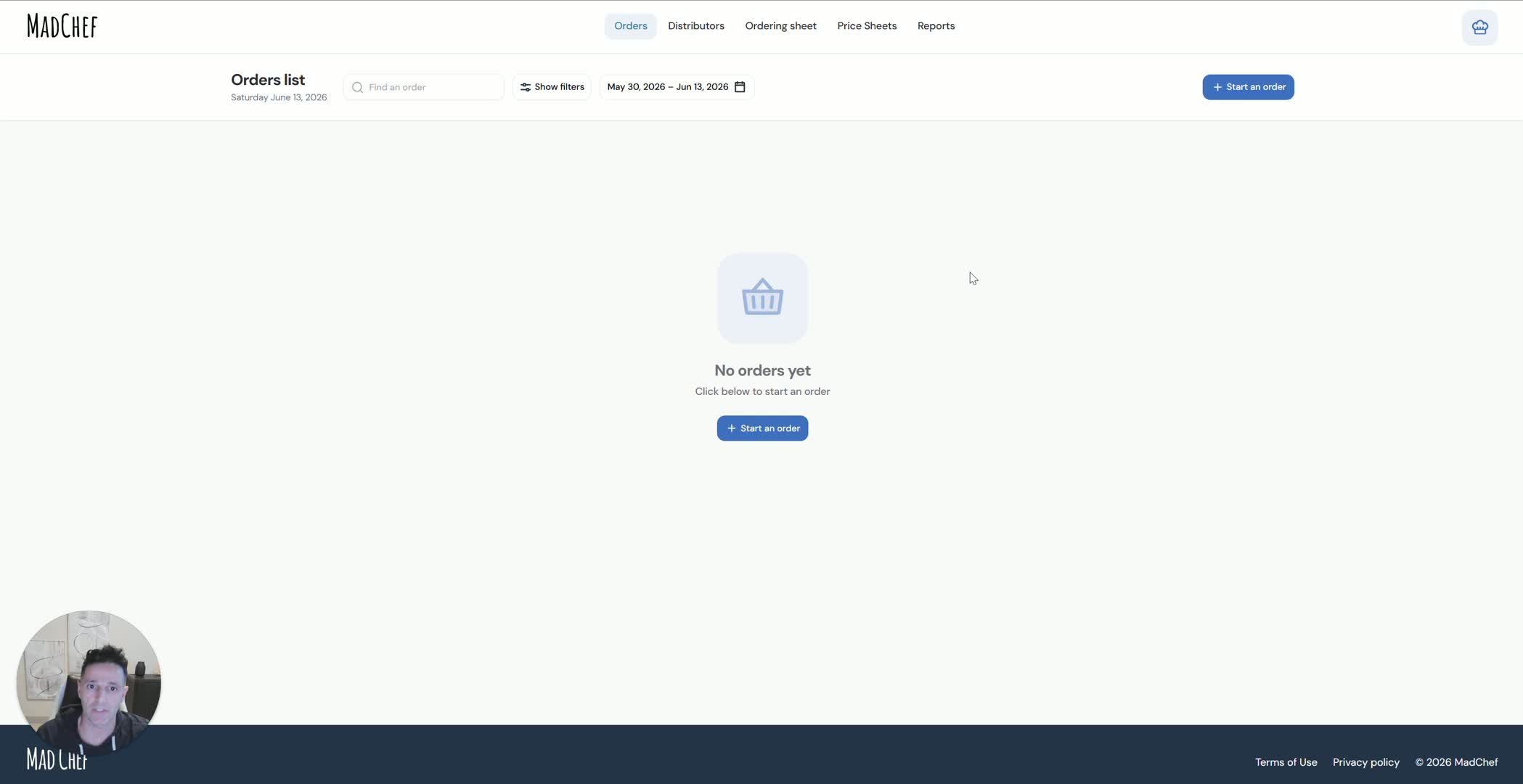
Choose the first distributor you already buy from, such as Sysco.
Enter the distributor account number.
Add the assigned salesperson’s name, phone number, and email address.
Confirm the email address used for order notifications and price updates.
Set the distributor’s delivery minimum and any other relevant delivery details.
4. Import the distributor ordering guide 2:48

Log in to the distributor portal and export the ordering guide or price list.
Make sure the export includes pricing information.
Return to MadChef and upload the file.
Allow MadChef to detect the distributor template and import the items automatically.
5. Review imported items and clean up duplicates 3:22
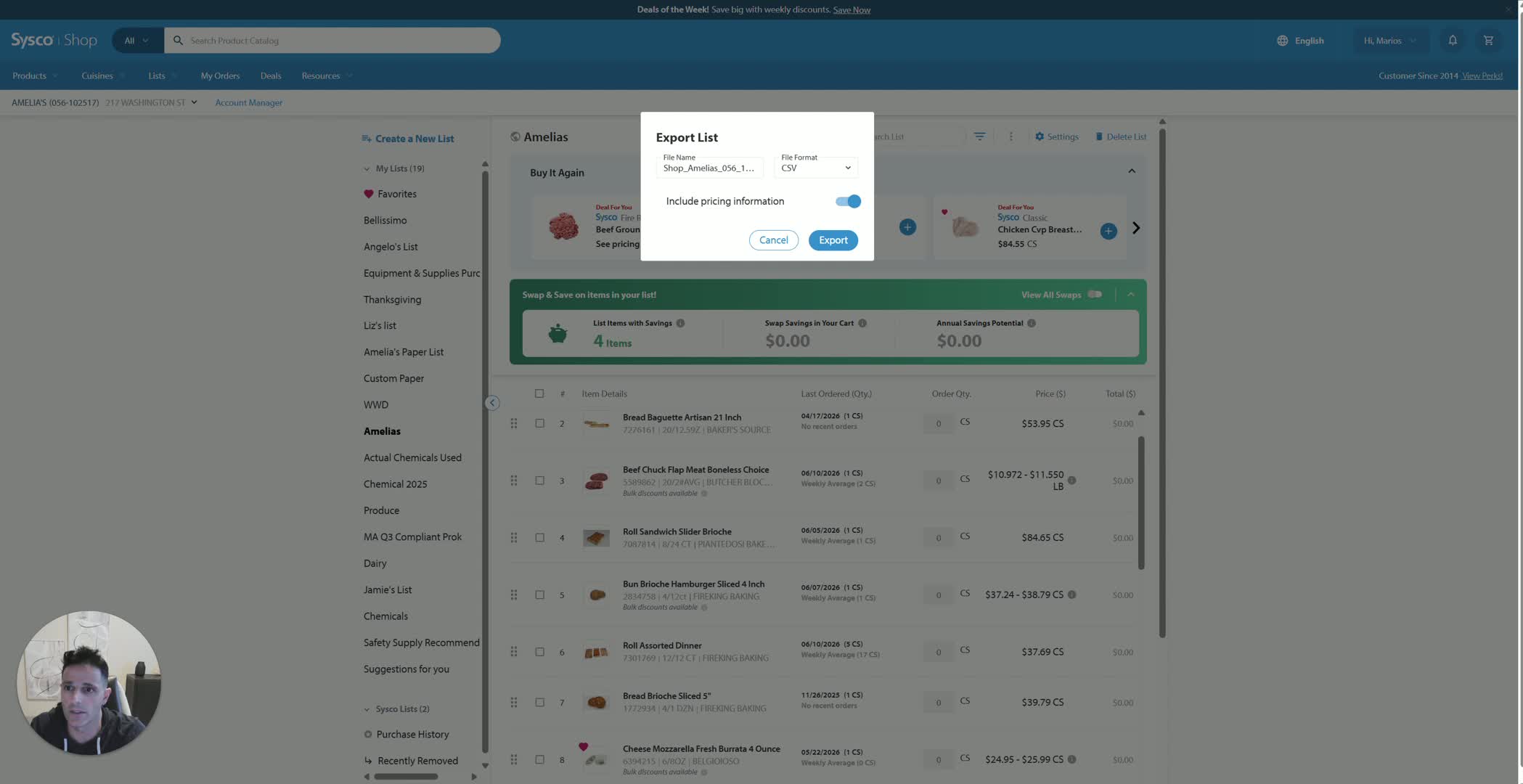
Verify that the imported items appear correctly in the ordering guide.
Remove duplicate-looking items when they represent the same product sold in different pack sizes.
Keep only the pack size you actually purchase most often.
Confirm the final item list before moving on.
6. Add item images for easier identification 4:16
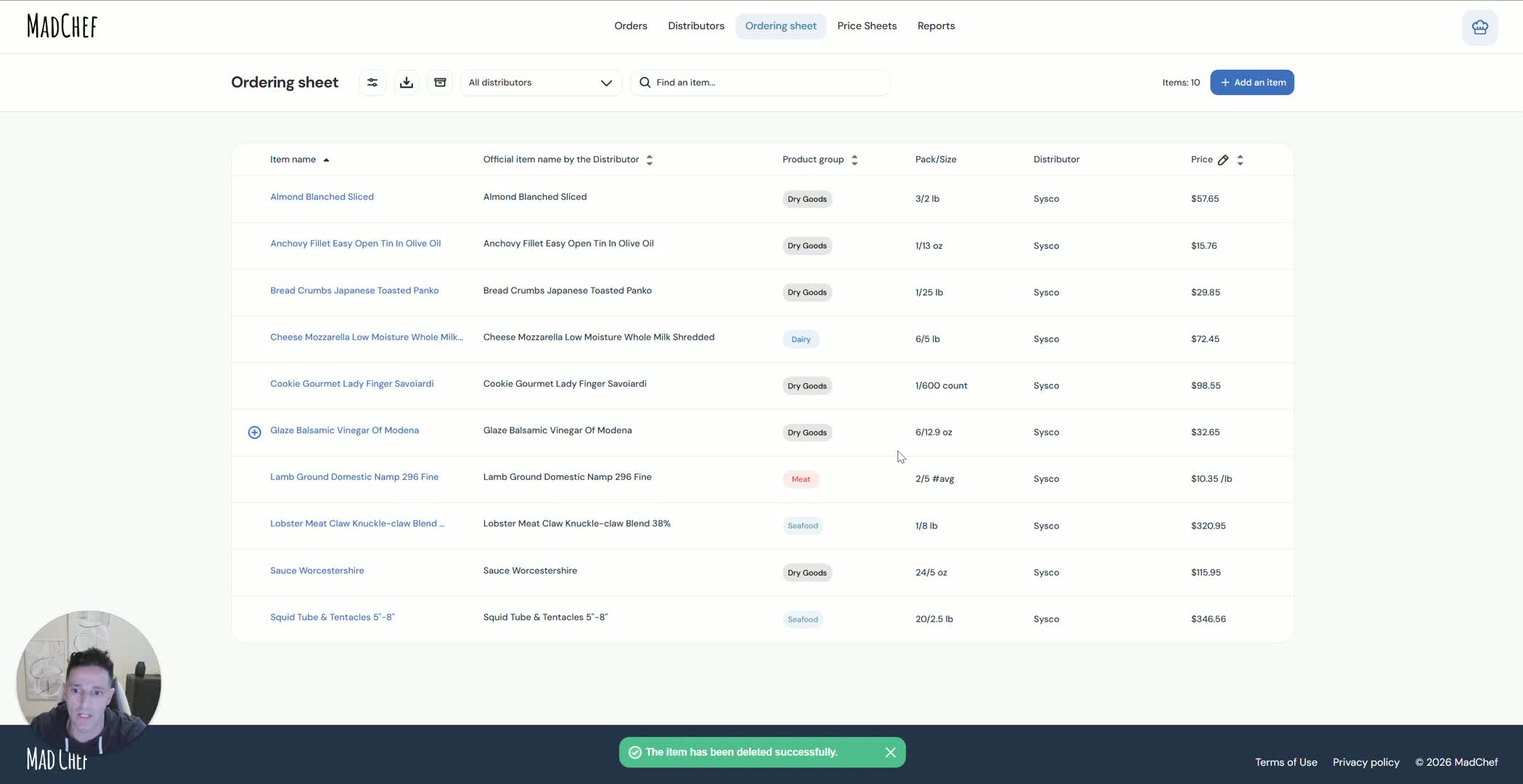
Add product images to the imported items when possible.
Use distributor website images, Google images, or other internal sources if needed.
Skip this step if images are not available; it is optional.
Scroll through the items to confirm the images loaded correctly.
7. Link the distributor price sheet to MadChef 6:00
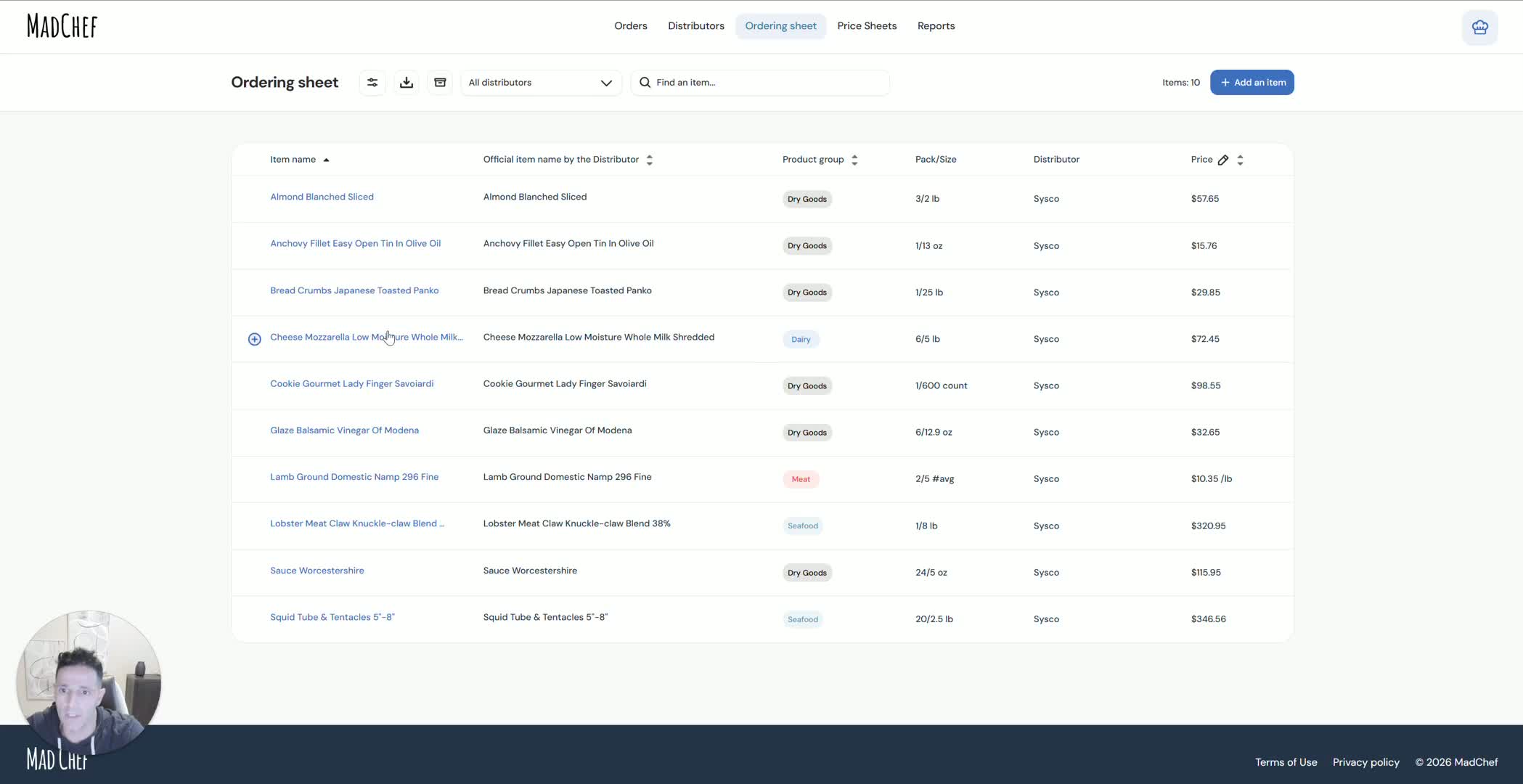
Open the price sheet linking section for the distributor.
Select the same exported file used for import.
Identify the first row containing product data.
Map the columns for item name, price, and item key.
Continue through the setup and confirm there are no additional columns to map.
8. Rename items to match chef-friendly terminology 7:20

Review the distributor item names shown in MadChef.
Rename items to terms your kitchen team understands.
Keep the distributor’s original name in the background while using your preferred internal name.
Save the changes so the mapping remains available for future imports.
9. Test the price sheet update process 7:49
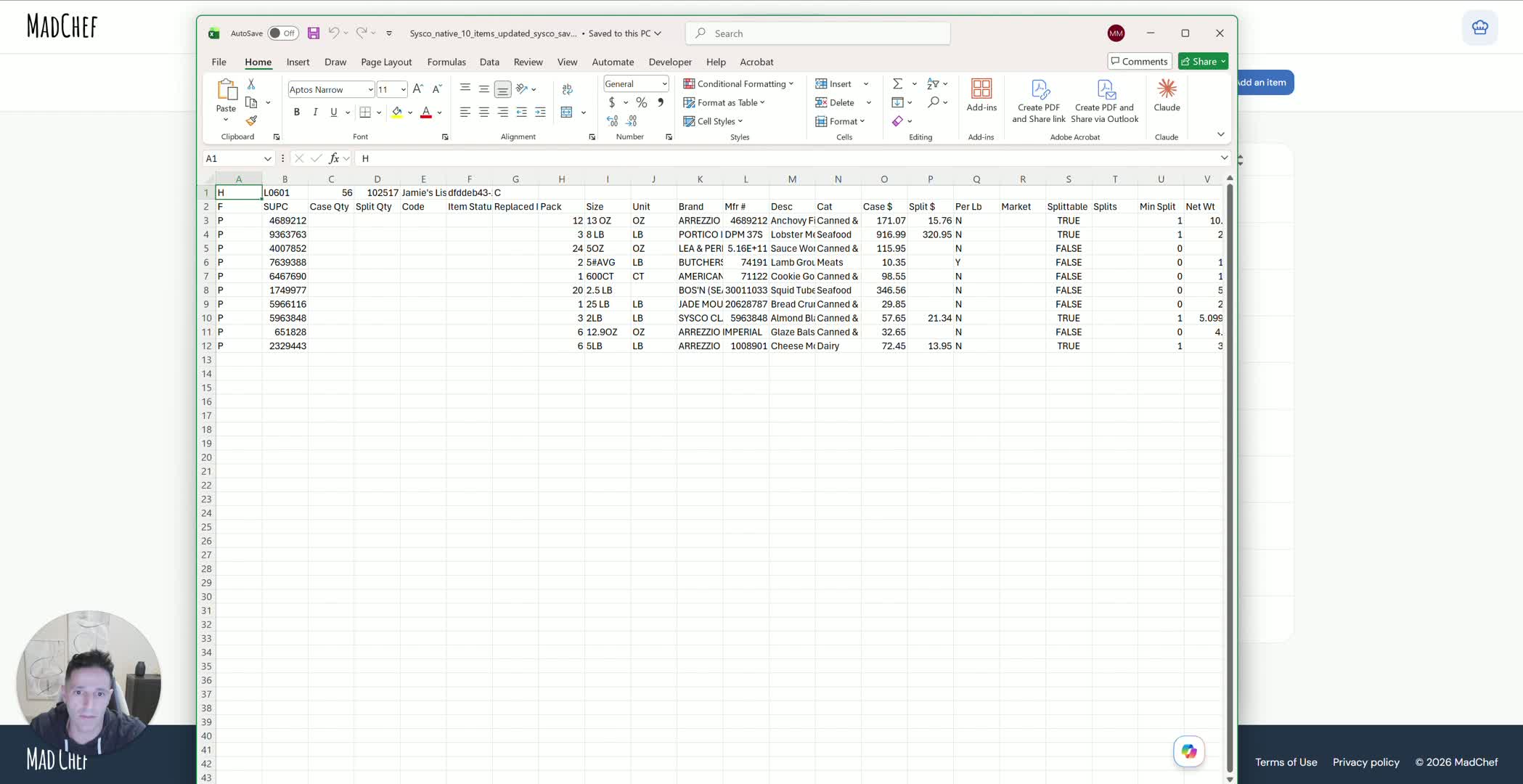
Change one item price as a test to confirm the link is working.
Save the update.
Re-import or refresh the same price sheet later to verify the new price appears automatically.
Confirm that future weekly updates will populate without repeating the mapping process.
10. Add a second distributor and repeat setup 8:40
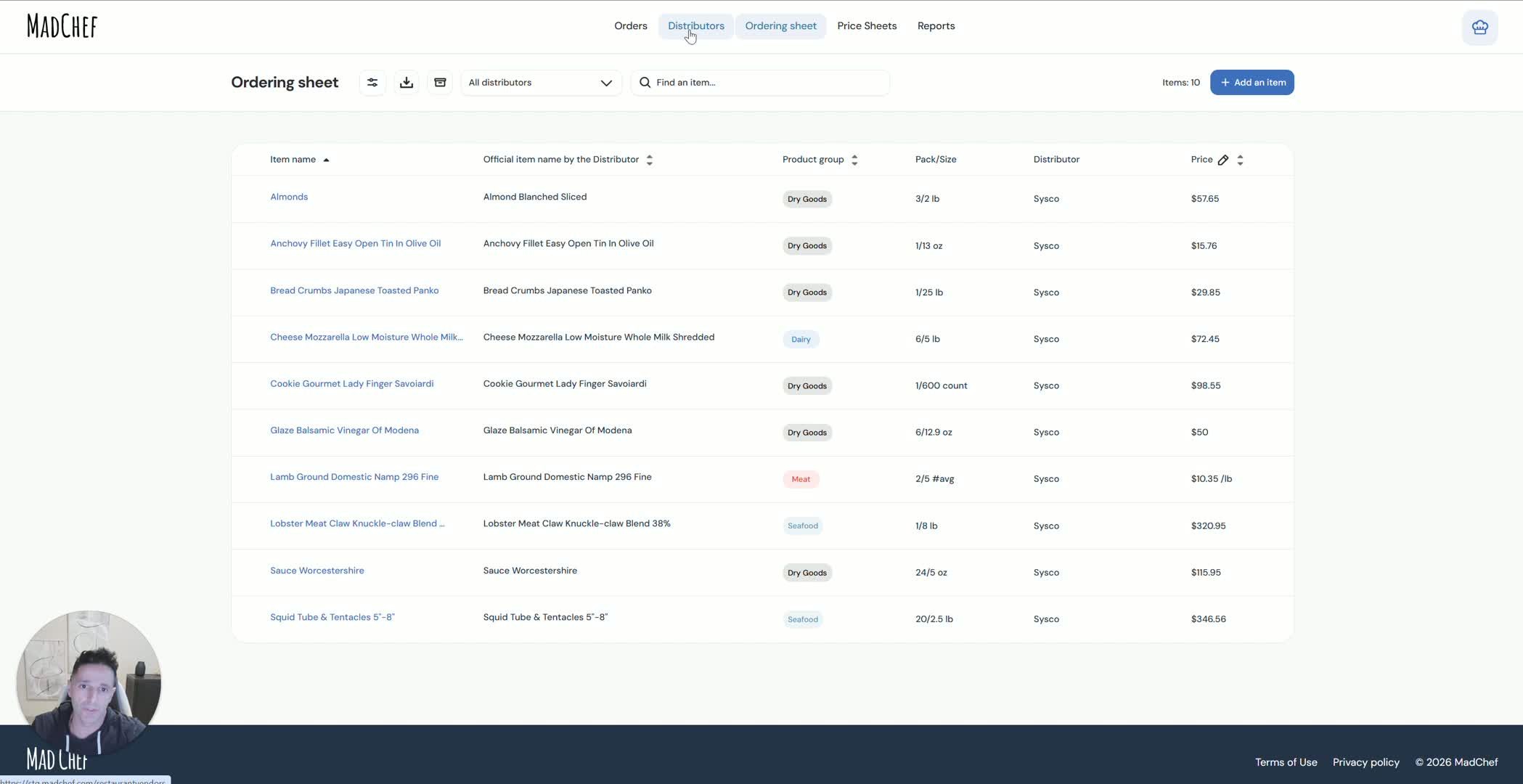
Add another distributor to increase price competition.
Enter the new distributor’s account details, salesperson contact information, and delivery rules.
Import the second distributor’s ordering guide using the same process.
Map the columns in the new file if the template differs from the first distributor.
11. Link equivalent items across distributors 11:24
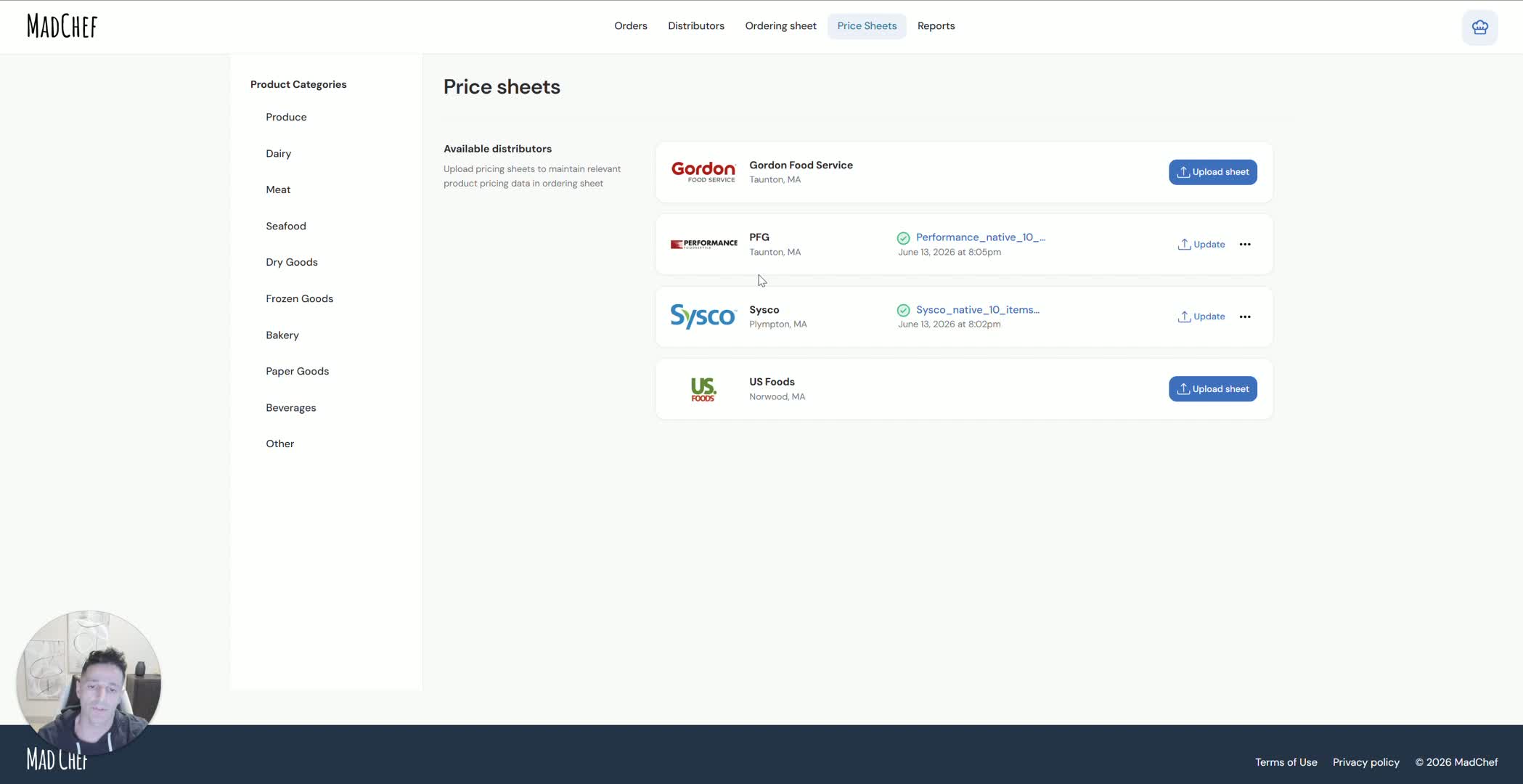
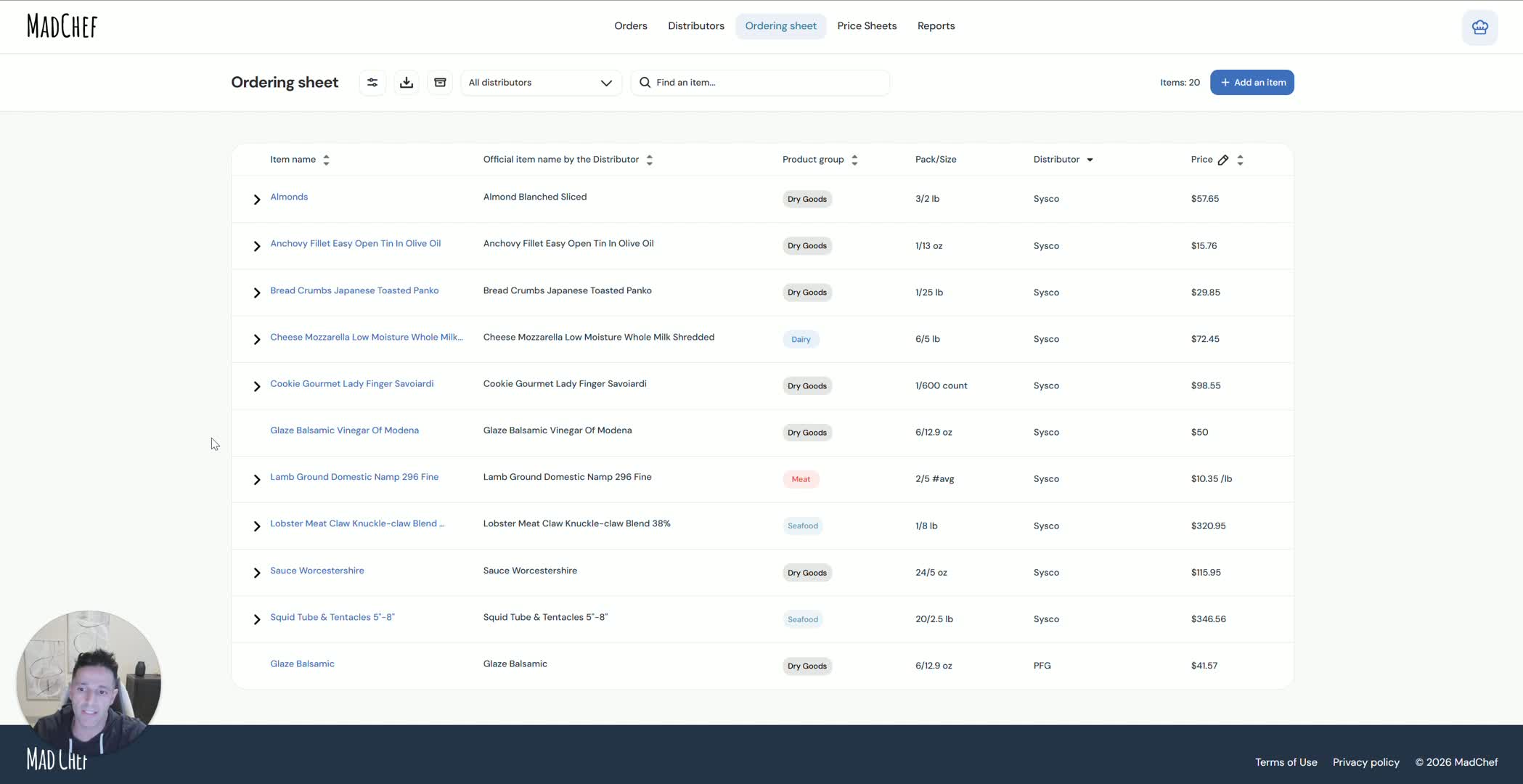
Compare items from the second distributor against the first distributor’s catalog.
Link identical or equivalent products together.
Leave items unlinked if you want to keep them with a preferred distributor for quality or brand reasons.
Repeat until the key items you want to compare are connected.
12. Run a test order to verify split purchasing 13:31
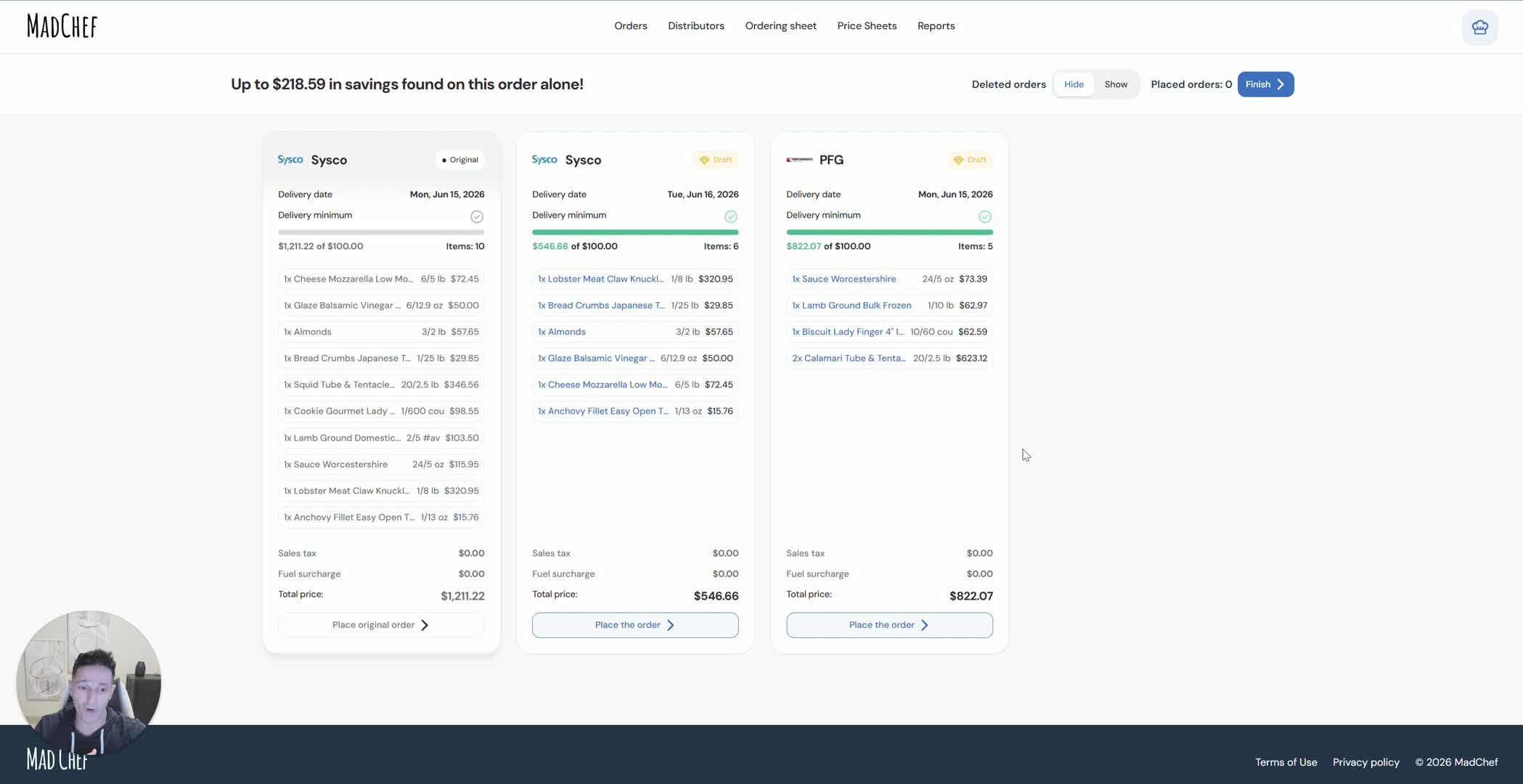
Start a dummy order using the anchor distributor.
Let MadChef calculate pricing, unit conversions, and the best distributor for each item.
Review the savings and confirm items are being split correctly.
Adjust quantities if needed to meet distributor minimums.
Keep preferred items with the original distributor when you do not want them moved.
13. Add a third distributor if needed 15:41
Invite another distributor, such as US Foods, if additional savings are possible.
Enter their account and contact details.
Decide whether you want to do the item mapping yourself or have the salesperson do it.
Ask the salesperson to provide equivalent items for the products you already buy.
14. Let the salesperson complete the equivalent-item mapping 17:23

Share the ordering guide with the salesperson.
Have the salesperson review your current items and upload their equivalent products.
Confirm that the salesperson can see items but not your pricing.
Allow them to link their catalog to your existing items and submit the completed mapping.
15. Review the salesperson-completed links 20:24
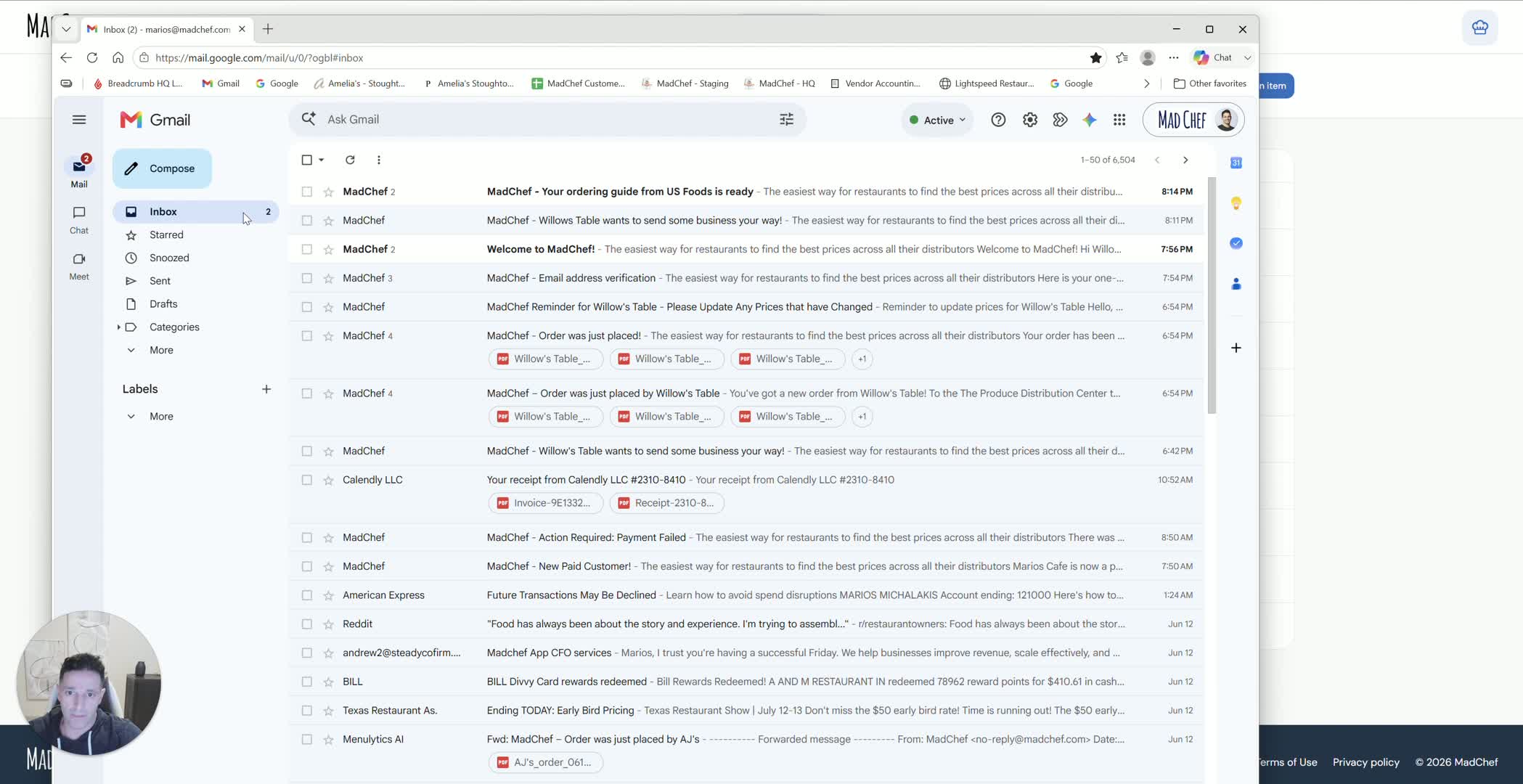
Open the notification that the new distributor’s ordering guide is ready.
Review the initial item list and the equivalent items suggested by the salesperson.
Confirm which items are now linked across distributors.
Use the updated ordering sheet to place future orders with multiple distributors.
16. Place an order and let MadChef split it automatically 21:13
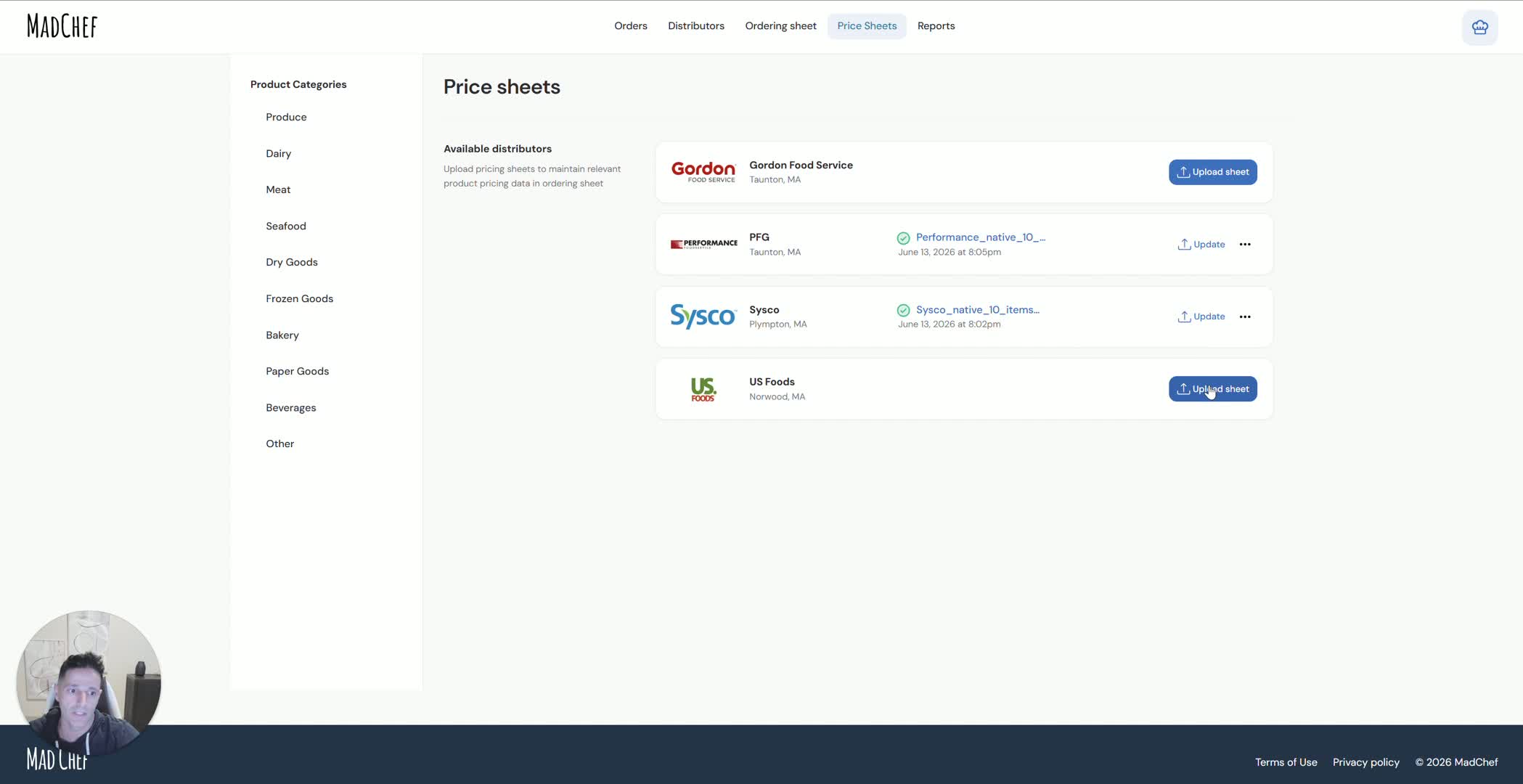
Start a new order from the ordering screen.
Enter the quantities you need.
Review how MadChef splits the order based on price and item links.
Adjust quantities if necessary to meet minimums or keep preferred items with a specific distributor.
Submit the order and verify that the correct distributor receives each item.
17. Use the same process for produce and smaller vendors 22:54
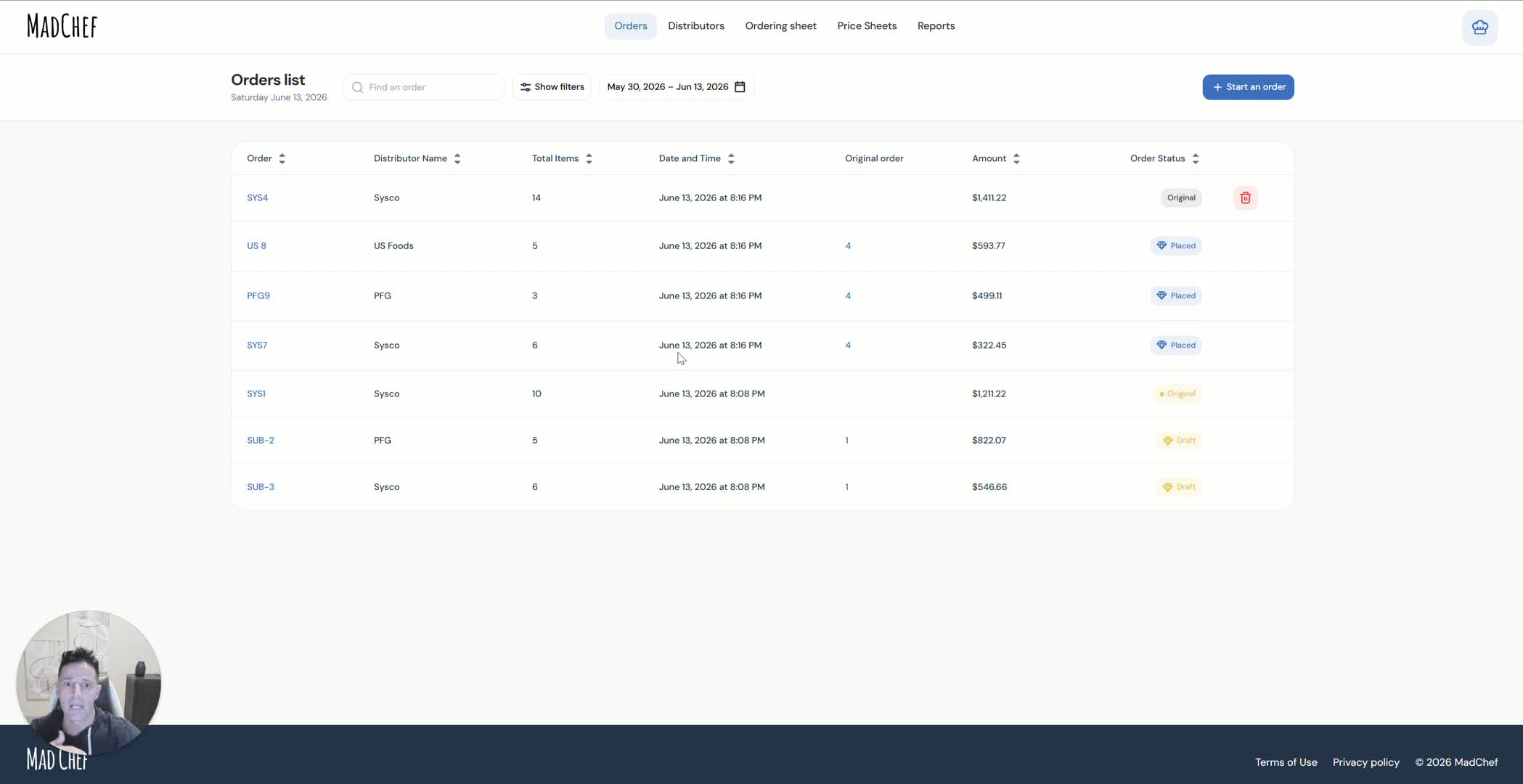
Add produce or other smaller distributors using the generic MadChef template.
Enter their contact and delivery details.
Import their ordering guide and map the columns as needed.
Add product images if helpful.
Confirm the items are imported correctly and ready for weekly updates.
18. Keep distributor pricing updated weekly 26:13
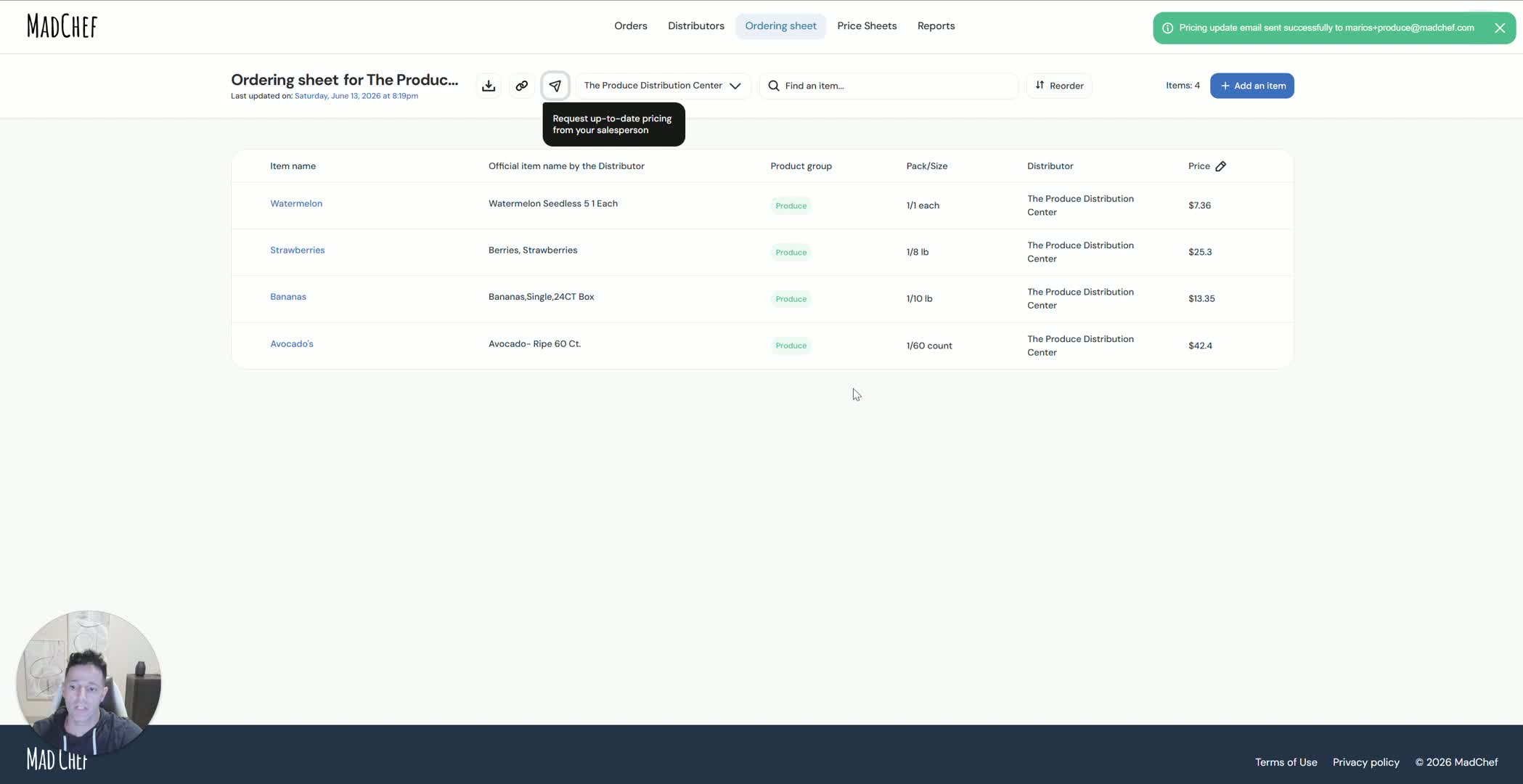
Remind distributors to update prices when changes occur.
Use the weekly reminder email sent by MadChef to prompt updates.
Allow distributors or sales reps to update their own price sheets.
Re-import or refresh the sheet each week so the latest pricing is used automatically.
19. Use the ordering sheet as the central control point 27:15

Treat the ordering sheet as the main workspace for all distributor comparisons.
Link identical items across distributors.
Use the algorithm to identify the best price and split orders.
Keep manual control over quality, yield, and preferred vendors.
Tips for Efficiency
Start with your highest-volume distributor first, then add secondary distributors one at a time.
Use the distributor’s own portal export whenever possible to reduce manual data entry.