Back to all
How to upload distributor prices into MadChef

Objective
This guide explains how to export price files from distributor portals or emails, map the correct columns in MadChef, and upload updated pricing. It ensures team members can quickly refresh prices and verify that the ordering guide reflects the latest data.
Key Steps
1. Open the distributor portal and export the price list 0:00
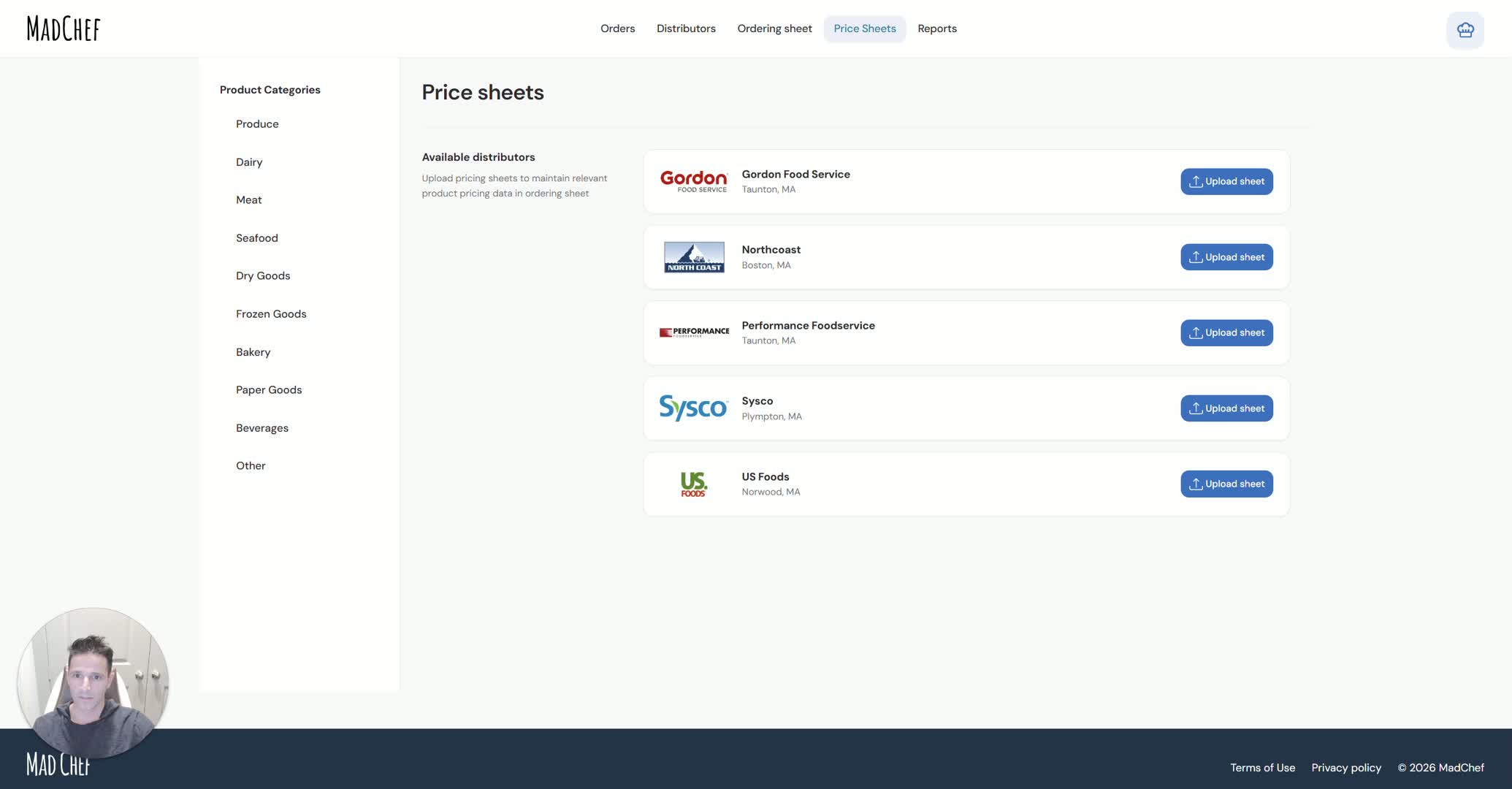
Log in to the distributor portal (for example, Performance, Sysco, or US Foods).
Navigate to Lists and locate the correct list for your account.
Use the three dots menu or download option to export the list.
Choose CSV whenever possible, since MadChef imports CSV files more easily.
Make sure the export includes price information.
2. Gather price files from all distributors 0:40
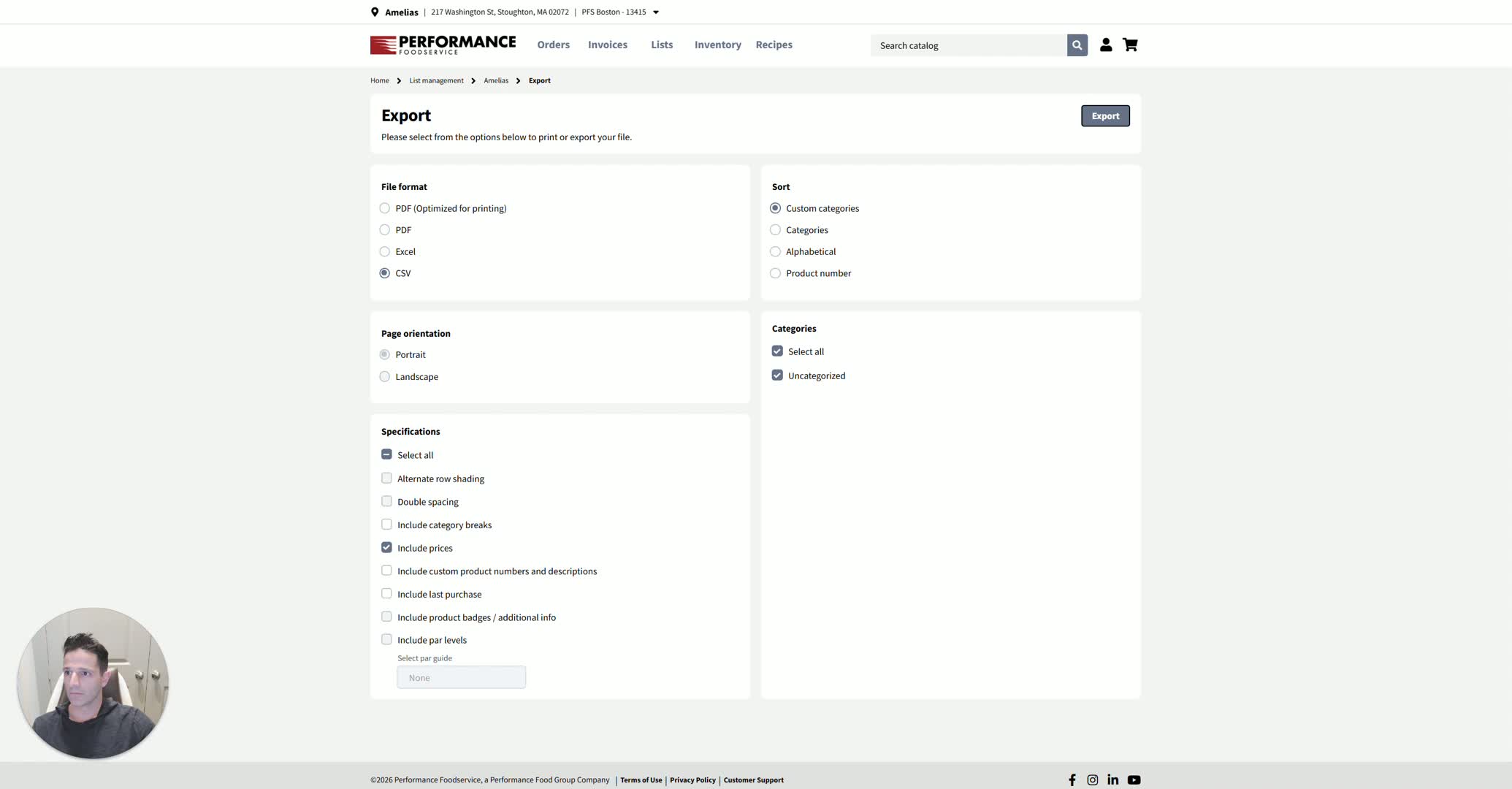
Repeat the export process for each distributor that has a portal.
If a distributor does not have a portal, collect the price file from an email attachment or Excel sheet.
Review the file structure before uploading.
Confirm that the file contains the needed columns for item name, price, and item key/identifier.
3. Start the upload process in MadChef 1:41
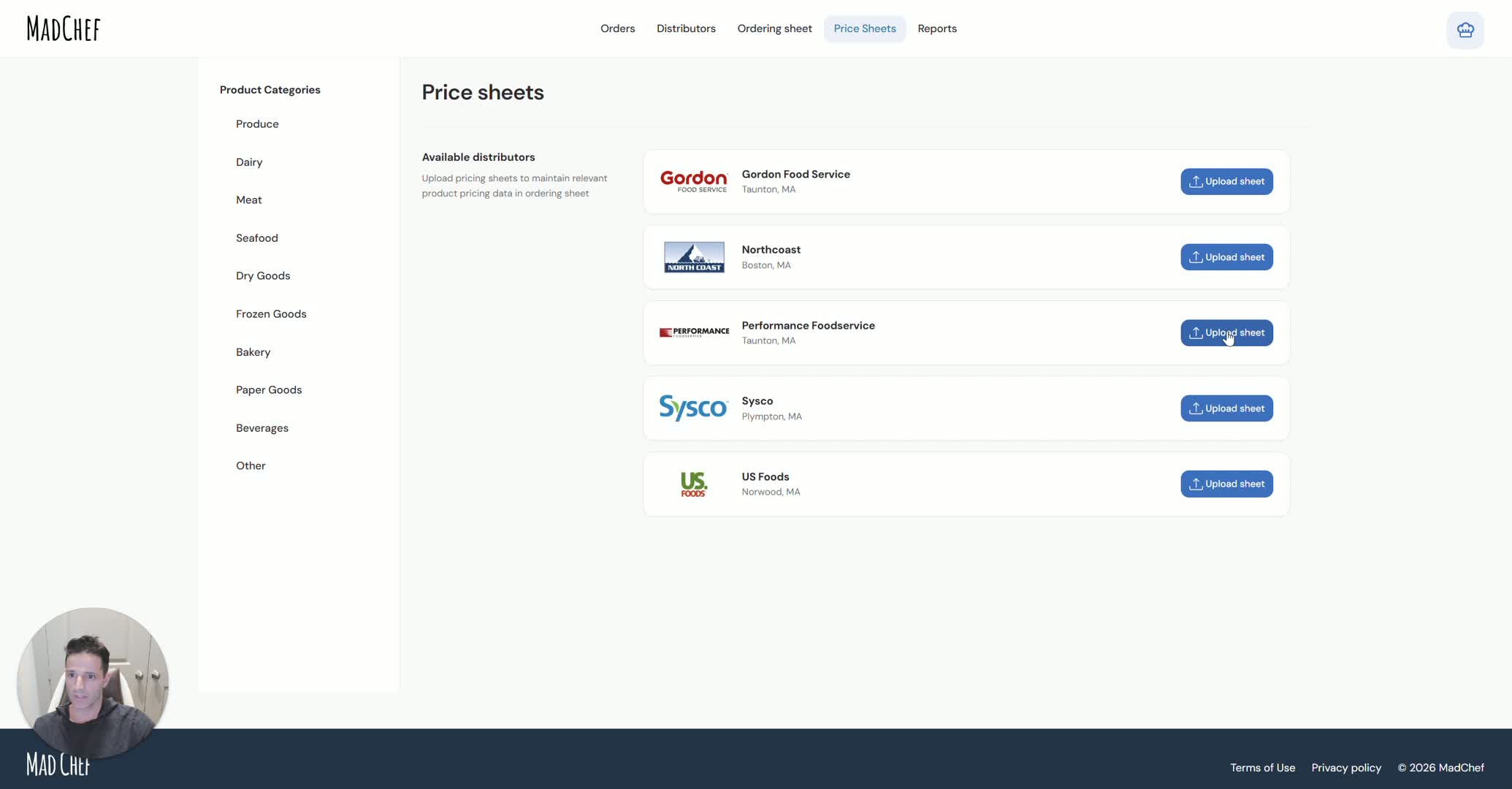
In MadChef, click the Upload button.
Select the price file you downloaded.
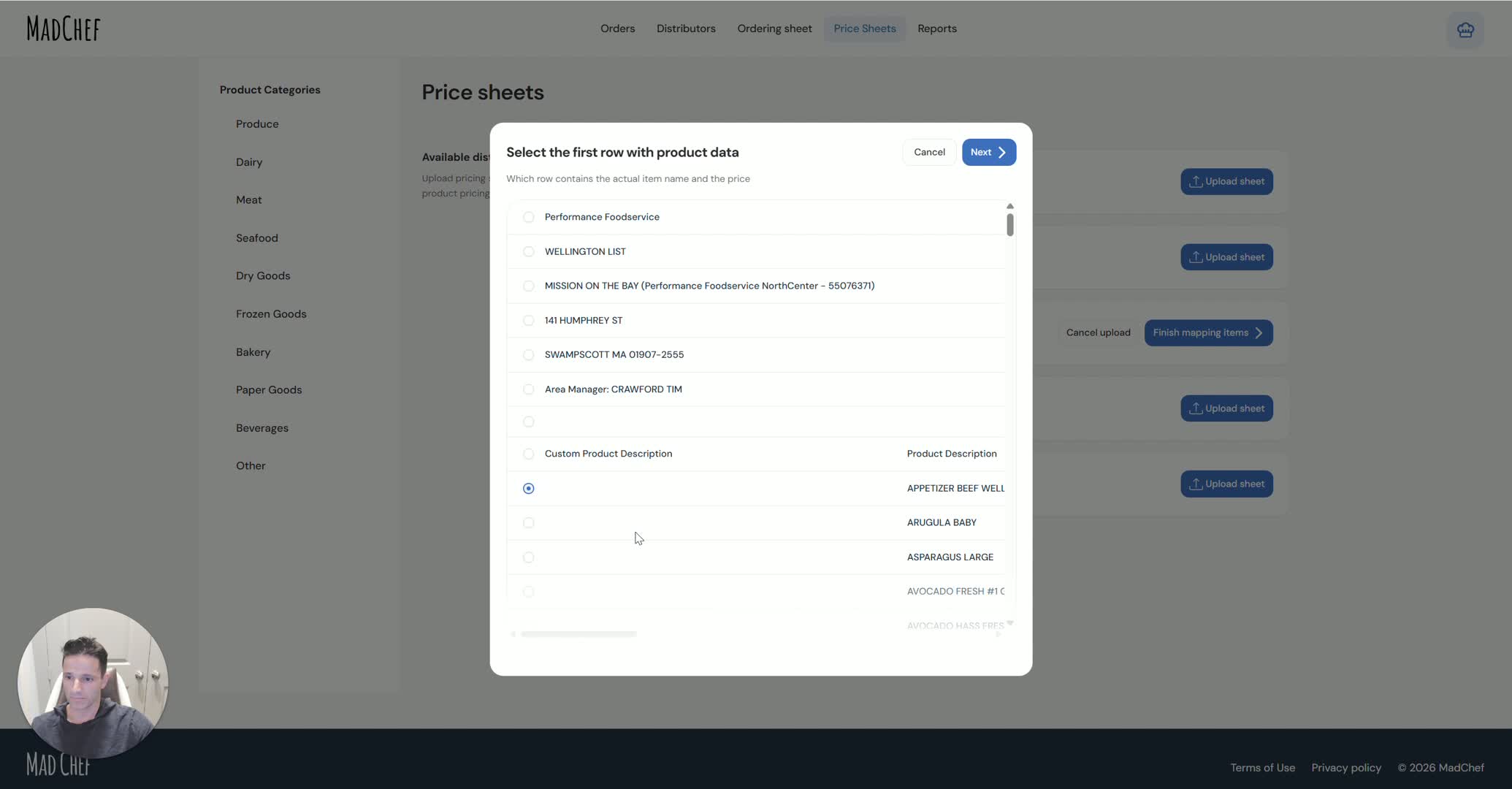
When prompted, identify the first row that contains actual product data.
Ignore title rows, blank rows, and other visual/header information above the data row.
4. Map the required columns in the file 2:12
Match the column for item name.
Match the column for pricing.
Match the column for the item key or unique identifier.
If you are unsure, open the original Excel/CSV file and verify the column headers.
Click Next after confirming the required mappings.
5. Review linked items and complete the first upload 2:54
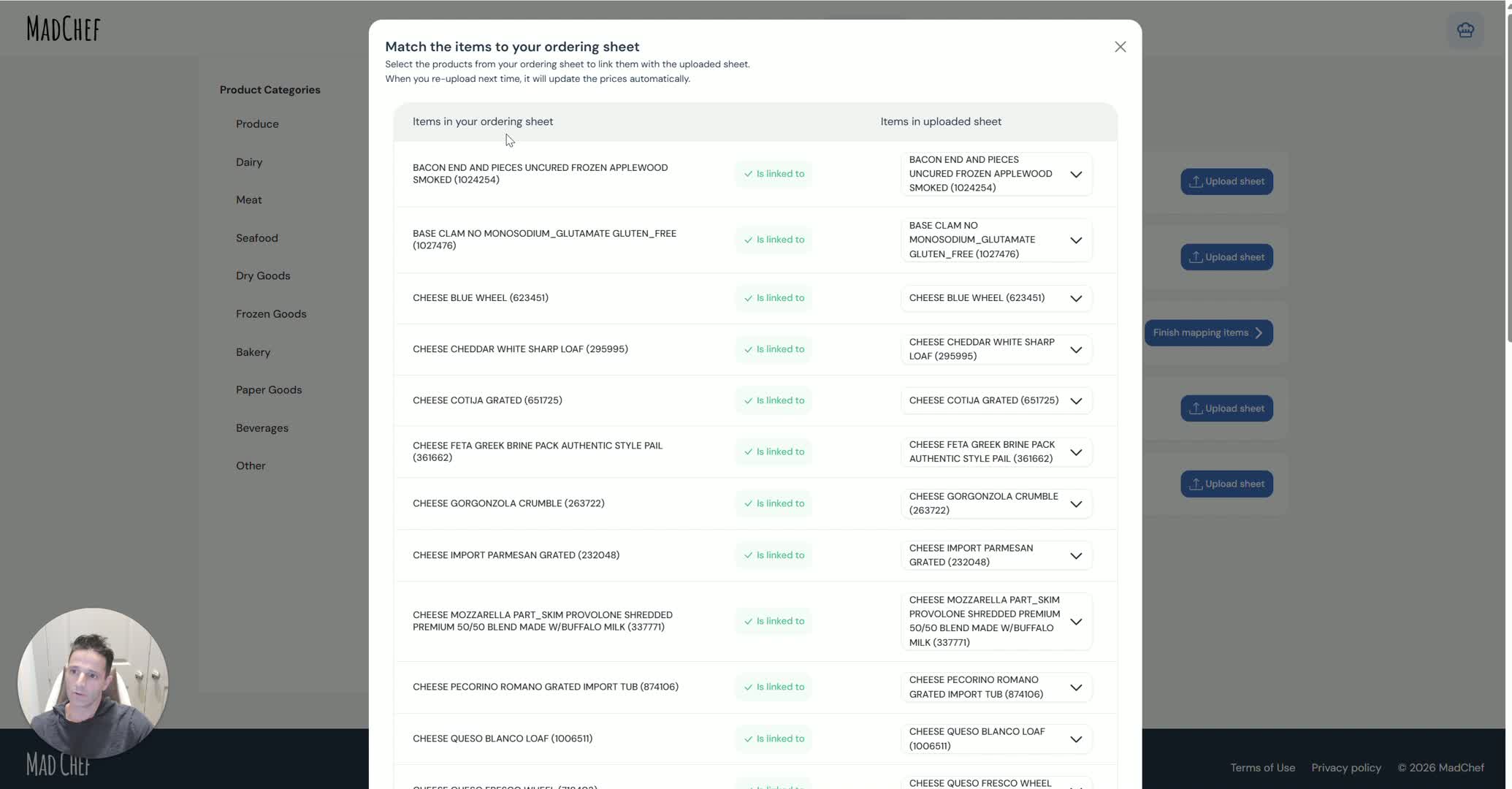
On the left, review the items already in the MadChef ordering guide.
On the right, review the items from the uploaded price sheet.
Confirm that items are linked correctly by matching the same item key.
Complete the upload to apply the pricing data.
6. Handle distributor files with different formats 3:11
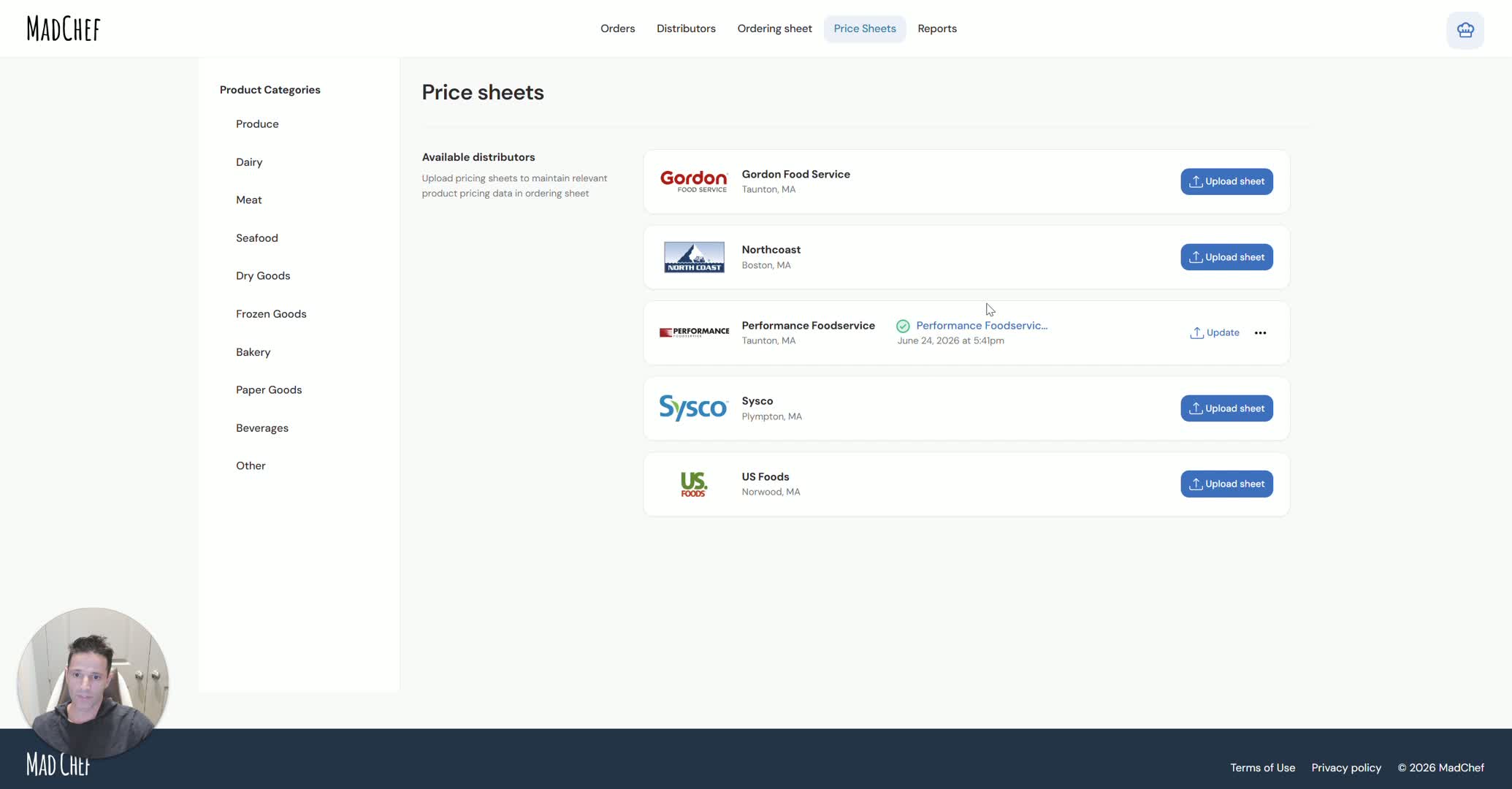
For each distributor, repeat the same process even if the file layout is different.
Identify the first row with actual product data.
Map the item name, price, and key columns based on the file structure.
If some items do not link automatically, manually verify the correct columns and adjust the mapping.
7. Map additional columns when needed 4:44

If the file contains more than one price or item column, select Yes when asked if there are more columns to map.
Map each additional item name and corresponding price column.
Continue until all relevant columns are linked.
Ignore extra distributor data that is not needed for MadChef.
8. Re-upload updated price files weekly 6:17
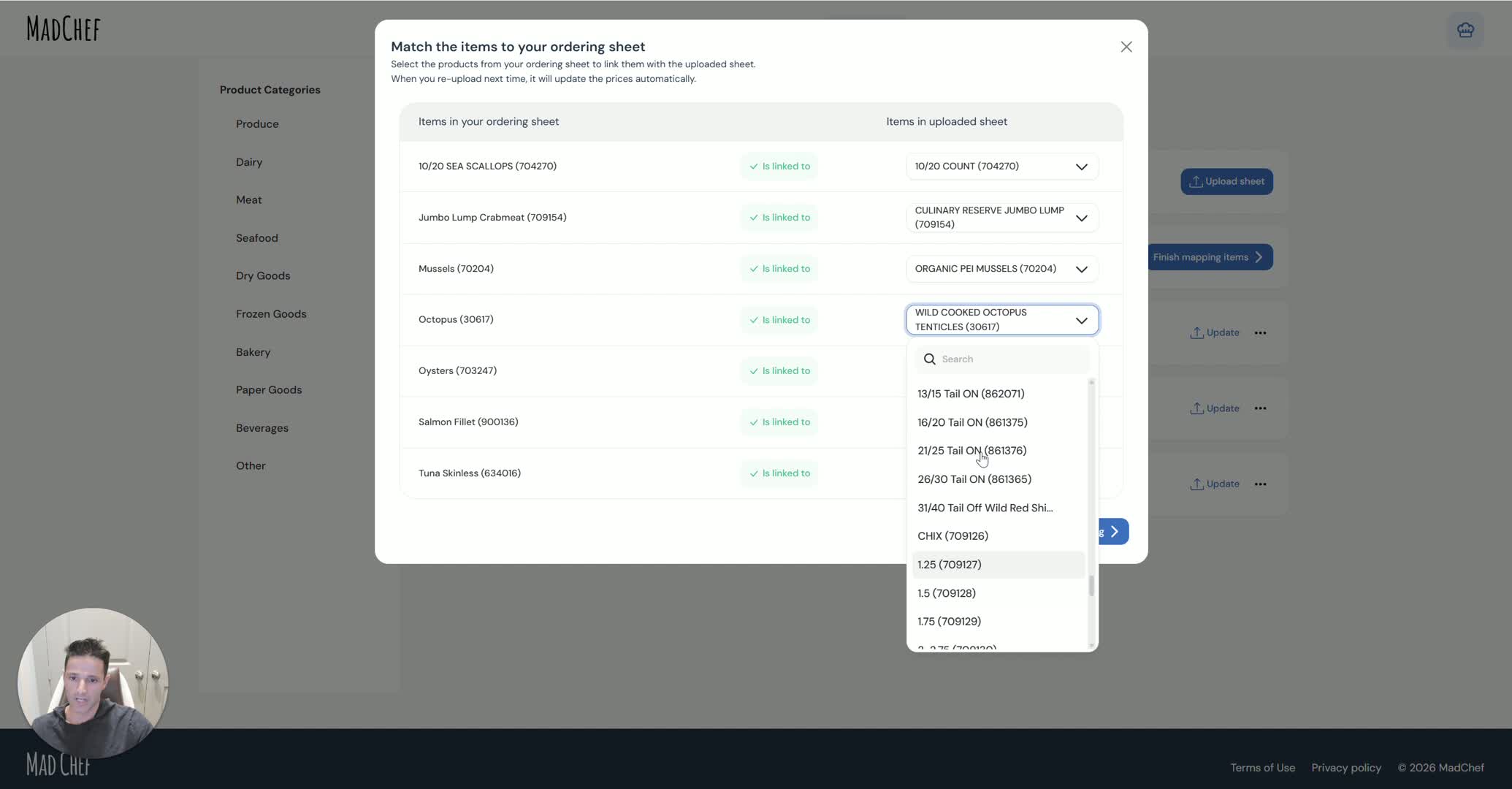
When prices change, export the latest file from the distributor again.
Return to MadChef and upload the new file using the same process.
The system should update prices within a few seconds.
Use this process regularly, since price updates are typically done weekly.
9. Verify the updated prices 7:07
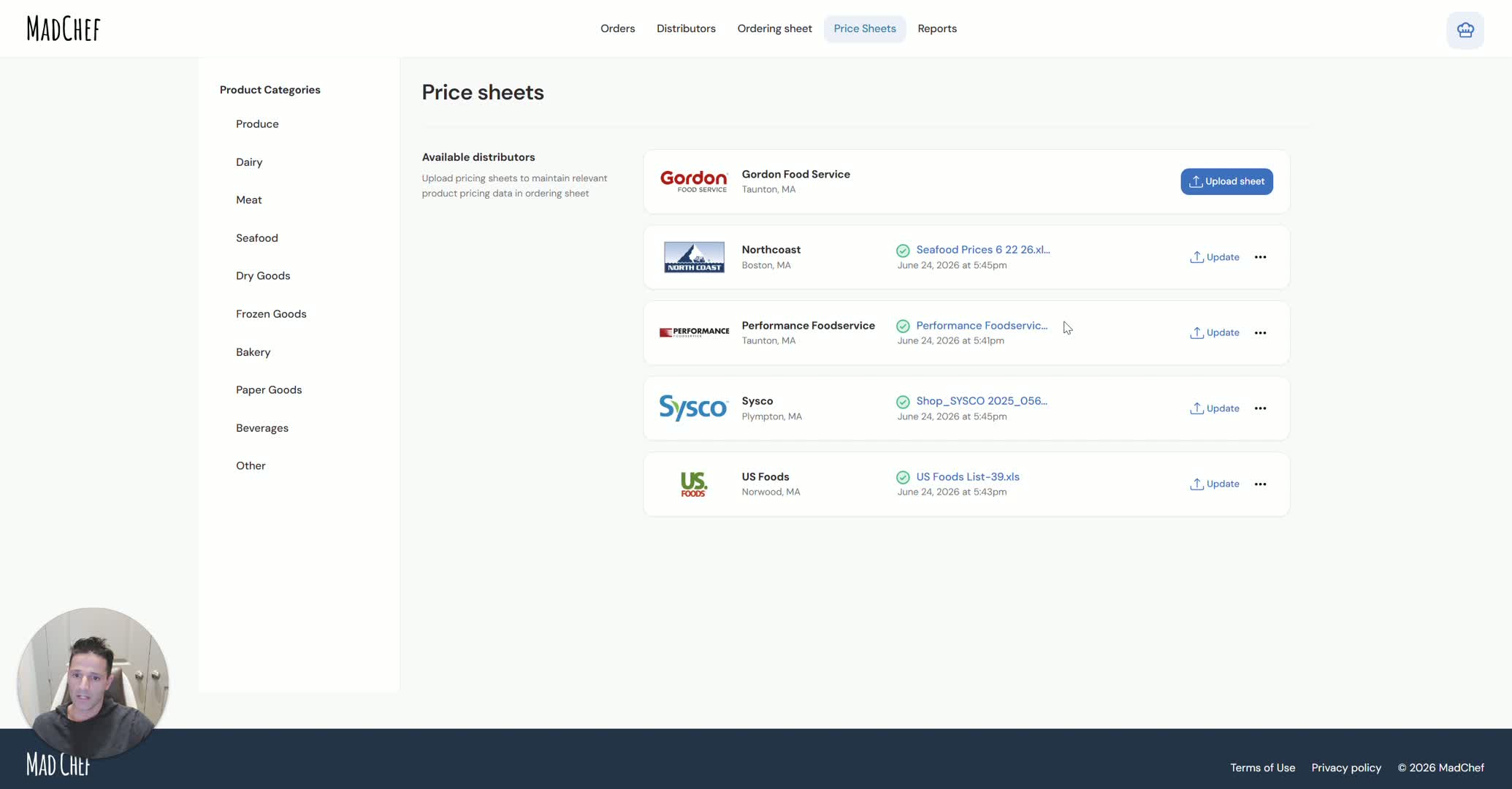
Check the ordering guide to confirm the prices were updated.
Review the form or pricing view in MadChef to verify the new values.
If needed, manually update prices directly in the system.
Contact support if anything looks incorrect or does not update as expected.
Cautionary Notes
Always include price information in the export; otherwise, the upload will not contain usable pricing.
Verify the first data row carefully so you do not map headers or blank rows as product data.
Double-check column mapping for item name, price, and item key before clicking Next.
Distributor files may have different formats, so do not assume the same column positions every time.
Only link the items you actually need in MadChef; extra distributor items can be ignored if they are not part of your ordering guide.
Tips for Efficiency
Export files as CSV whenever possible for easier importing.
Keep a quick reference of each distributor’s typical file layout to speed up mapping.
Use the same upload workflow each week to reduce errors and save time.
After uploading, verify prices in both the ordering guide and the form view to catch issues early.
If a file is confusing, open the original Excel sheet and identify the correct columns before uploading.