Back to all
Share your ordering guide with another distributor

Objective
This guide explains how a chef can share an existing ordering guide with a new distributor, allow that distributor to import their equivalent items, and link the matching onesback to the original guide. The goal is to make it 1) easier for a distributor salesperson to compete for a new account while 2) saving the chef time by avoiding manual data entry.
Key Steps
1. Share the existing ordering guide with a new distributor 0:00
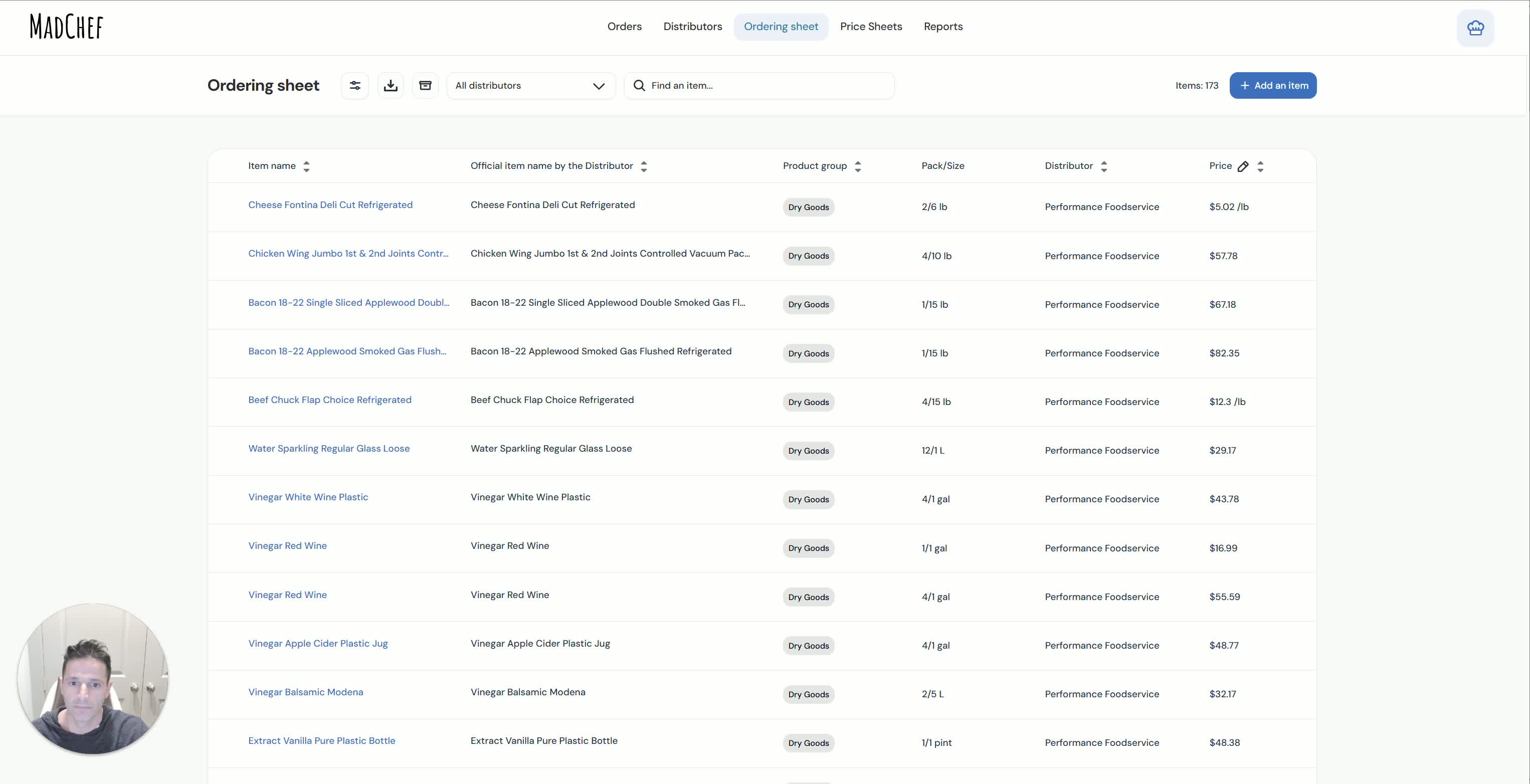
Open the ordering guide for the distributor you already work with.
Use the share feature to send that guide to a new distributor you want to source from.
Share the guide without exposing prices unless your business specifically wants to include them.
Confirm the new distributor receives the email invitation to review the guide.
2. Distributor receives the shared guide and reviews the request 0:35
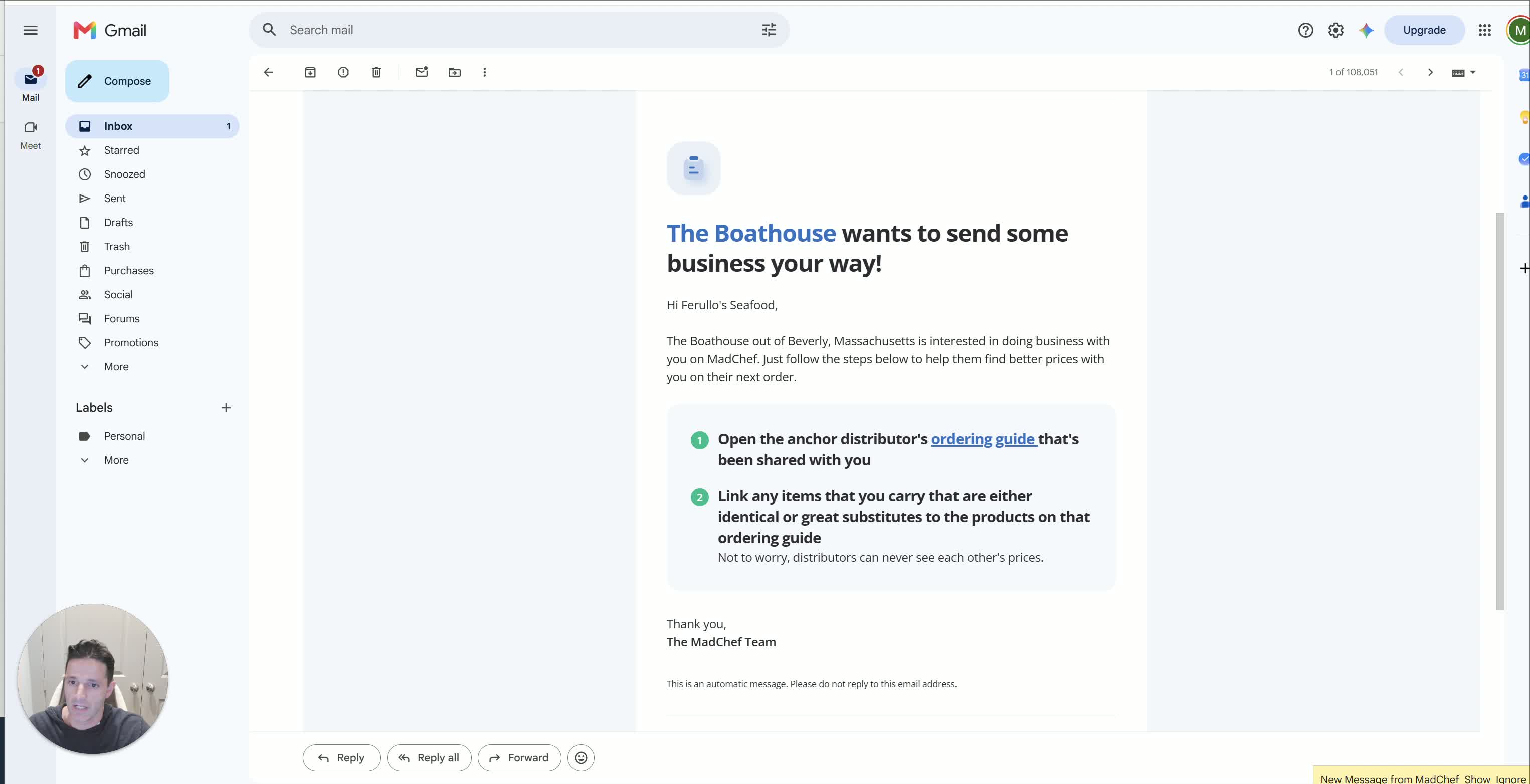
The distributor salesperson receives an email with a link to the shared ordering guide.
The email explains that your business wants to send them business and asks them to open the shared guide.
The salesperson can see which items you currently buy, but not the other distributor’s pricing.
They can decide whether they carry identical items or need to create substitutes.
3. Distributor imports their item catalog into MadChef 1:23
The distributor salesperson goes to Manage Items in MadChef.
They upload their item list or ordering guide file.
They must follow the required template format for the import to work correctly.
Once uploaded, their items are added to the MadChef portal.
4. Verify that the distributor’s items were imported successfully 1:59
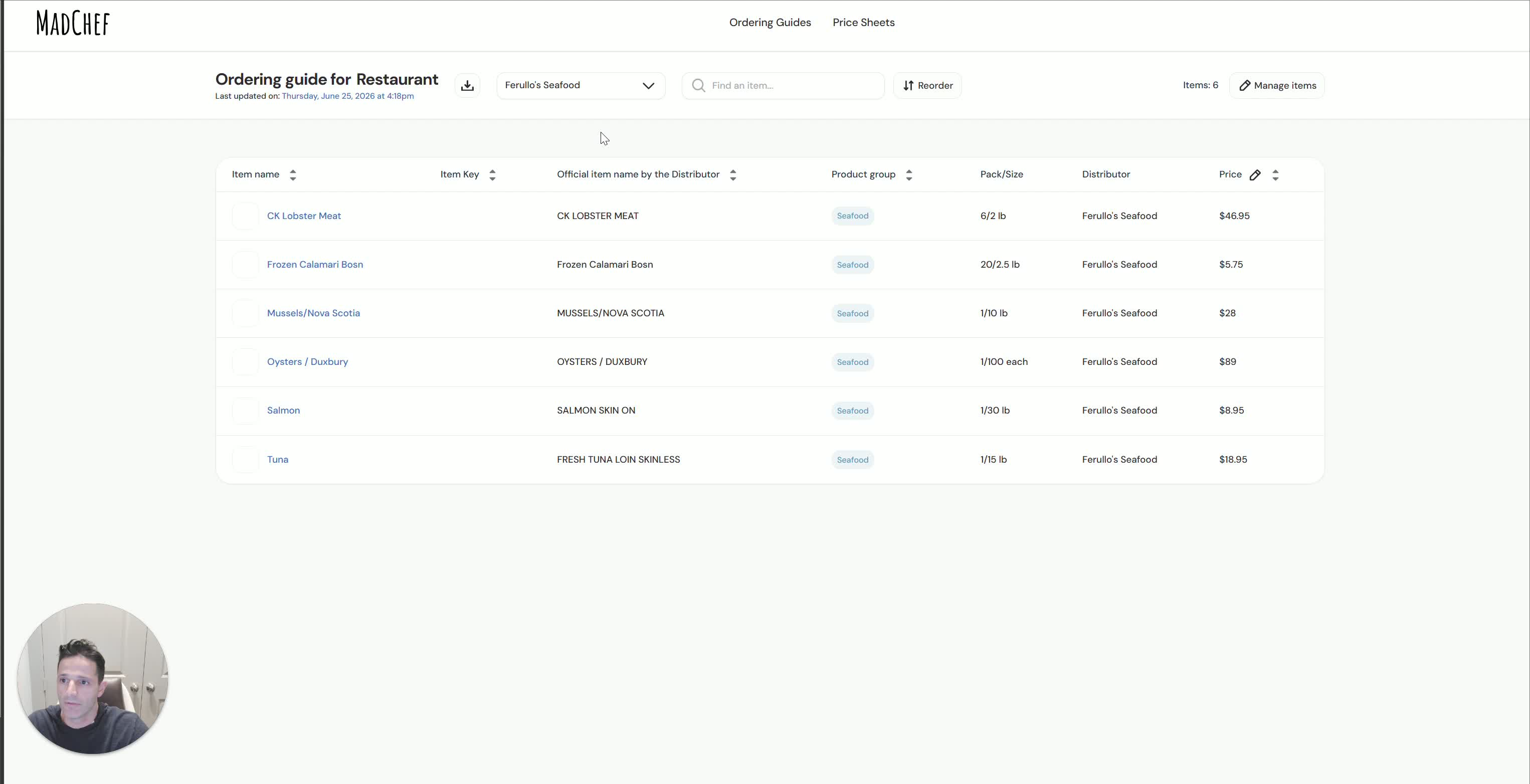
Refresh the item list to confirm the new distributor’s products appear in the portal.
Check that the imported items match what the distributor carries.
If items are missing, the distributor should correct the file and re-upload it.
At this point, the restaurant team does not need to do any manual importing.
5. Link matching items between distributors 2:19
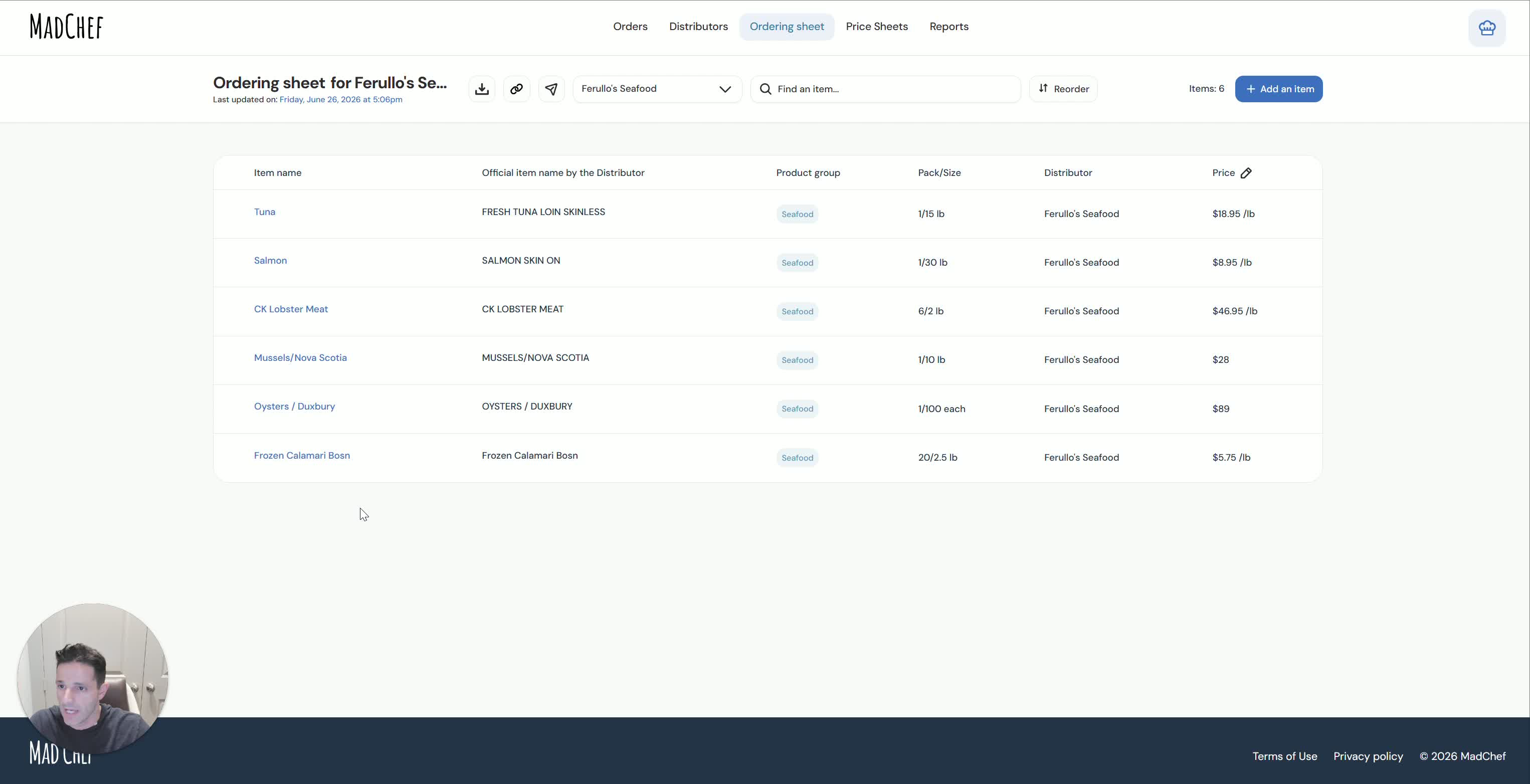
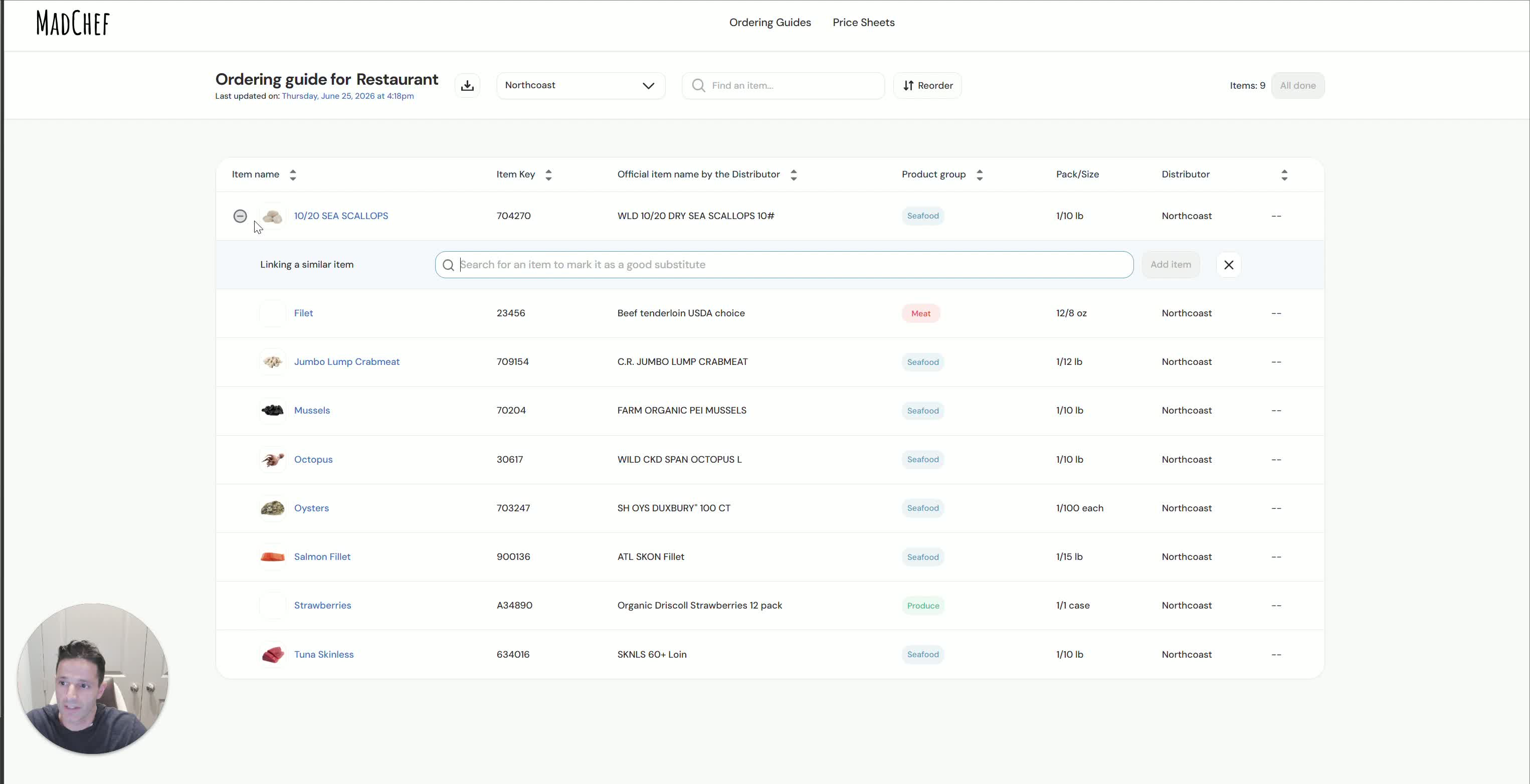
Review the original ordering guide and the newly imported distributor items side by side.
Identify products that are the same or close substitutes.
Link matching items one by one, such as mussels, oysters, salmon, or tuna when available.
If an item is not available, skip it and continue with the rest of the catalog.
6. Complete the linking process and notify the restaurant team 3:34

After linking all possible items, click All Done.
MadChef sends an email notification that new items have been added to the ordering guide.
Refresh the ordering guide to confirm the linked items now appear under the original distributor view.
Verify that the linked products are visible without any action required from the chef or owner.
7. Use the completed guide for follow-up sales discussions 4:09
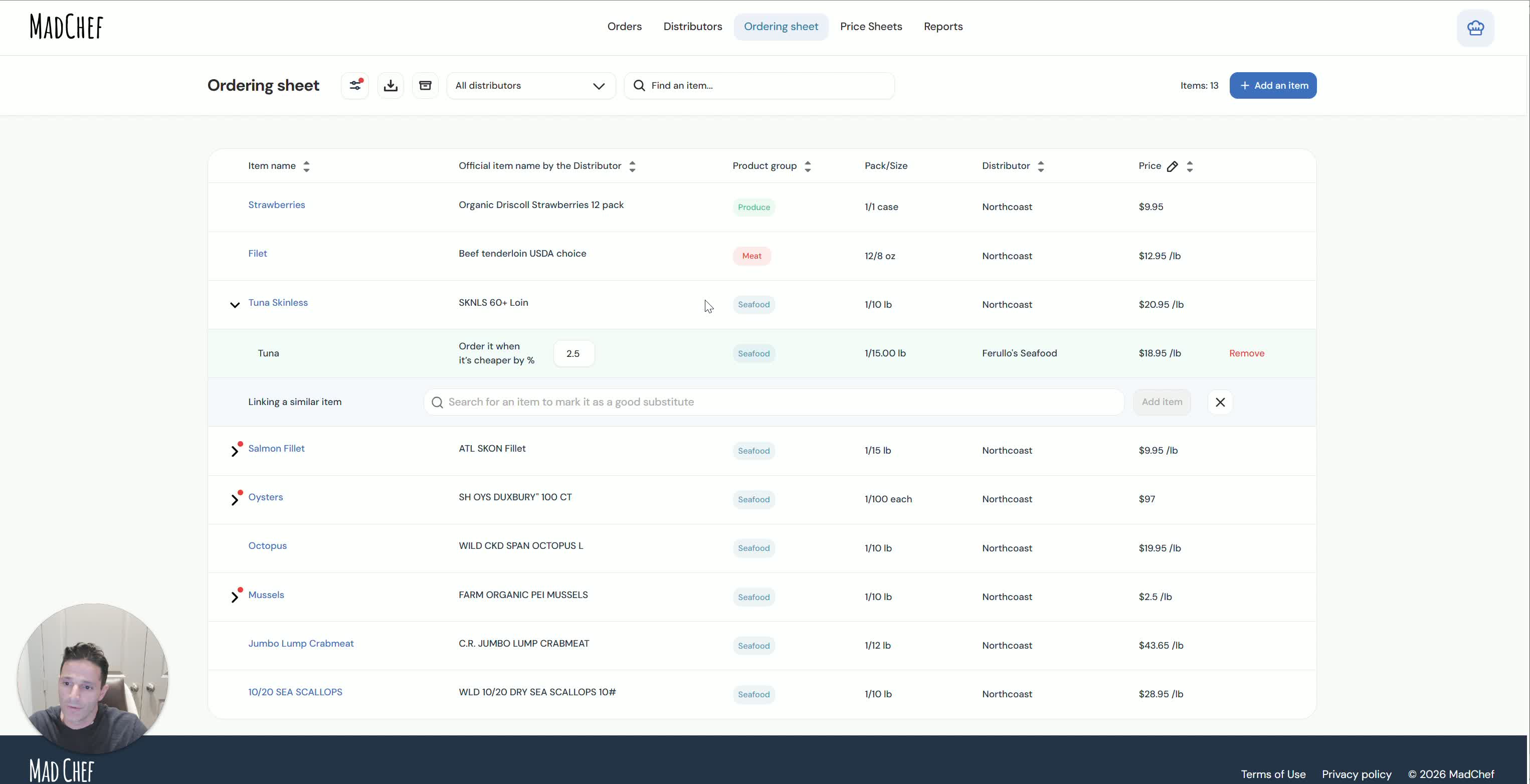
Once the items are linked, the distributor can meet with the restaurant to discuss product quality.
Use the completed guide to negotiate pricing, delivery days, and sales terms.
Keep the process focused on logistics and product fit rather than manual paperwork.
The restaurant team should not need to create printed lists or manually compare catalogs.
Cautionary Notes
Confirm imported items and links carefully to avoid incorrect product matches.